Safety

Safety records are created to document safety issues or violations observed at a site related to a milestone.

  • Safety records can be created using both the web application and the mobile application.
  • Once a safety record is created, it is documented, and necessary safety actions can be taken.

Safety Creation in the Web Application

Steps to Create a Safety Record:

1. Log in to the Web Application

  • Use your credentials (email and password).

2. Navigate to the Safety Section

  • Select a Project.
  • Go to the Left Menu and click on Safety.
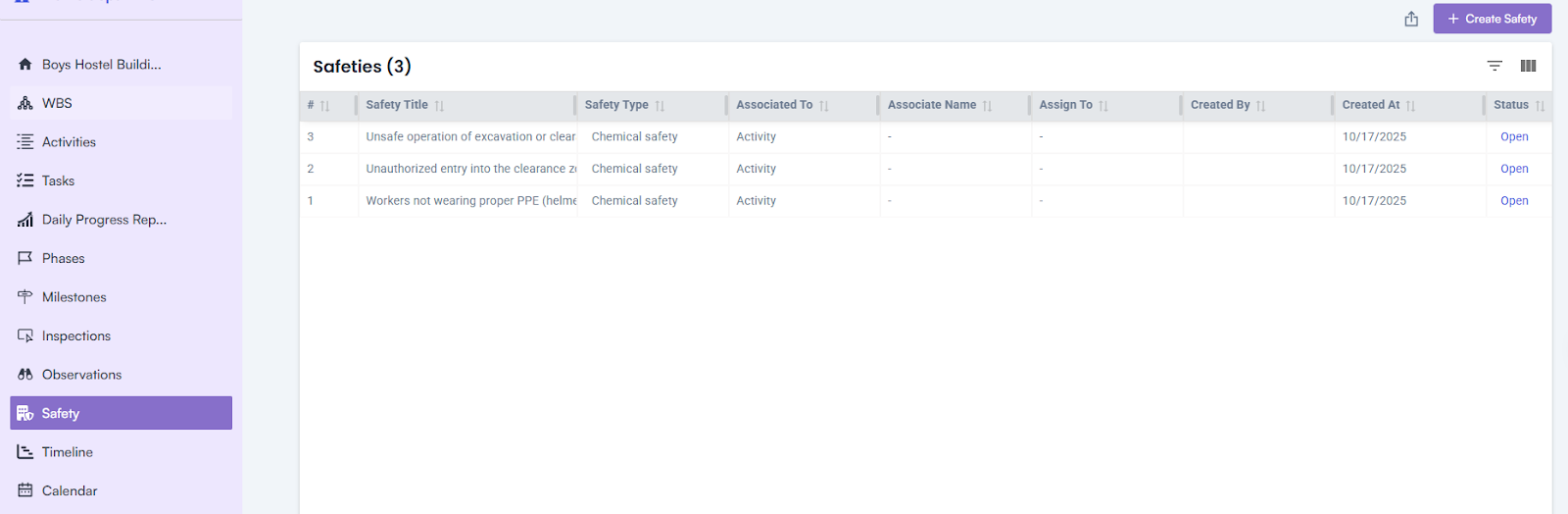
3. Create a New Safety Record

  • Click on the Create Safety button.
  • Fill in the following details:
    • Enter Safety Name*
    • Enter Milestone Name*
    • Select Start Date
    • Select End Date
    • Enter a Description
  • Click on the Save button to create the safety record.
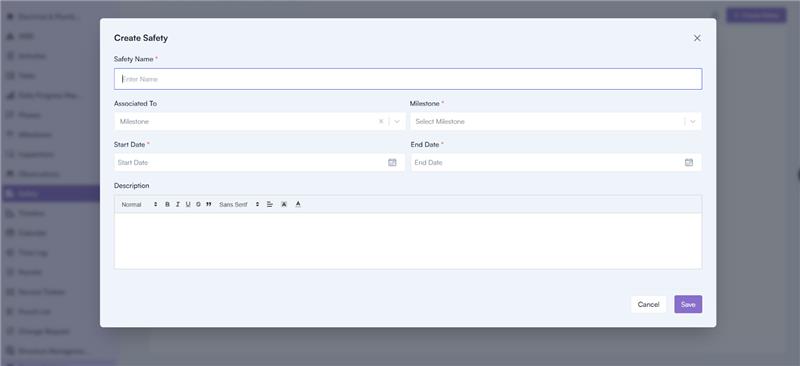
Safety Details Page

The Safety Details Page displays all the information related to the safety record and includes the following features:

1. Attachments

  • Displays all attachments added during safety creation and safety actions.

2. Activities

  • Shows all activities related to the safety record.

3. Safety Actions

  • Displays all safety actions added from the mobile application.

Safety Creation in the Mobile Application

Steps to Create a Safety Record:

1. Log in to the Mobile Application

  • Use your email and password to log in.

2. Navigate to Safety Creation

  • Go to the Footer Section.
  • Click on the New Actions icon and select Log Safety.

3. Fill in Safety Details:

  • Safety Name
  • Safety Type
  • Select Project
  • Select Milestone
  • Select Priority
  • Assign To
  • Start Date
  • Due Date
  • Enter Recommended Action
  • Enter Comments

4. Add Attachments:

  • Attach files such as images or videos.

5. Save the Safety Record:

  • Click on the Save button to submit the safety record.

Adding Safety Actions

Once a safety record is created, safety actions can be added to address the issue.

Steps to Add Safety Actions (Mobile Application):

1. Log in to the Mobile Application

  • Use your email and password.

2. Access the Safety Section:

  • Go to the Footer Section and click on the More Menu icon.
  • Click on Safety.
  • Select a safety record from the list.

3. Add a Safety Action:

  • In the Safety Details Page, go to the Header Section.
  • Click on the Safety Actions tab.
  • Enter a Comment.
  • Attach any relevant files (e.g., images or documents).
  • Click on the Send icon to submit the safety action.
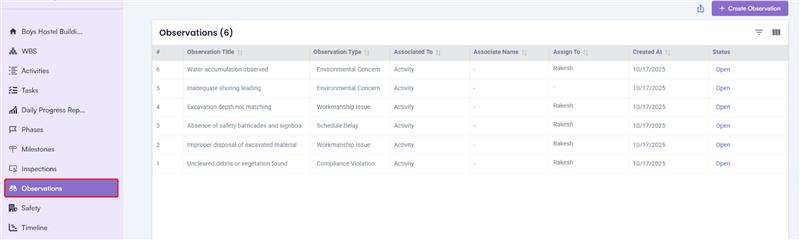
Observations

Observers play a crucial role in ensuring the quality of work by making random site visits and creating observations related to the work completed on milestones.

  • Observations can be created using both the web application and the mobile application.

Observation Creation in the Web Application

Steps to Create an Observation:

1. Login to the Web Application:

  • Use your credentials (email and password) to log in.

2. Navigate to the Observation Section:

  • Select a Project.
  • Go to the Left Menu and click on Observation.

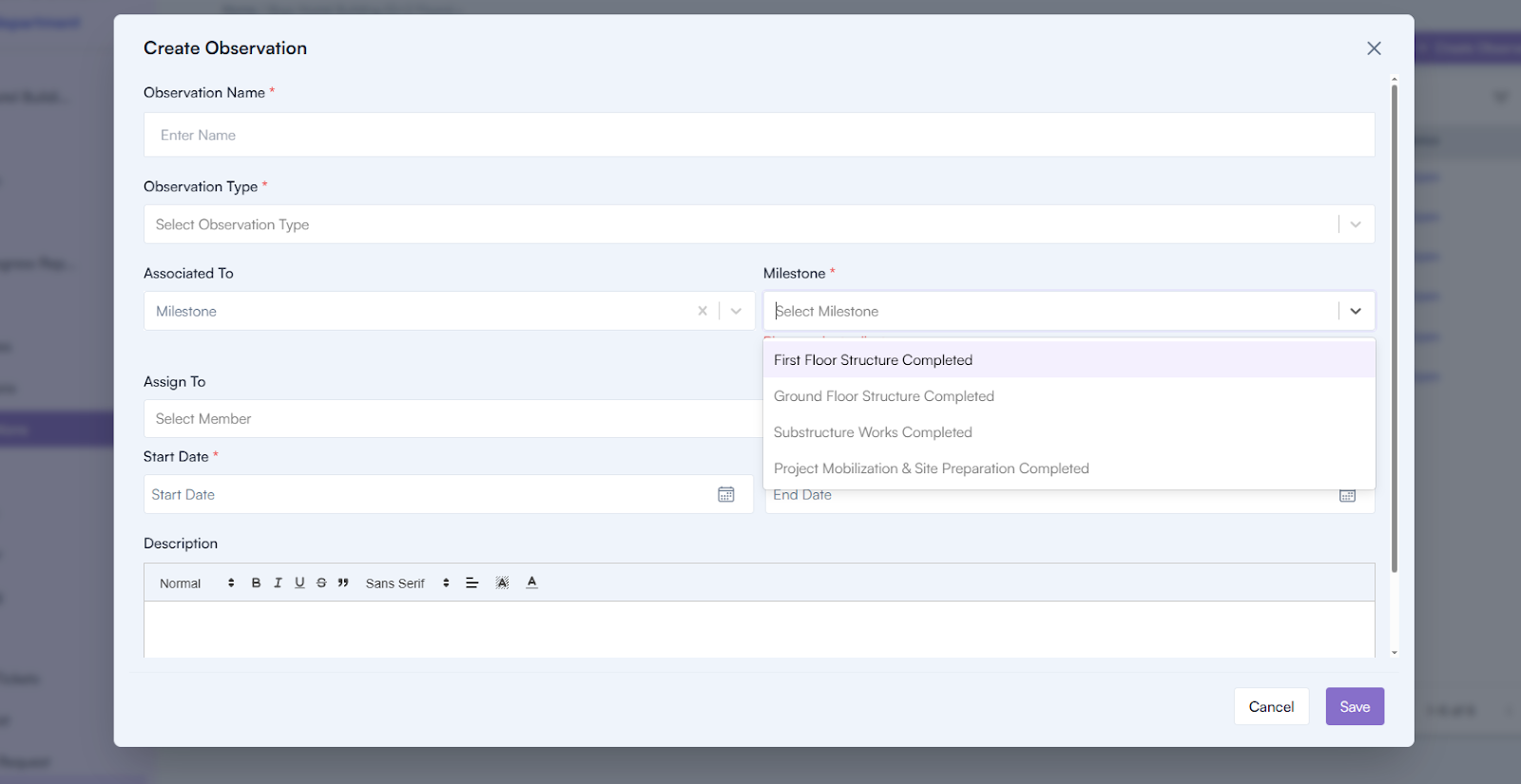
3. Create a New Observation:

  • Click on the Create Observation button.
  • Fill in the following details:
    • Observation Name*
    • Observation Type*
    • Add Milestone*
    • Assign To
    • Start Date
    • End Date
    • Description
  • Click on the Save button to create the observation.

Observation Details Page

The Observation Details Page displays all the observation information and includes the following features:

1. Attachments:

  • Displays all attachments added during observation creation and while adding resolutions.

2. Activities:

  • Displays all activities related to the observation.

3. Resolution:

  • Displays resolutions added to the observation through the mobile application.

Observation Creation in the Mobile Application

Steps to Create an Observation:

1. Log in to the Mobile Application:

  • Use your email and password to log in.

2. Navigate to Observation Creation:

  • Go to the footer section.
  • Click on the New Actions icon and select Log Observation.

3. Fill in Observation Details:

  • Observation Name
  • Observation Type
  • Select a Project
  • Select Milestone
  • Select Priority
  • Assign To
  • Start Date
  • Due Date
  • Comments

3. Add Attachments:

  • Attach files such as images or videos.

4. Save the Observation:

  • Click on the Create button to save the observation.

Adding Resolution Comments

Once an observation is created, the milestone owner is notified via a push notification.

Steps to Add a Resolution Comment (Mobile Application):

1. Log in to the Mobile Application:

  • Use your email and password.

2. Access the Observation Section:

  • Go to the footer section and click on the Observations menu icon.
  • Select the created observation by clicking on its name.

3. Add a Resolution Comment:

  • In the Observation Details page, click on the Resolution Comments tab.
  • Enter your comment.
  • Attach any relevant files (e.g., images or documents).
  • Click on the Send button to submit the resolution.

Milestone Inspection

Milestone inspections are crucial for completing milestones and are categorized into three stages:

  • Pre-Inspection
  • During-Inspection
  • Post-Inspection

Ways to Create Inspections:

  • From the Milestone Details Page.
  • Through the mobile application

Creating an Inspection (From the Milestone Details Page)

1. Click on the project name in the left menu to display project-related information.
2. Locate and click on the milestone name to navigate to the Milestone Details page.
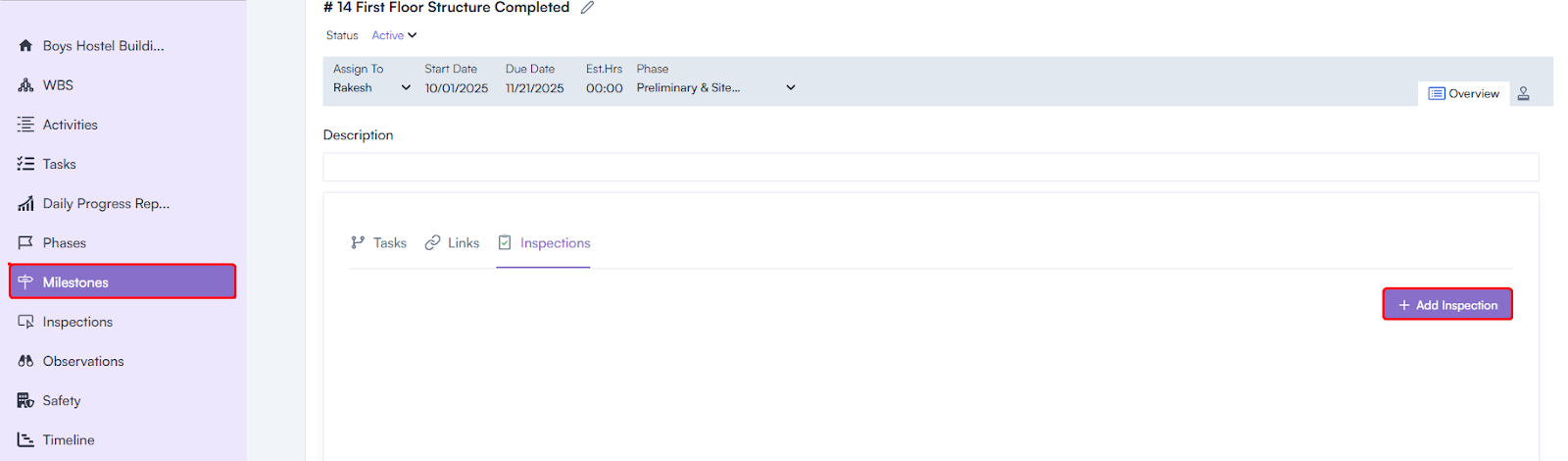
3. On the Milestone Details page, select the Inspection tab.


4. Click on the Create Inspection button.
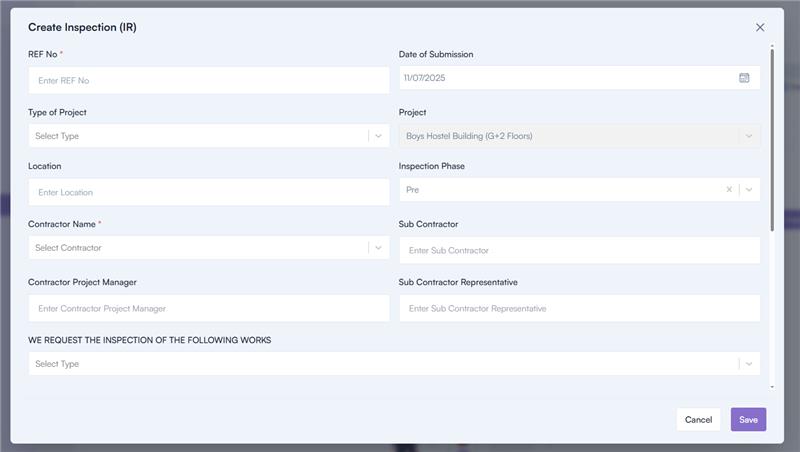
5. Fill in the required details in the Create Inspection pop-up:

  • Inspection Title*
  • Program (auto-selected)
  • Project (auto-selected)
  • Phase (auto-selected)
  • Milestone (auto-selected)
  • Inspection Phase (select from the dropdown: Pre, During, Post)
  • Type
  • User Group
  • Assign To
  • Start Date
  • End Date

6. Save the inspection by clicking the Save button.

Checklist Association for Inspections

  • After creating an inspection, the milestone owner must associate a checklist for each inspection stage.

Creating a Checklist

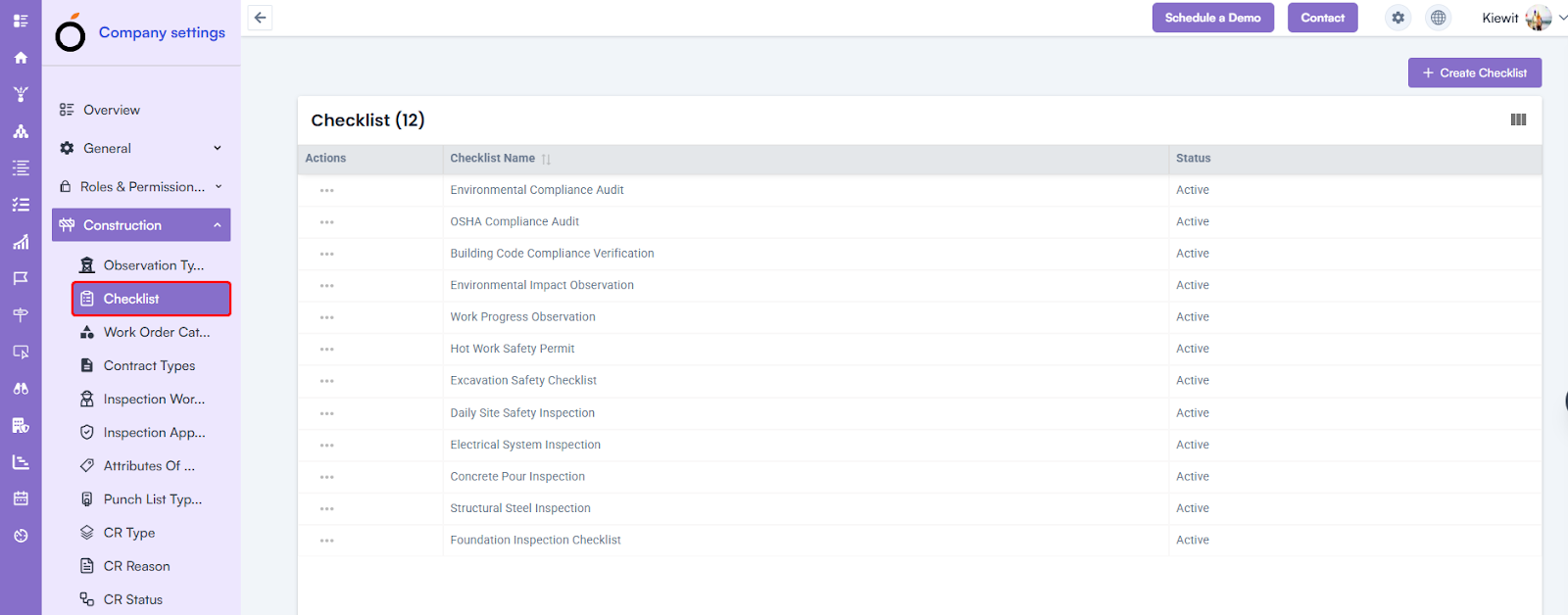
1. Log in and Navigate to Company Settings:

  • Log in to the application.
  • Go to the header and click on the Settings icon.
  • Select Company Settings.
  • In the left menu, go to Construction > Checklist.

2. Create Checklist:

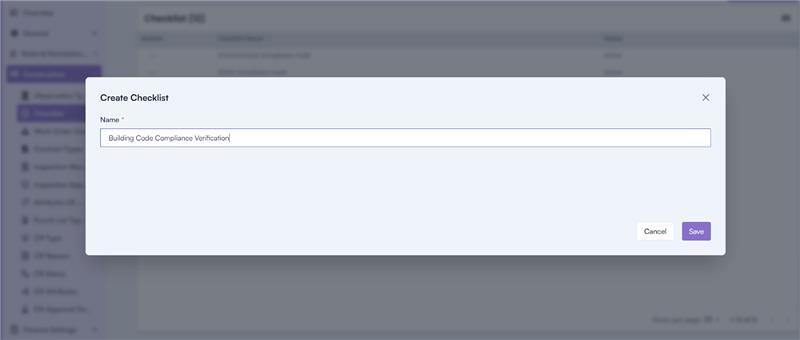
  • Click on the Create Checklist button.
  • Enter the checklist name.
  • Save the checklist by clicking the Save button.

Creating Checklist Line Items

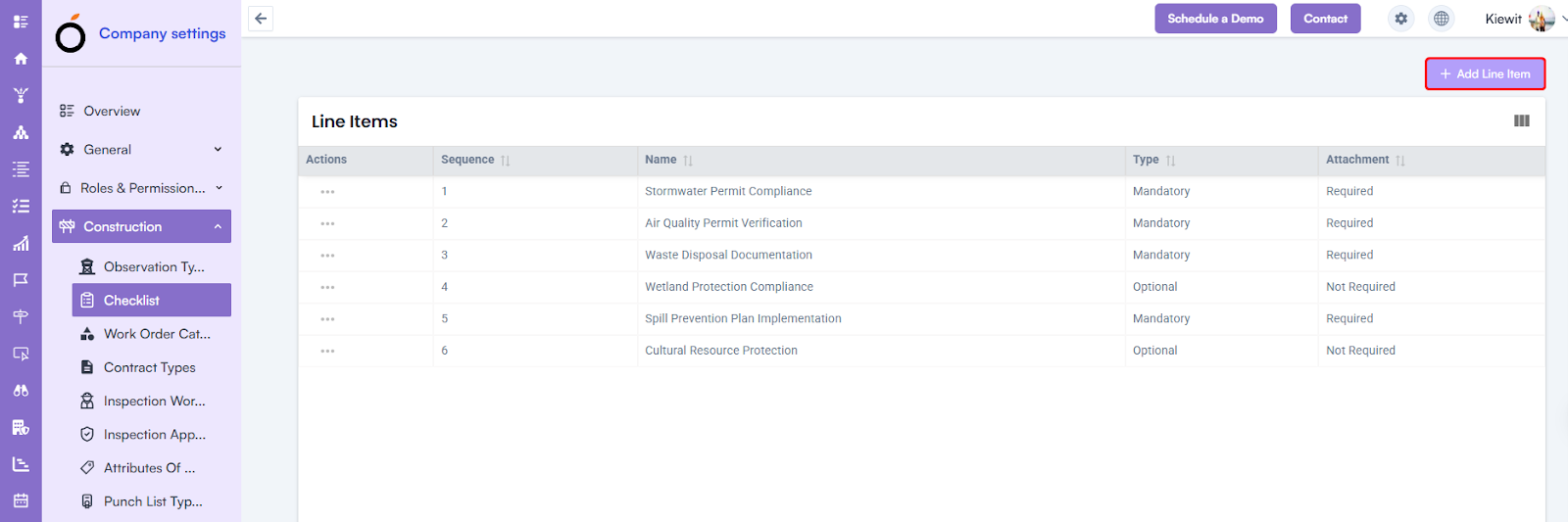
1. After creating a checklist, you need to add line items.
2. Navigate to the Checklist Section:

  • Log in and go to Settings > Company Settings.
  • In the left menu, navigate to Construction > Checklist.
  • Click on a checklist name.

3. Add Line Items:

  • In the top-right section, click on the Add Line Item button.
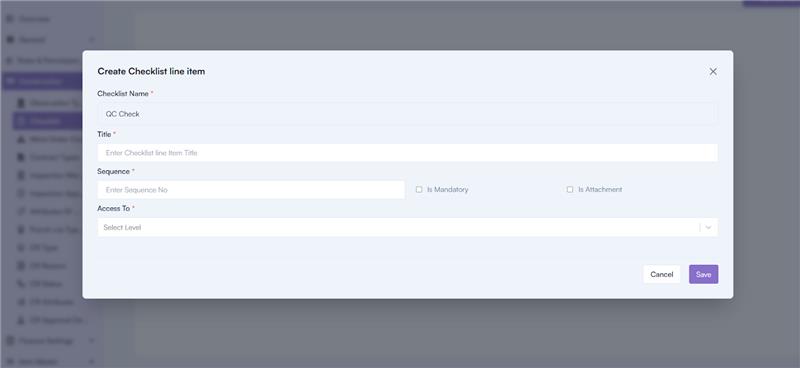
  • Fill in the required details:
    • Checklist Name*
    • Checklist Line Item*
    • Sequence*
    • Is Mandatory
    • Is Attachment

4. Save the line item by clicking the Save button.

Associating a Checklist with an Inspection

1. Navigate to the Inspection Details Page by clicking on the inspection name.

2. On the Inspection Details Page, you’ll find three tabs:

    • Checklist
    • Activity
    • Answers

3. Go to the Checklist tab.

4. Click on the Add Checklist button.

5. In the Select Checklist pop-up:

  • Select a checklist from the dropdown.
  • Save by clicking the Save button.

Answers Submission

Once the inspection process is completed, the submitted answers will appear in the Answers tab in PDF format.

Steps to View Answers:

  • Navigate to the Inspection Details Page.
  • Select the Answers tab.
  • Review the submitted answers in PDF format.

Creating an Inspection (Through the Mobile Application)

Inspections can also be created using the mobile application.

Inspection Creation Process

1. Log in to the Mobile Application:

  • Use your email and password to log in.

2. Navigate to the Inspection Creation Section:

  • In the footer section, click on the New Actions icon.
  • Select Start Inspection.

3. Fill in the Inspection Details:

  • Inspection Name
  • Select Project
  • Select the Phase (Pre, During, Post)
  • Assign To
  • Select Milestone
  • Select Start Date
  • Select Due Date
  • Select Checklist

4. Log the Inspection:

  • Click on the Log Inspection button to create the inspection.

Submitting Inspection Answers Through the Mobile Application

Once the inspection is created, the assigned user will receive a push notification on their mobile application.

1. Access the Inspection Listing Page:

  • Click on the push notification to navigate to the Inspection Listing Page, where a list of inspections will be displayed.

2. Perform the Inspection:

  • The assigned user will see a list of checklist line items set by the milestone owner.

3. The user can perform the inspection in real-time by:

  • Submitting answers to checklist items.
  • Uploading attachments.
  • Adding their signature.

4. Inspection Status Notification:

  • Upon submission, the milestone owner is notified about the inspection status:
    • Accepted
    • Rejected

5. Restarting an Inspection:

  • If the inspection is rejected, the contractor can restart the inspection process.

Task Creation Process

Purpose of a Task

Tasks are the smallest units in the project hierarchy and are created to achieve specific milestones or project objectives.

Accessing Tasks

Tasks can be created in two ways:

  • Under a Project: Tasks can be created for a specific project.
  • Under a Milestone: Tasks can also be created directly within a milestone.

Task Creation Process

1. Creating a Task Under a Project

  • Login to your account.
  • Navigate to the left menu and click on the Project Name.
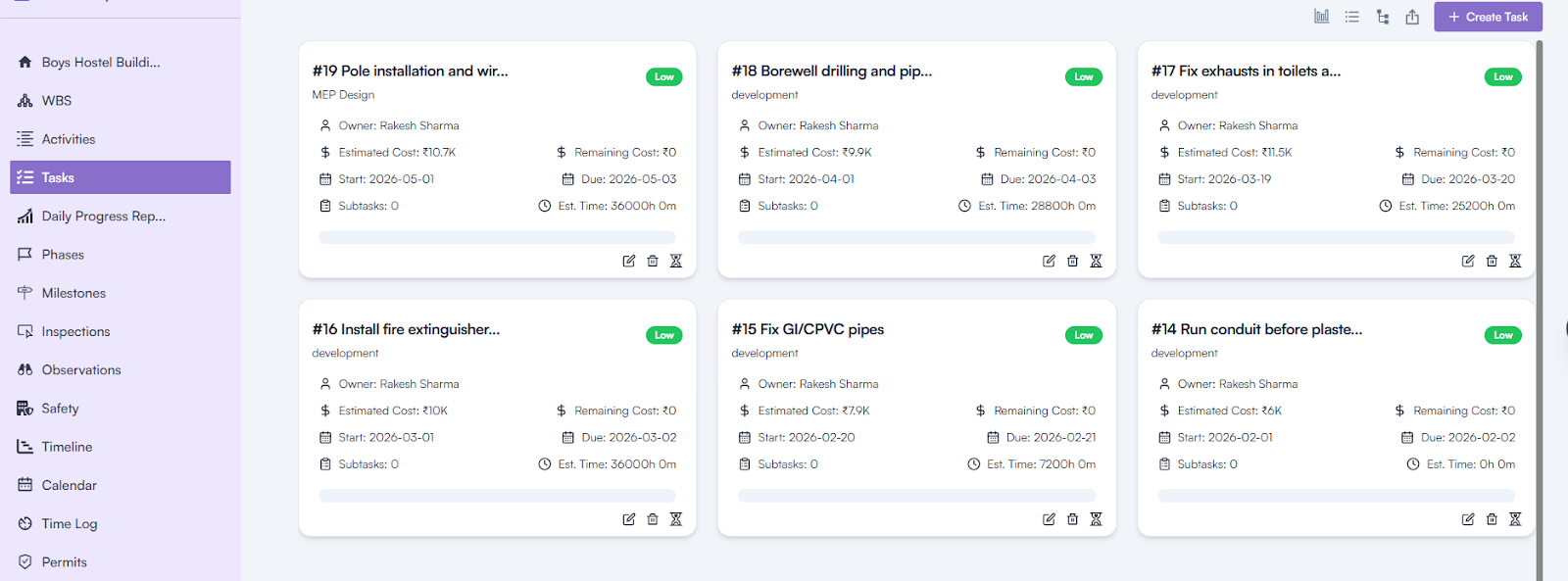
  • In the project-related information, locate and click on Tasks to open the Task Page.
  • Click on the + Create Task button to open the Task Creation Popup.
  • Fill in the required details:
    • Task Title (mandatory): Enter the task name.
    • Task Type: Specify the type of task.
    • Add Milestone: Select a milestone from the dropdown.
    • User Group: Choose the user group responsible for the task.
    • Assign To: Assign the task to a specific team member.
    • Start Date and Due Date: Specify the task’s timeline.
    • Description: Add any additional details about the task.
  • Click the Save button to create the task.

2. Creating a Task Under a Milestone

  • Navigate to the Milestone Details Page.
  • Click on the Add Tasks button to open the Task Creation Popup.
  • Fill in all the required details as mentioned above.
  • Click Save to create the task.

Task Details Page

The Task Details Page displays all the information provided during the task creation process.

It also includes the following additional features:

  • Subtasks: Add smaller tasks under the main task.
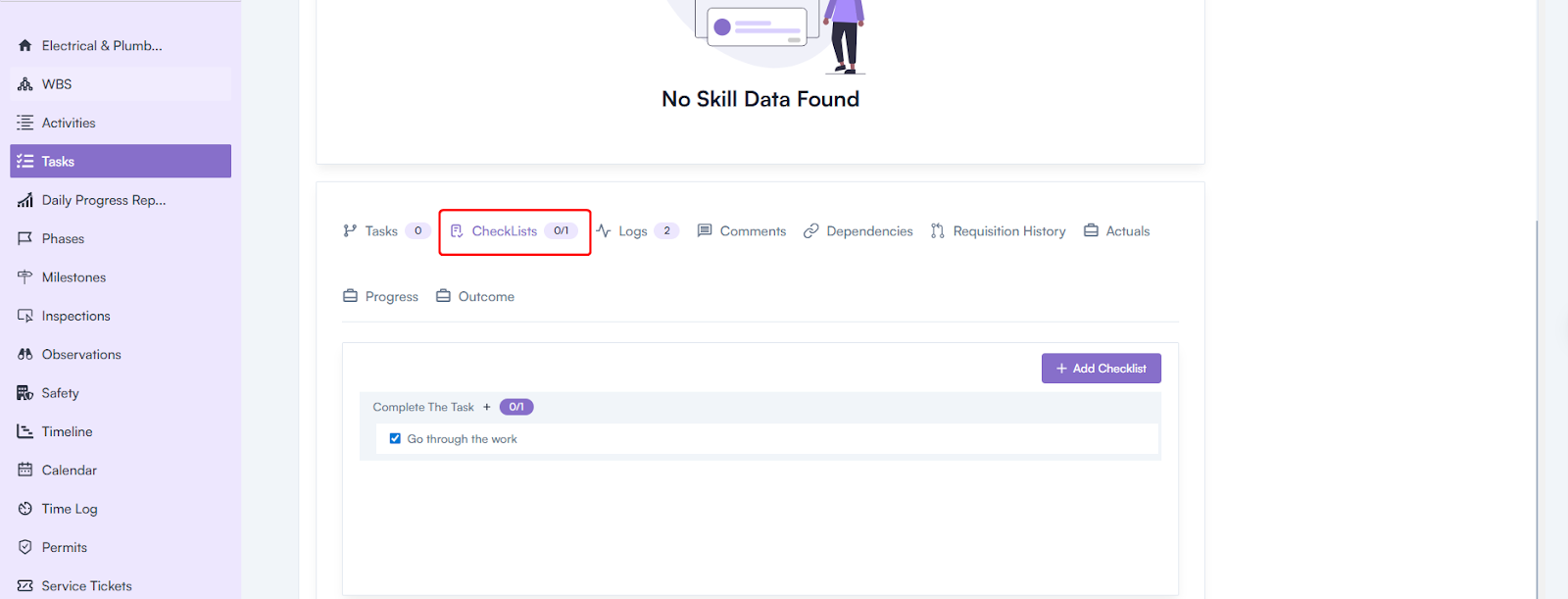
  • Checklist: Create and track specific checklist items.
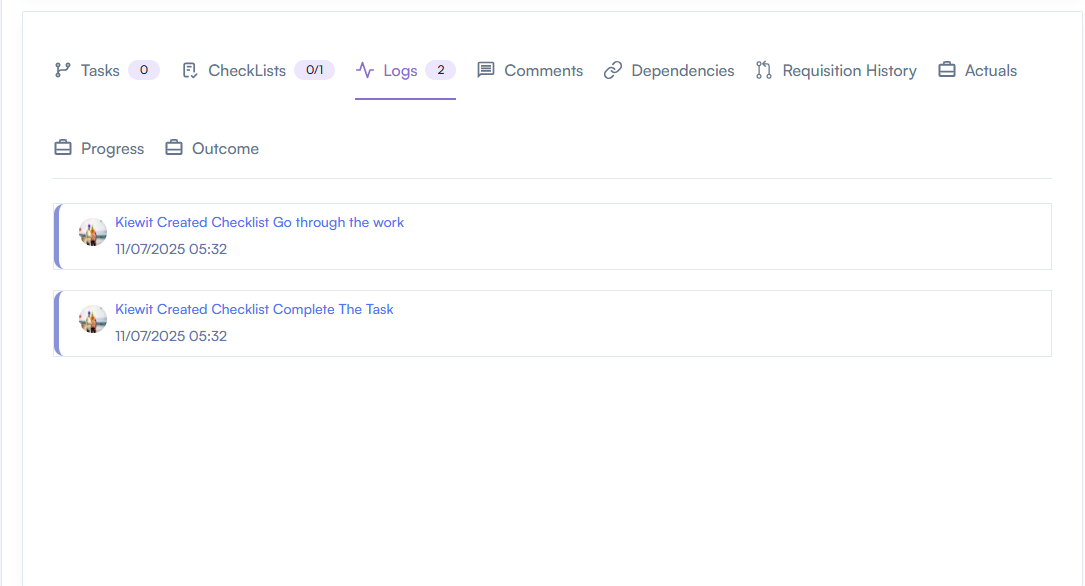
  • Activity: View the activity log related to the task.
  • Links: Add related links or references to the task.
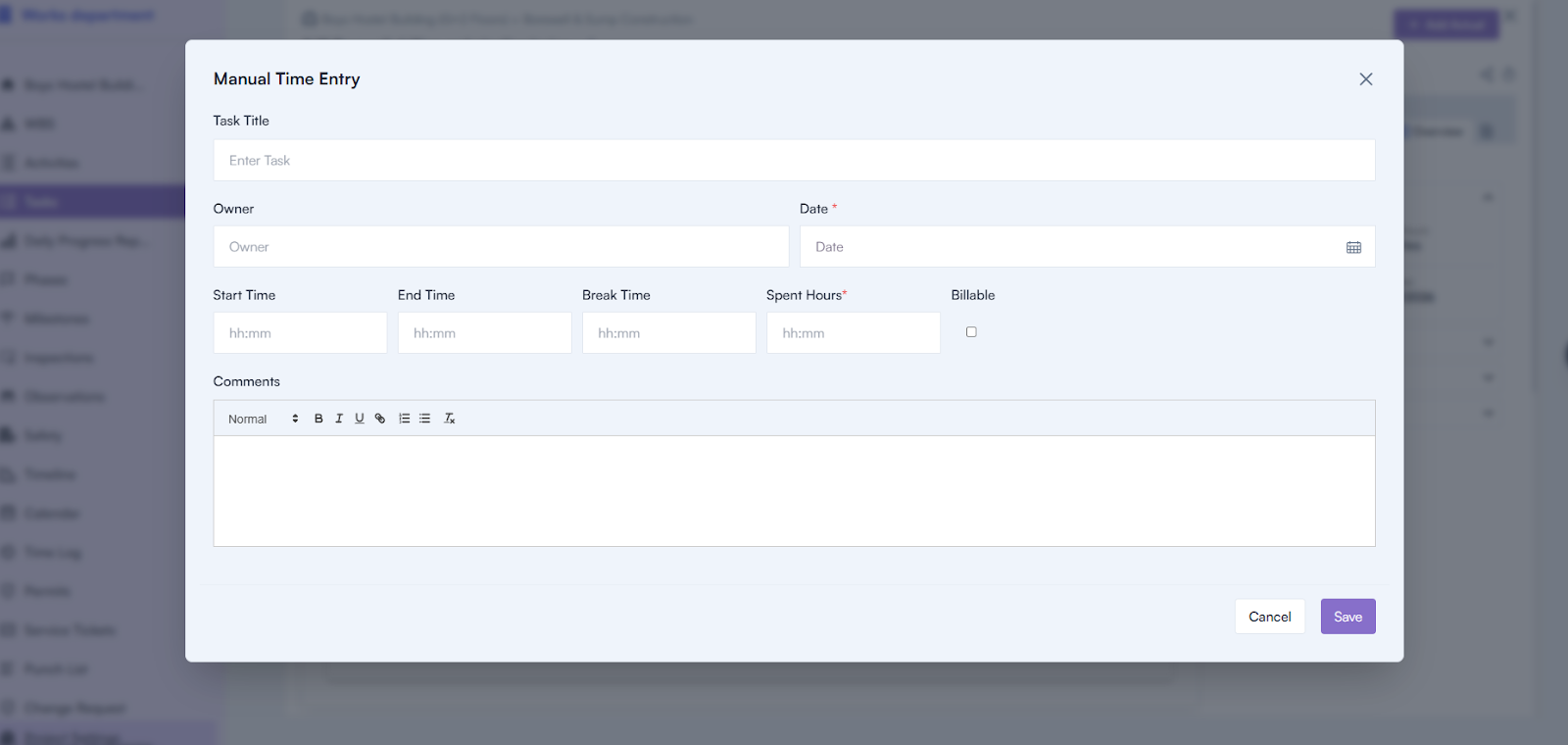
  • Manual Time Entry: Log the time spent manually on the task.

Subtask Creation

Subtasks help divide a task into smaller, manageable parts.

Steps to Create a Subtask:

1. Click on the project name in the left menu to view project-related information.

2. Select “Tasks” from the left menu.

3. Click on a task name to open the Task Details page.

4. Navigate to the Subtasks tab.

5. Click on the Add Task button.

6. Fill in the required details:

  • Task Title*
  • Task Type
  • Add Milestone (from the milestone dropdown)
  • User Group
  • Assign To
  • Start Date
  • Due Date
  • Description
  • Save to create the subtask.

Checklist Creation

A checklist is used to itemize smaller steps within a task.

Steps to Create a Checklist:

  • Click on the project name in the left menu to view project-related information.
  • Select “Tasks” from the left menu.
  • Click on a task name to open the Task Details page.

  • Navigate to the Checklists tab.
  • Click on the Add Checklist button.
  • Enter the checklist title.
  • Click on Add to save the checklist.

Activity Log

The Activity tab tracks task-related actions, including updates and changes, along with timestamps.

How to View Activity Log:

  • Click on the project name in the left menu to view project-related information.
  • Select “Tasks” from the left menu.
  • Click on a task name to open the Task Details page.
  • Navigate to the Activity tab.
  • Review task-related actions, such as:
    • Task created by whom?
    • Task updated by whom.
    • Date and time of each action.

Task Linking

Task linking is used to establish dependencies between tasks.

How to Link Tasks:

  • Click on the project name in the left menu to view project-related information.
  • Select “Tasks” from the left menu.
  • Click on a task name to open the Task Details page.
  • Navigate to the Links tab.
  • Click on the Add Link button.
  • In the Add Task Link popup:
    • Select the Link Type* (e.g., dependency).
    • Choose the task to be linked.
  • Save the changes.

Note: If a task is linked to another, the second task cannot begin until the first task is completed.

Manual Time Entry

Manual time entry is used to log time spent on a specific task.

How to Create Manual Time Entry:

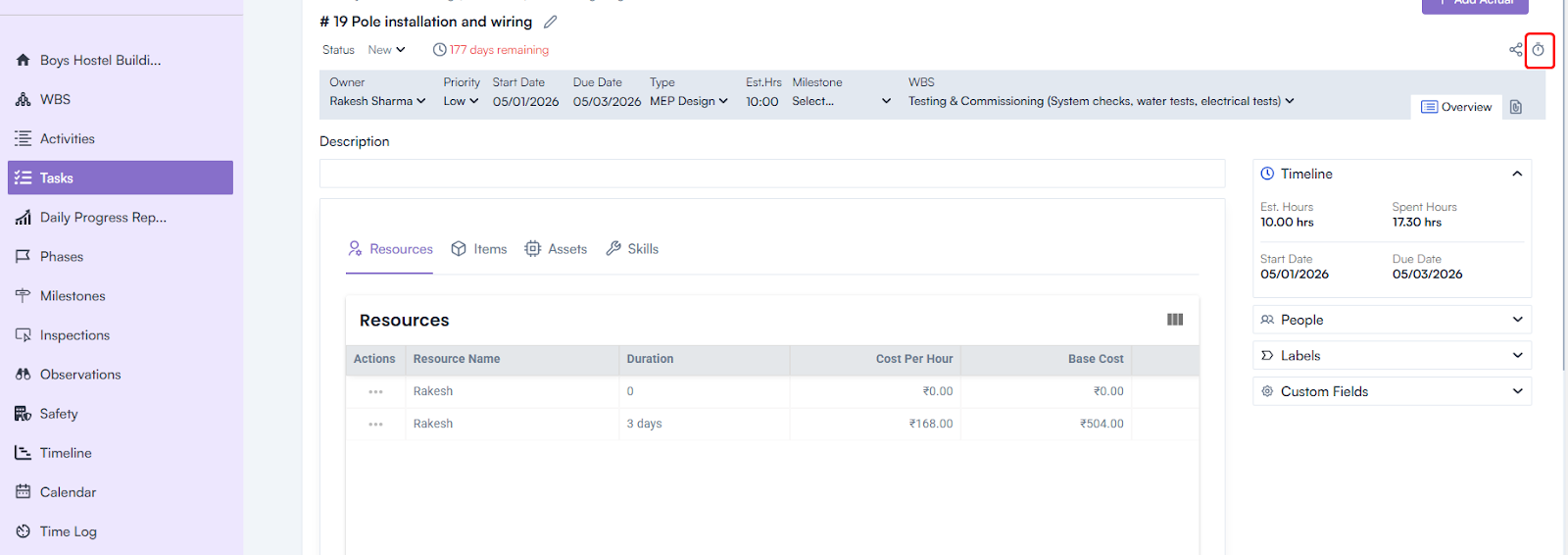
1. Open the Task Details page for the specific task.

2. In the header section, click on the Time Entry icon.

3. Fill in the details in the Manual Time Entry pop-up:

  • Task Title (auto-filled).
  • Start Time
  • End Time
  • Break Time
  • Spent Hours
  • Billable (if applicable).
  • Comments

4. Click on Save to log the time entry.

Milestone Linking

Milestone linking is used to create dependencies between milestones.

How to Link Milestones:

  • Click on the milestone name to open the Milestone Details page.
  • Navigate to the Links tab.
  • Click on the + Add Link button.
  • Select the milestone(s) to be linked as dependent.
  • Ensure that the immediate next milestone is assigned to a different contractor (if applicable).
  • Save the changes.

Note: Linked milestones ensure that one milestone cannot begin until the preceding milestone is completed.

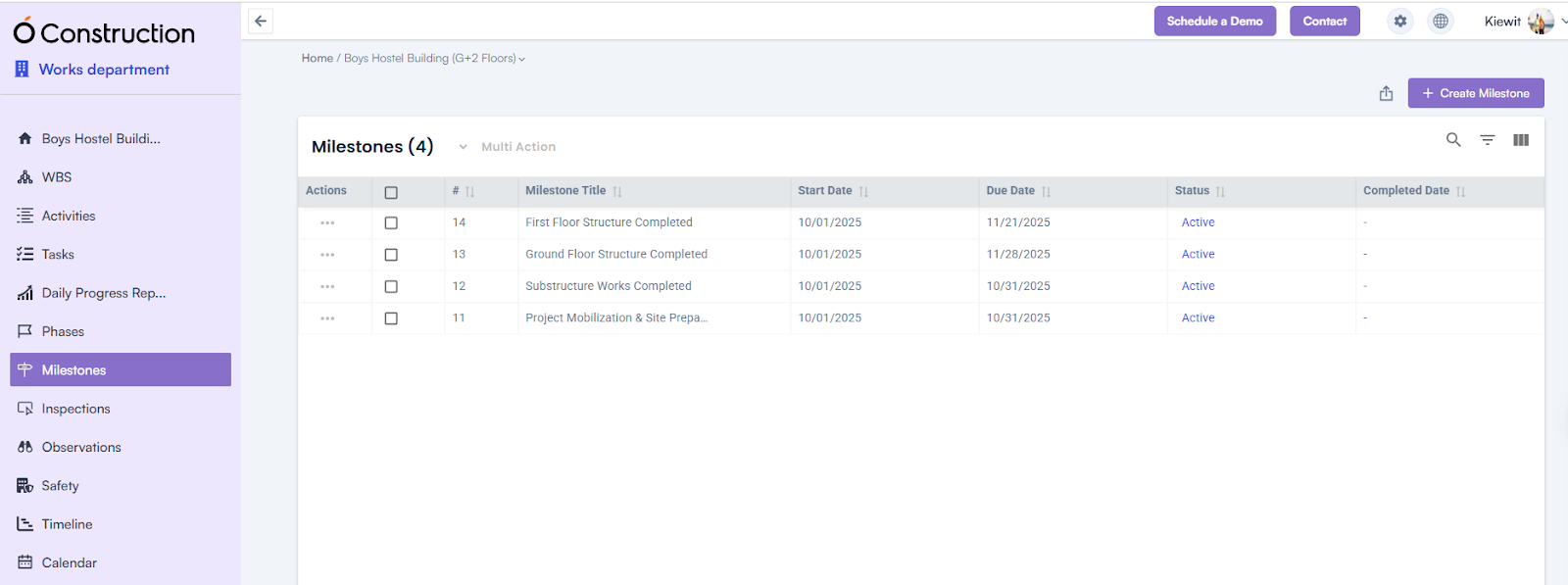
Creating a Milestone

  • A milestone in construction project management marks a significant achievement or progress point within the project.
  • It helps track the completion of major tasks or stages, ensuring the project stays on schedule. 
  • While a project is mandatory to create a milestone, associating it with a phase is optional. Milestones provide clarity on project progress and help in managing deadlines and resource allocation

Accessing Milestones

Milestones can be accessed and created from two locations:

1. From the Project Page:

  • Log in to your account.
  • Navigate to the left menu and click on the Project Name.
  • In the project-related information, locate and click on Milestone to open the Milestone Page.
  • Click on the + Create Milestone button and provide the required details.

2. From the Phase Details Page:

  • Navigate to the Phase Details Page.
  • Click on the Add Milestone button to open the Create Milestone Popup.

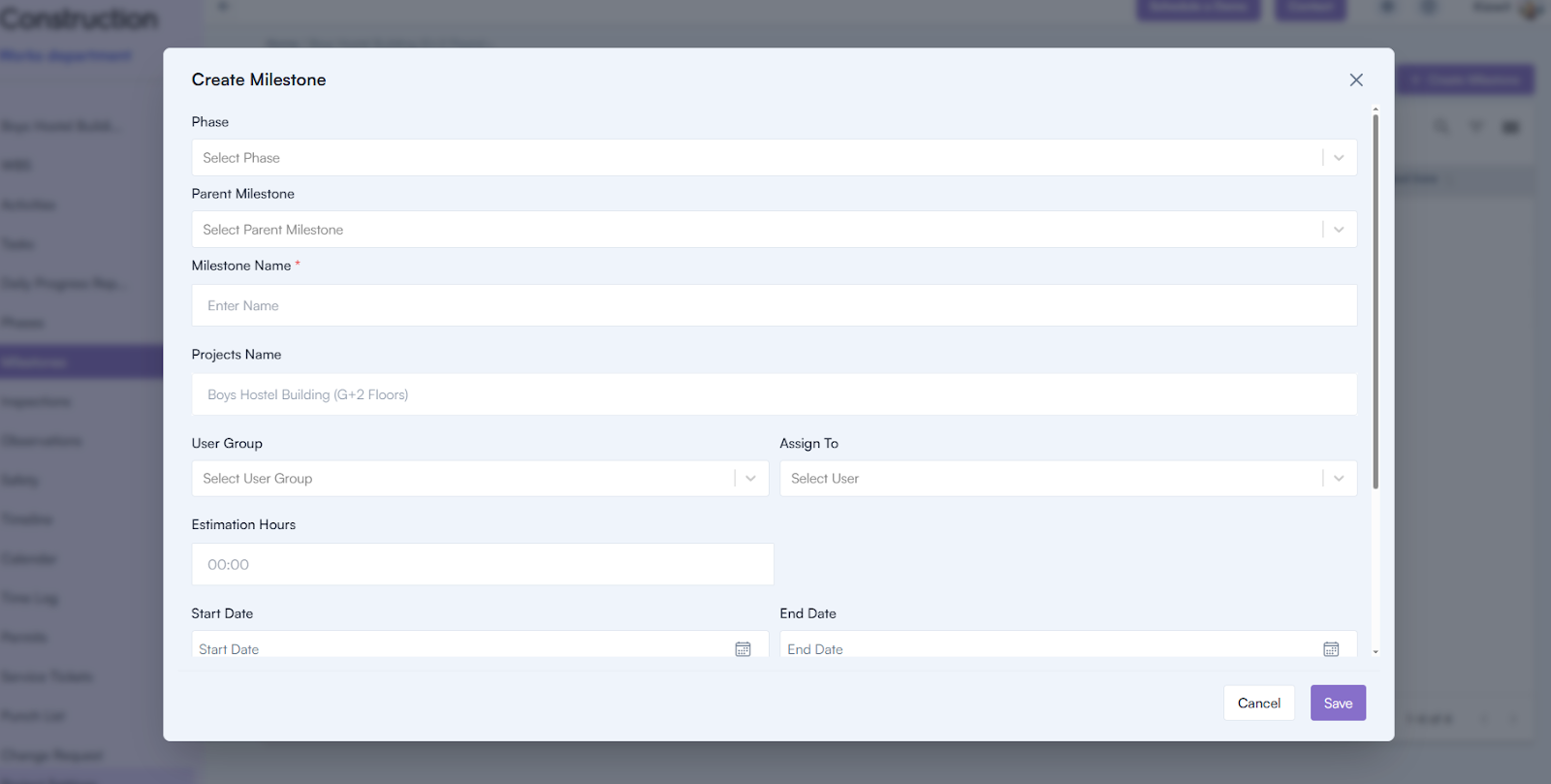
Milestone Creation Process

  1. Open the Create Milestone Popup:
    • From either location, click on the respective button to display the pop-up.
  2. Fill in the Required Details:
    • Phase (optional): Select a phase from the dropdown, if applicable.
    • Parent Milestone (optional): Select a parent milestone, if applicable.
    • Milestone Name (mandatory): Enter the name of the milestone.
    • Project Name: Auto-selected based on the associated project.
    • User Group: Select the user group responsible for the milestone.
    • Assign To: Assign the milestone to a specific team member.
    • Estimated Hours: Provide the estimated time required for the milestone.
    • Start Date and Due Date: Specify the milestone’s timeline.
    • Description: Add any additional details about the milestone.
  3. Save the Milestone: Click the Save button to complete the milestone creation.

Milestone Details Page

The Milestone Details Page displays all the information provided during creation.

It also includes three additional features:

  1. Add Task: Create tasks under the milestone.
  2. Milestone Linking: Link the milestone to related entities.
  3. Milestone Inspection: Monitor and inspect milestone progress.

Phase Creation Process

  • A phase in construction project management is a distinct stage or segment of the overall project, typically defined by specific goals, tasks, and deliverables.
  • It helps in organizing and managing the project in manageable parts, ensuring that each stage is completed before moving on to the next, with clear timelines and resource allocation

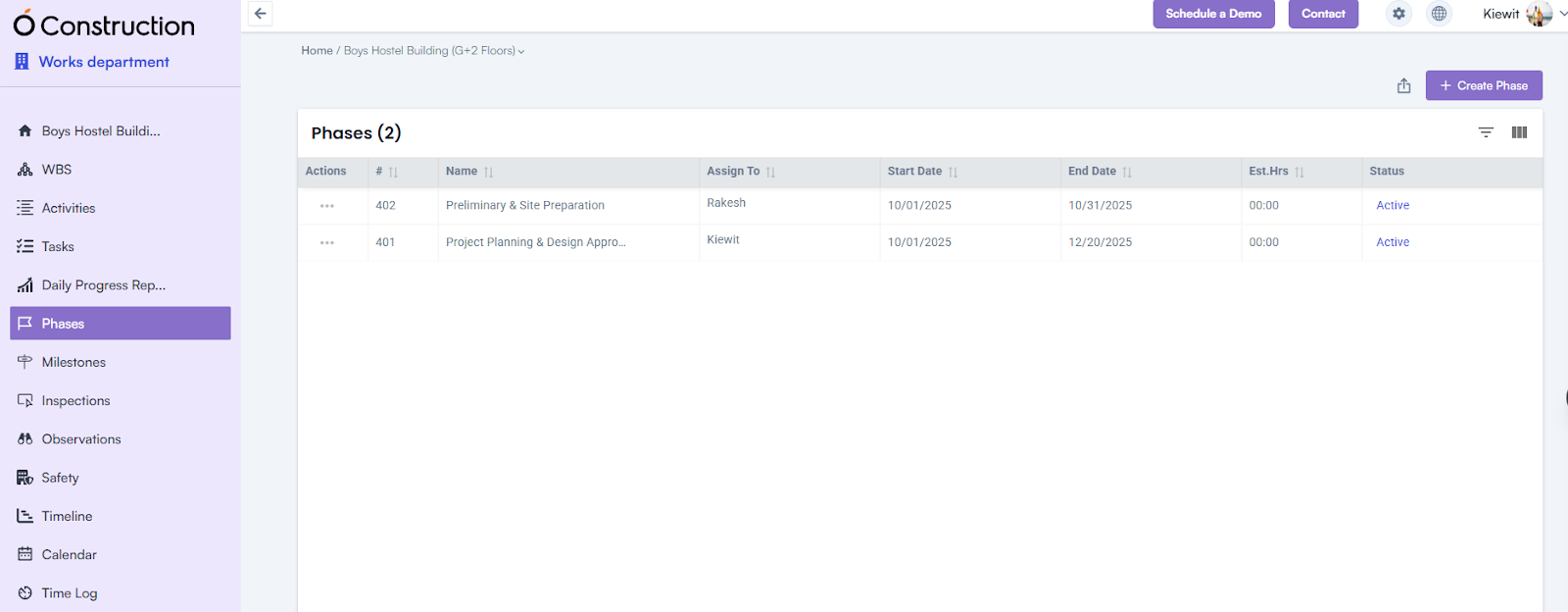
Accessing the Phase Section

1. Log in to the application using email & password, click on a project name > mark on the left menu.

  • This displays all project-related information.

2. Locate the Phase option among the displayed information.

  • Click on Phase to be redirected to the Phase Creation Page.

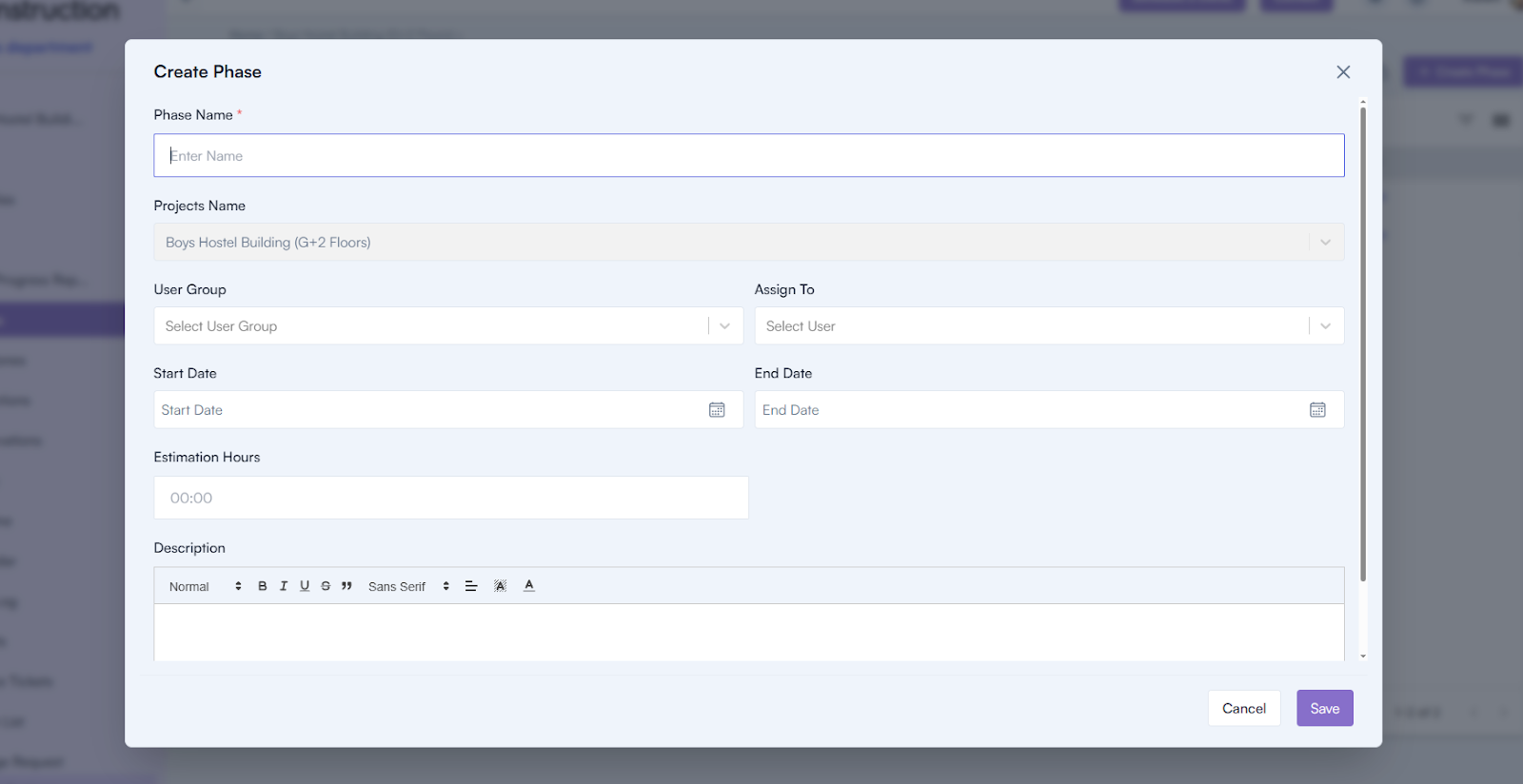
Creating a New Phase

1. Initiate Phase Creation:

  • Go to the header section.
  • Click on the Create Phase button to open the Phase Creation Popup

2. Fill in the Required Details:

  • Phase Name (mandatory): Enter the name of the phase.
  • Project Name: Select the associated project from the dropdown.
  • User Group: Choose the user group involved in the phase.
  • Assign To: Assign the phase to a specific user.
  • Start Date (mandatory): Specify the start date for the phase.
  • End Date: Specify the end date (optional).
  • Estimated Hours: Enter the estimated time required for the phase.
  • Description: Provide additional details about the phase.

3. Save the Phase:

  • Click the Save button to create the phase.

Category: Construction Academy

Subcategory: Budgeting and Planning

Subcategory: Construction Phase

Subcategory: Design Coordination

Subcategory: Estimation Techniques

Subcategory: Initiation and Feasibility

Subcategory: Introduction

Subcategory: Personal Management

Subcategory: Project Close-Out

Subcategory: Project Scheduling

Subcategory: Project Teams

Subcategory: Proposal Management

Subcategory: Total Quality Management

Subcategory: Tracking and Control

Subcategory: Work Breakdown

Category: Help Desk

Subcategory: Client

Subcategory: Construction 101

Subcategory: Contractor Management

Subcategory: Expense

Subcategory: Finance Budget

Subcategory: Inventory Management

Subcategory: My Approvals

Subcategory: Site Management

Subcategory: Vendor Management