Activities

  • Activities represent the next level of work division under a WBS (Work Breakdown Structure).
  • Each WBS can contain multiple activities that define specific work packages or operational steps.
  • These activities help in detailed planning, execution, tracking, and cost management within a project.

Steps to Create an Activity

1. Navigation Path:

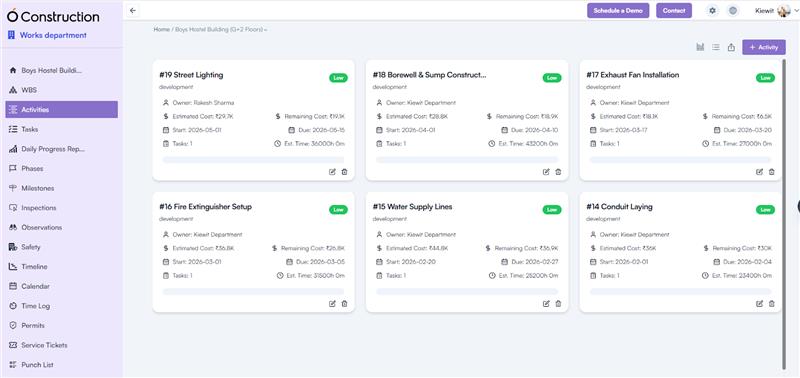
Log in to the application → Go to Project Overview Page → Left Menu → Click Activities

2. Create Activities:

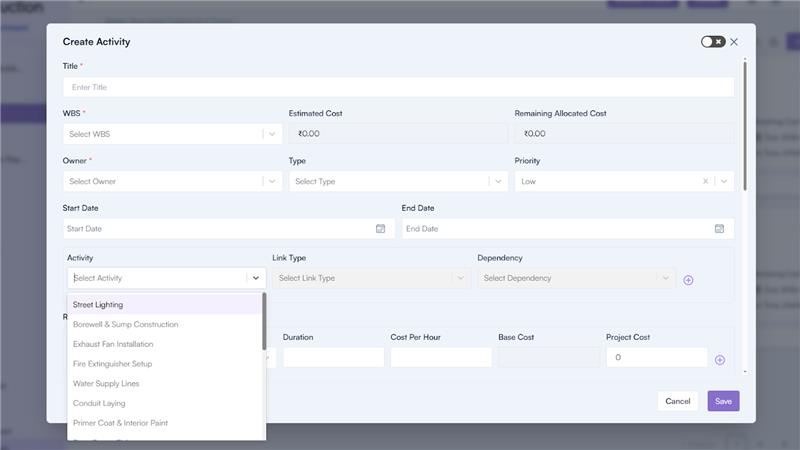
Click on the Create Activities button to open the creation pop-up.
Create Activities – Popup Fields

Basic Information

  1. Title*: Enter the name of the activity.
  2. WBS*: Select the WBS from the dropdown list.
    • Upon selection, the Estimated Cost and Remaining Allocated Cost for that WBS are displayed.
  3. Owner*: Select the user responsible for executing the activity.
  4. Type: Choose the type or category of work (e.g., Civil, Electrical, Plumbing, etc.).
  5. Priority: Assign a priority level (Low, Medium, High, etc.).
  6. Start Date / End Date: Select the duration of the activity.
    • Dates must fall within the WBS Start and End Dates.

Dependency Configuration

  1. Select Activity: Choose an existing activity to establish a dependency.
  2. Link Type: Define the relationship as Predecessor or Successor.
  3. Dependency Type: Choose one of the following:
    • Finish to Finish (FF)
    • Finish to Start (FS)
    • Start to Finish (SF)
    • Start to Start (SS)

Resource Allocation

Allocate human resources required for the activity:

  1. Resource Name: Select from the dropdown list.
  2. Unit: Choose Hour, Day, Week, or Month.
  3. Duration: Enter total working duration.
  4. Cost Per Hour: Define the hourly rate.
    • Base Cost and Project Cost are auto-calculated.
  5. Add multiple resources using the (+) icon.

Item Allocation

Add material items required for the activity:

  1. Item Name: Select from the dropdown (fetched from Company Settings → Item Master).
  2. UOM & Unit Price: Auto-filled on selection.
  3. Quantity: Enter the required quantity.
  4. Cost Calculation:
    • Base Cost and Project Cost auto-calculate.
  5. Add multiple items using the (+) icon.

Asset Allocation

Include assets or equipment needed for execution:

  1. Asset Name: Select from the dropdown (Company Settings → Asset Master).
  2. UOM & Unit Price: Auto-filled.
  3. Quantity: Specify quantity.
  4. Cost Calculation:
    • Base Cost and Project Cost are auto-calculated.
  5. Add multiple assets using the (+) icon.

Skill Requirement

  • Skill Name: Choose from dropdown (Company Settings → Human Capital Section).
    Defines the skill sets required to perform this activity efficiently.

Cost Summary

  • The Total Estimated Cost is automatically calculated based on total resources, items, and assets linked to the activity.

Inspection Configuration

If the activity requires inspection, select the checkbox “Do you want to add inspection to this activity?”

  • Inspection Type: Choose Pre, During, and/or Post (multiple selections allowed).
  • Role & Approvers: Automatically displays approvers responsible for inspection from Company Settings → Construction → Inspection Approver Sequences.

Additional Information

  • Description: Add relevant details or work instructions for the activity.
  • Attachments: Upload any supporting documents or drawings.
    Click Save to create and record the activity.

Activity Details Page

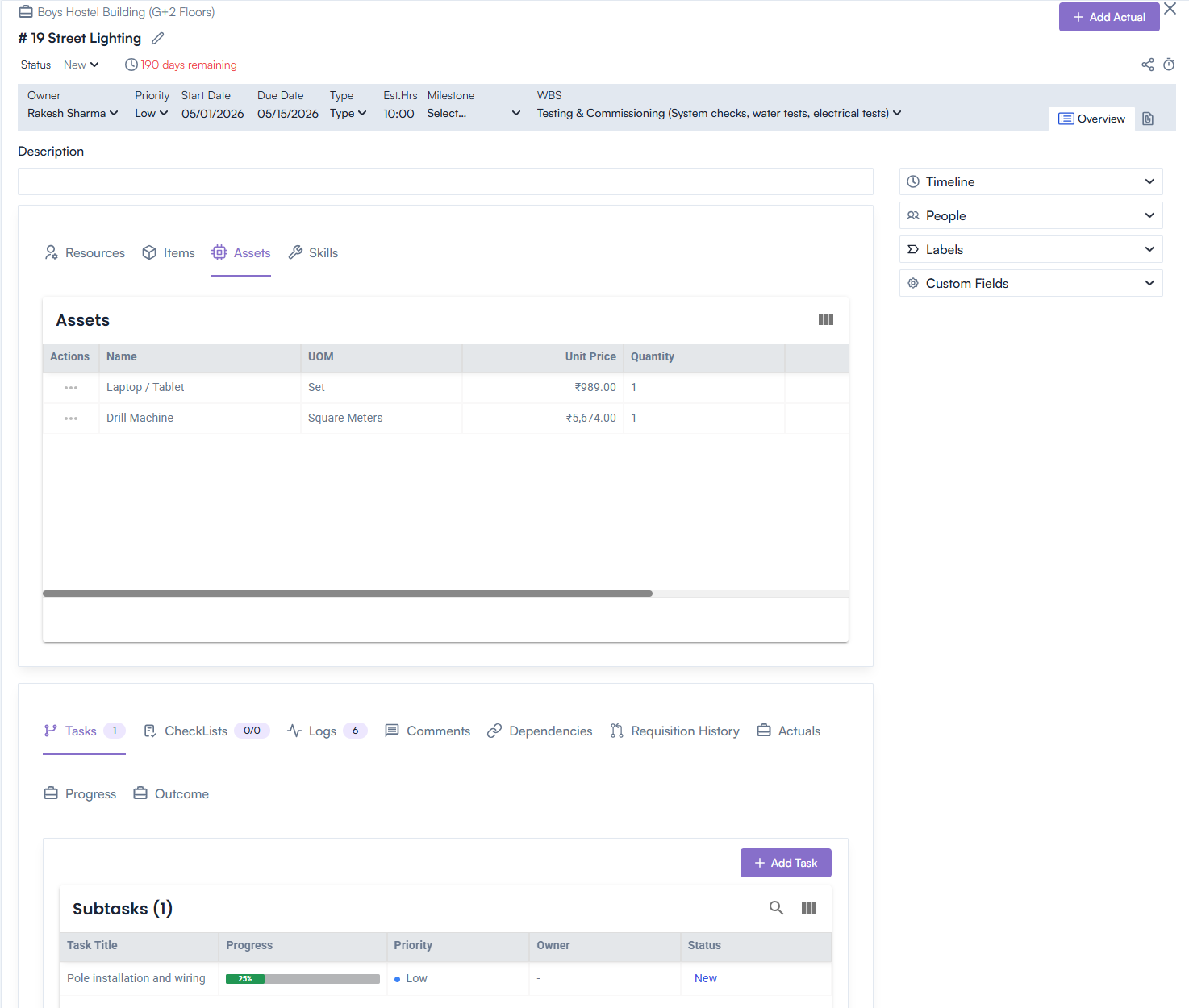
After creation, all details appear on the Activity Details Page such as:

  1. Resources – Displays all assigned resources, their hours, and cost details.
  2. Items – Lists all materials with quantity, cost, and UOM.
  3. Assets – Shows assigned equipment with utilization data.
  4. Skills – Displays required skills and associated roles.
  5. Est. Hours – Planned working hours for completion.
  6. Spent Hours – Actual hours logged.
  7. Start Date / Due Date – Actual and planned timelines.
  8. People, Labels, Custom Fields – For tagging, categorization, and additional metadata.
  9. File – Lists uploaded attachments for quick access.
Additional Features

  • Generate Link – Creates a shareable link for quick reference.
  • Time Log – Allows manual entry of work logs with fields for Task Title, Owner, Date, Start Time, End Time, Break Time, and Comments.
  • Save / Cancel – Save entries or cancel edits.

Actions Available

  • View – Open the detailed Activity page.
  • Edit – Modify existing details.
  • Delete – Remove the activity record.

Activities Actuals

  1. On the Activities Details Page, click Add Actuals from the header.
  2. Allows users to enter actual data related to cost, progress, and resource utilization.
  3. All actuals dynamically update in the activity summary.

Linked Details Displayed in Activities Details Page

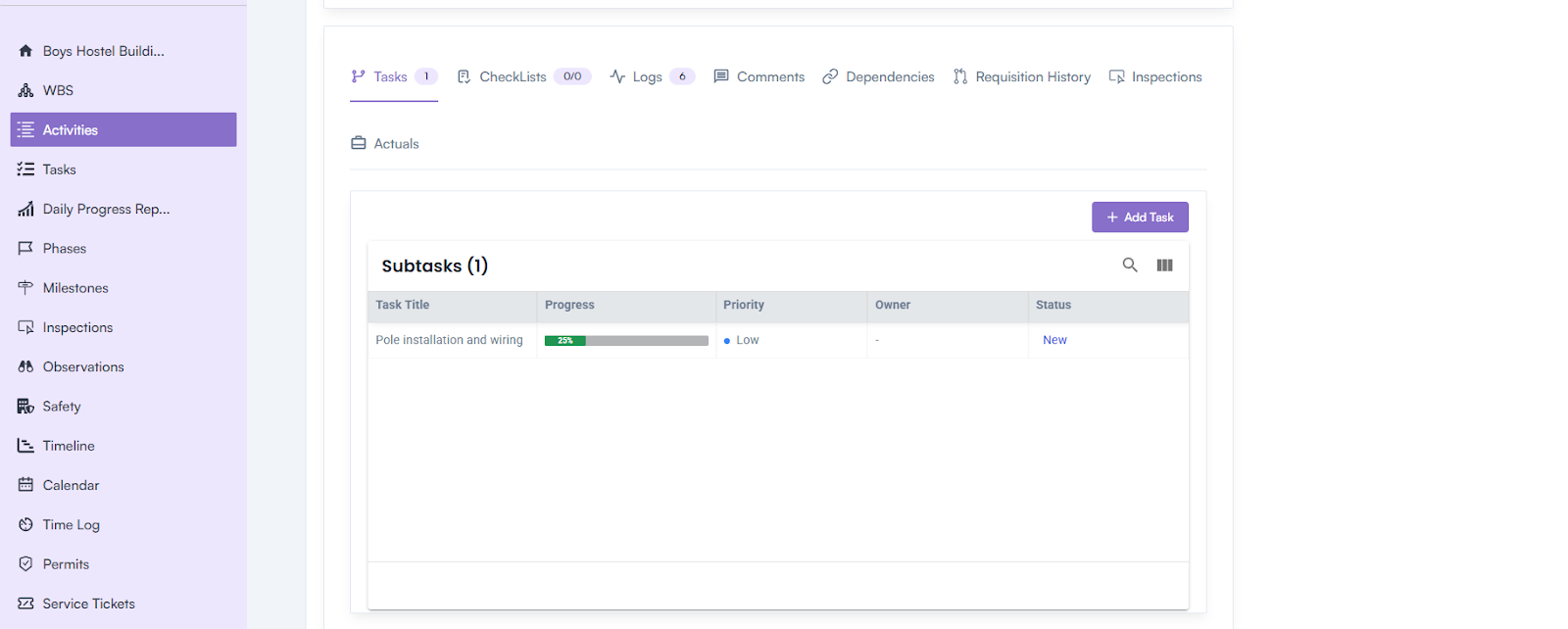
The Activities Details Page includes several linked components for better traceability and progress tracking:

  1. Tasks – Lists all tasks created under the activity, including their status and assignees.
  2. Checklists – Displays predefined inspection or quality checklists linked to the activity.
  3. Logs – Maintains chronological records of all activity-related updates, time logs, or progress notes.
  4. Comments – Shows user discussions or feedback related to the activity for collaboration.
  5. Dependencies – Outlines relationships between this and other activities for better sequencing.
  6. Requisition History – Tracks all material or asset requisitions raised for the activity.
  7. Inspections – Displays inspection types (Pre, During, Post) and their status updates.
  8. Actuals – Shows real-time actual cost, effort, and duration data compared to estimates.
Work Breakdown Structure (WBS)

The Work Breakdown Structure (WBS) is a hierarchical representation of project work that breaks down the overall scope into smaller, manageable components.

It provides a clear structure of deliverables, tasks, and resources — ensuring effective project planning, execution, and cost control.

Overview

A WBS divides a project into multiple levels of detail, starting from high-level deliverables and breaking them into smaller work elements.

It enables teams to define responsibilities, assign resources, estimate costs, and monitor progress efficiently.

Steps to Create a WBS

  • Navigation Path:

Log in to the application → Go to Project Overview Page → Left Menu → Click WBS.

  • Create WBS:

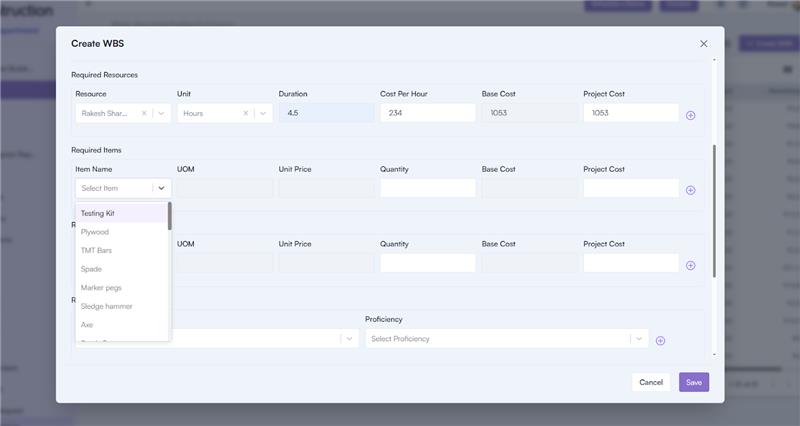
Click on the Create WBS button to open the creation pop-up.

Create WBS – Popup Fields

Basic Information

  • Project Name: Auto-filled based on the selected project.
  • Parent WBS: Select the parent WBS if applicable.
  • WBS Name*: Enter the WBS name (mandatory).
  • Owner*: Select the owner responsible for the WBS.
  • Start Date / End Date: Select the WBS duration.

Dates must fall within the Project Start Date and Project End Date.

Dependency Configuration

  1. Select WBS: Choose an existing WBS to establish a link.
  2. Link Type: Choose between Predecessor or Successor.
  3. Dependency Type: Select one of the following relationships:
    • Finish to Finish (FF)
    • Finish to Start (FS)
    • Start to Finish (SF)
    • Start to Start (SS)

Resource Allocation

Select the required resources for the WBS:

  1. Resource Name: Choose from the dropdown.
  2. Unit: Select from (Hour, Day, Week, Month).
  3. Duration: Enter total working duration.
  4. Cost Per Hour: Specify rate per hour.
    • The Base Cost and Project Cost are auto-calculated.
  5. Add multiple resources by clicking the (+) icon next to the cost field.

Item Allocation

Add the required items linked to the WBS:

  1. Item Name: Select from the dropdown (fetched from Company Settings → Item Master).
  2. UOM & Unit Price: Auto-filled upon item selection.
  3. Quantity: Enter the required quantity.
    • The Base Cost and Project Cost are automatically calculated.
  4. Add multiple items by clicking the (+) icon.

Asset Allocation

Add the required assets for the WBS:

  1. Asset Name: Select from the dropdown (fetched from Company Settings → Asset Master).
  2. UOM & Unit Price: Auto-filled automatically.
  3. Quantity: Enter the quantity of assets to be used.
  4. Cost Calculation:
    • The Base Cost and Project Cost are auto-calculated.
  5. Add multiple assets using the (+) icon.

Skill Requirement

Select the required skills for the WBS:

  • Skill Name: Choose from dropdown (configured in Company Settings → Human Capital Section).

Cost Summary

  • The Total Estimated Cost for the WBS is automatically calculated based on the total cost of all resources, items, and assets used.

Additional Information

  • Description: Add relevant notes or details for the WBS.
  • Click Save to create and record the WBS.

WBS Listing Page

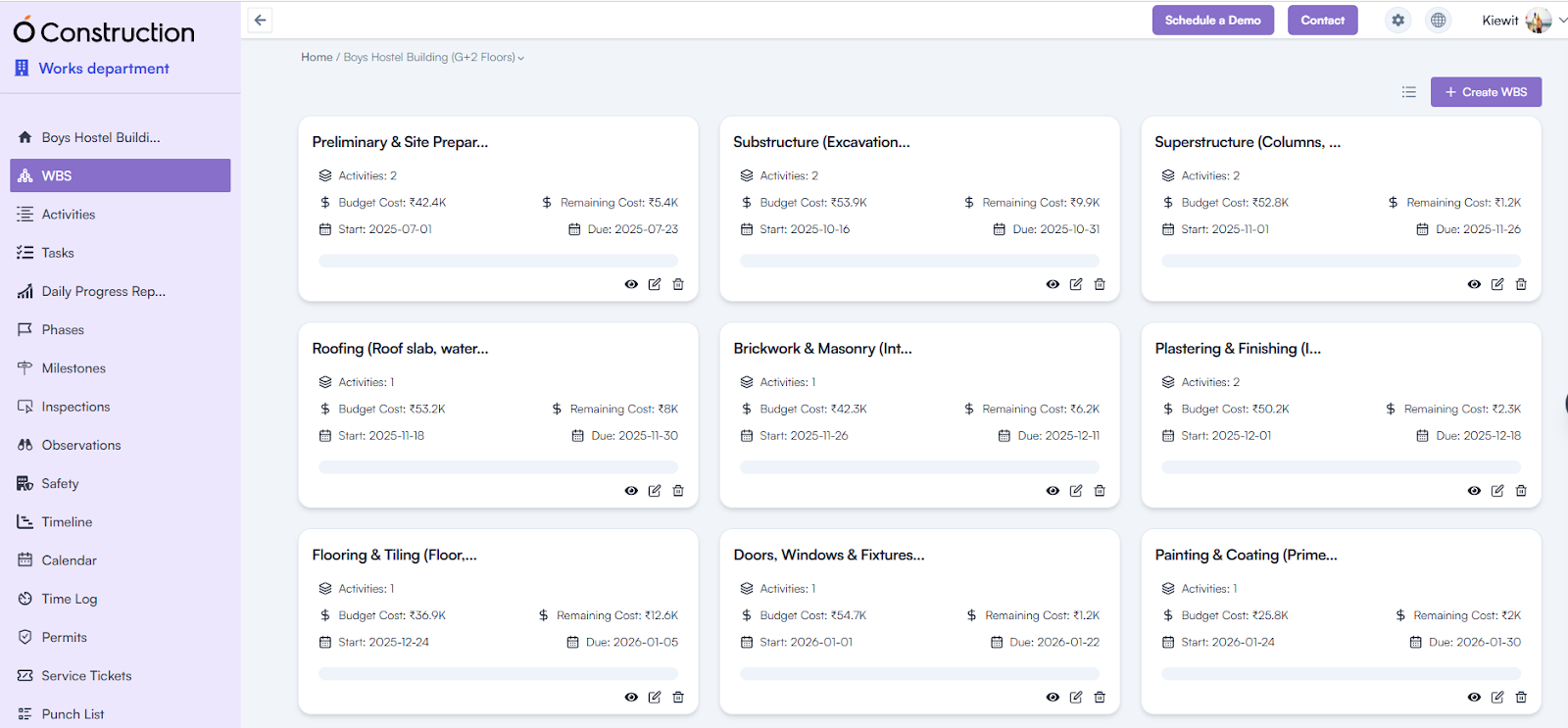
The WBS listing page displays all existing WBS records with key details such as:

  • WBS Title
  • Start Date
  • Due Date
  • Estimated Cost
  • Allocated Cost
  • Remaining Cost

Actions Available:

  • View – Opens the WBS details page.
  • Edit – Modify existing WBS information.
  • Delete – Remove WBS record.

WBS Details Page

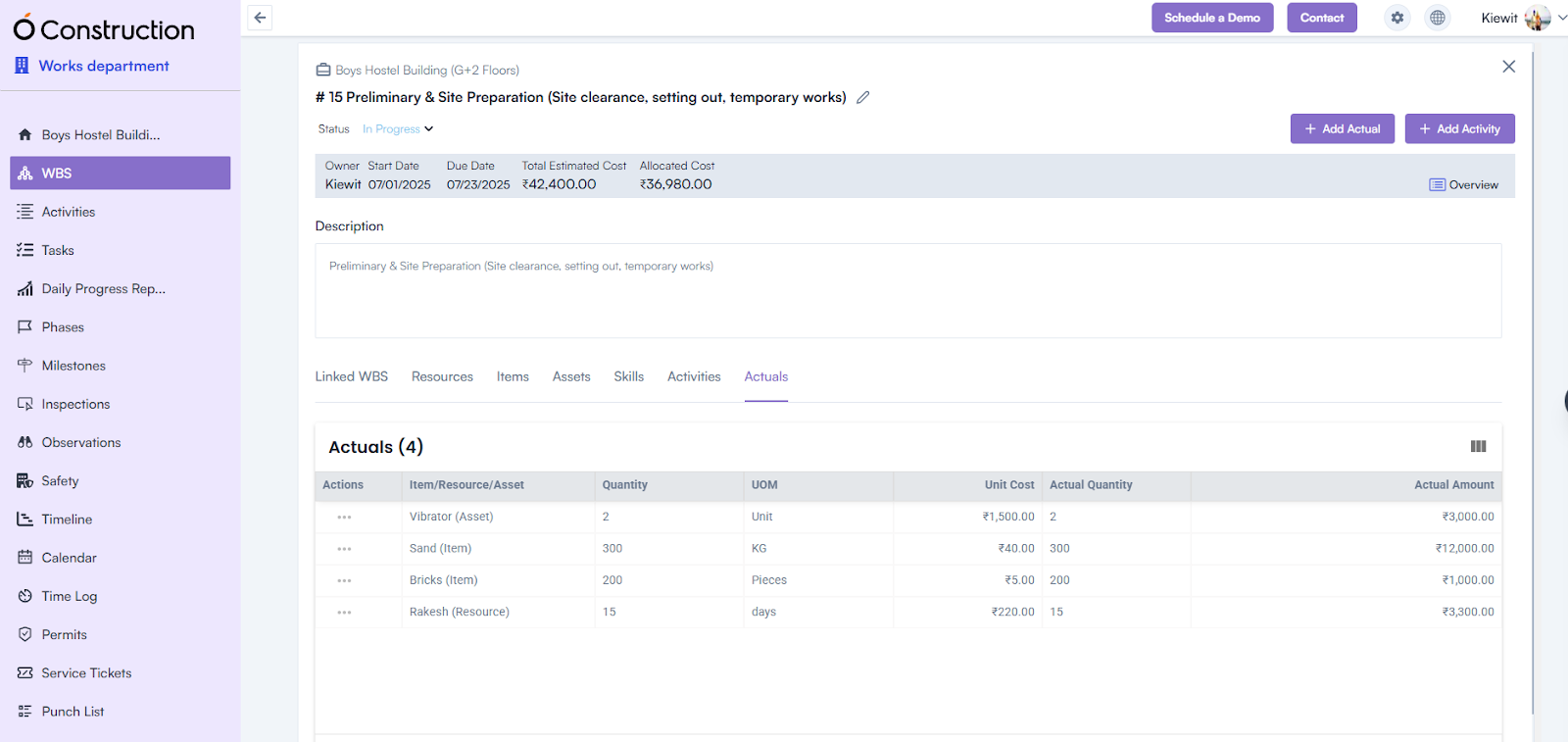
Displays comprehensive information about the selected WBS:

  • Project Name
  • WBS Name
  • Status (Active, In-Progress, On-Hold, Delayed, Completed)
  • WBS Owner
  • Start Date
  • Due Date
  • Total Estimated Cost
  • Allocated Cost
  • Description

WBS Actuals

  • On the WBS Details Page, click Add Actuals in the header section.
  • This allows users to input actual data for cost, duration, and progress.
  • All actual entries are reflected dynamically in the WBS detail summary.

Linked Details Displayed in WBS Details Page

The following linked components are displayed:

  • Linked WBS
  • Resources
  • Items
  • Assets
  • Skills
  • Activities
  • Actuals

Project Module

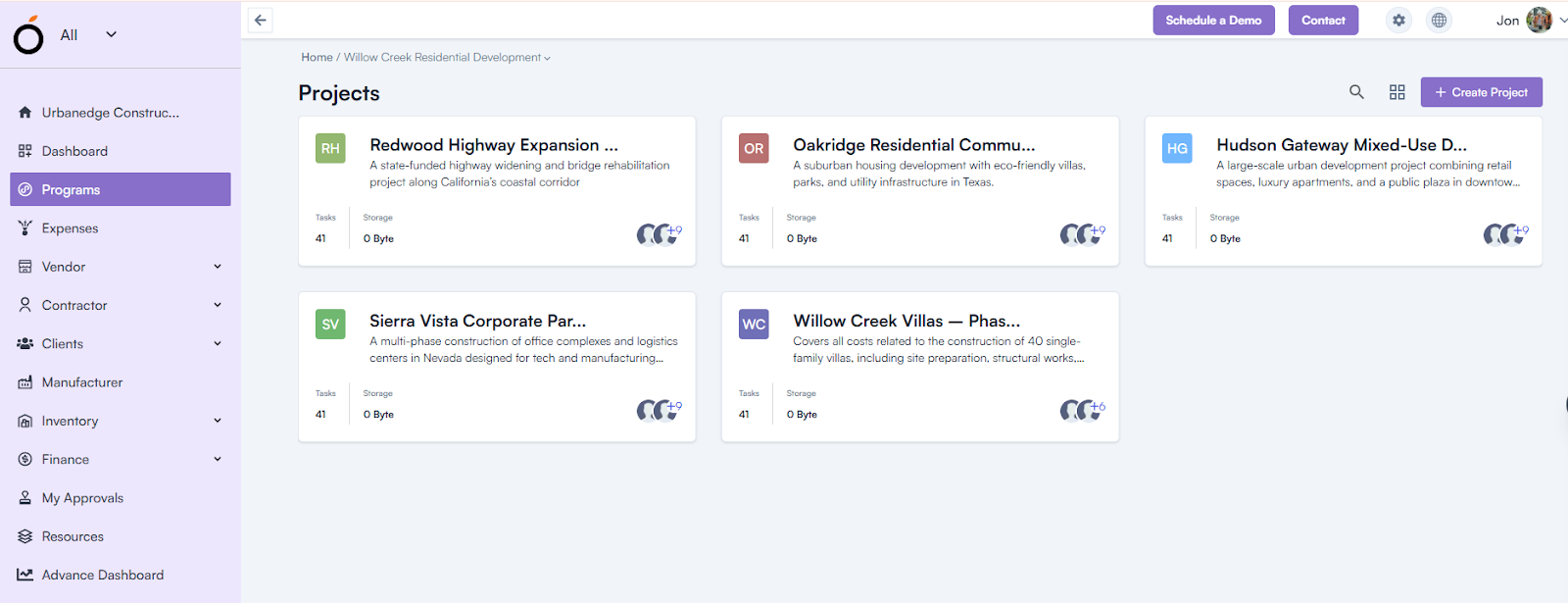
The Project Module is a central feature in construction project management that allows users to create, organize, and manage individual projects within a workspace. Each project can function independently or be associated with a broader program to ensure coordinated planning, budgeting, and progress tracking.

Overview

A Program in construction management represents a collection of related projects managed together to achieve a shared goal.

Projects are temporary, goal-oriented efforts designed to deliver specific outcomes, such as constructing a building or completing a development phase.

Projects can be:

  • Created directly under a workspace.
  • Optionally associated with a Program.

Navigation Options:

  • Clicking on a Program Name redirects to the Project Page.
  • Clicking on the Organization Name in the left menu redirects to the Create Project Page.

Steps to Create a Project

  1. Navigate to the Project Page.
  2. Click on the Create Project button located in the top-right section.
  3. Fill in the project details in the pop-up form:
    • Program Name: Select from dropdown (optional).
      • Upon selection, the Budget and Budget Amount fields appear only if a budget is linked to the chosen program.
    • Parent Project: Select from dropdown (optional).
    • Project Name: Enter a unique project name (mandatory).
    • Organization Name: Select from the dropdown.
    • Priority: Choose the project’s priority level (mandatory).
    • Start Date: Pick the project’s start date (mandatory).
    • End Date: Pick the project’s end date (optional).
    • Upload Files: Attach any project-related documents or reference files.
    • Description: Add additional details or context about the project (optional).
  4. Click Save to create the project.

Functionalities on the Project Page

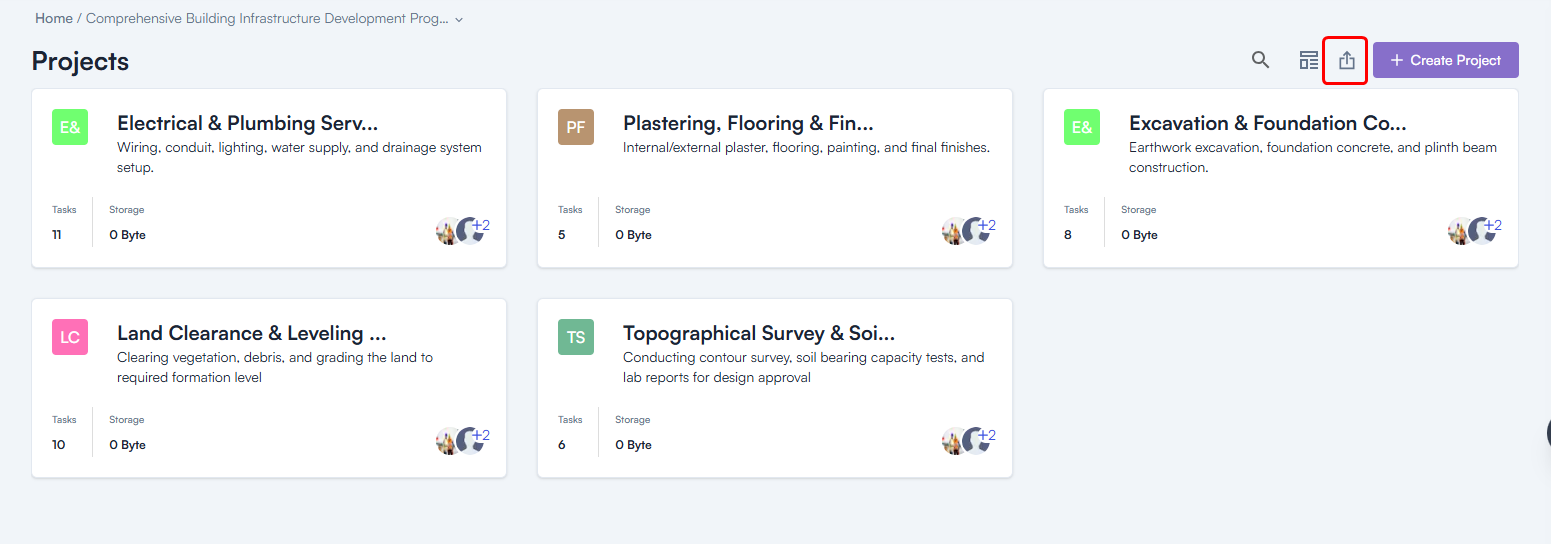
1. Export Projects

  • Steps :
    • Click on the Export Icon in the header section.
    • Select a project from the All Projects dropdown.
    • Click the Export button to download project data.

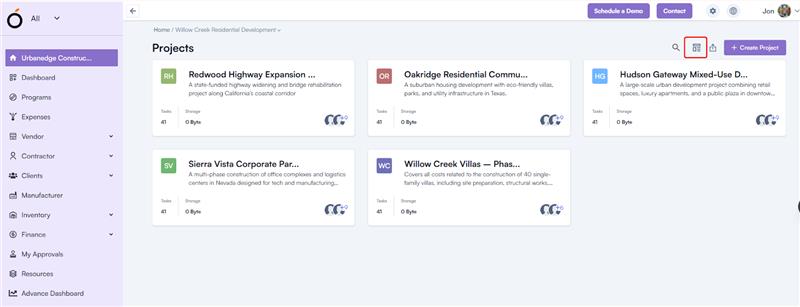
2. Create Project Templates

Steps:

  • Log in to the application and go to the Project Overview Page.
  • Click on the Template Icon in the header.
  • The system redirects to the Template Page.
  • Click Create Template to design a new project template.
  • Clicking a created template card redirects to the Template Overview Page, where users can create a project from an existing template.

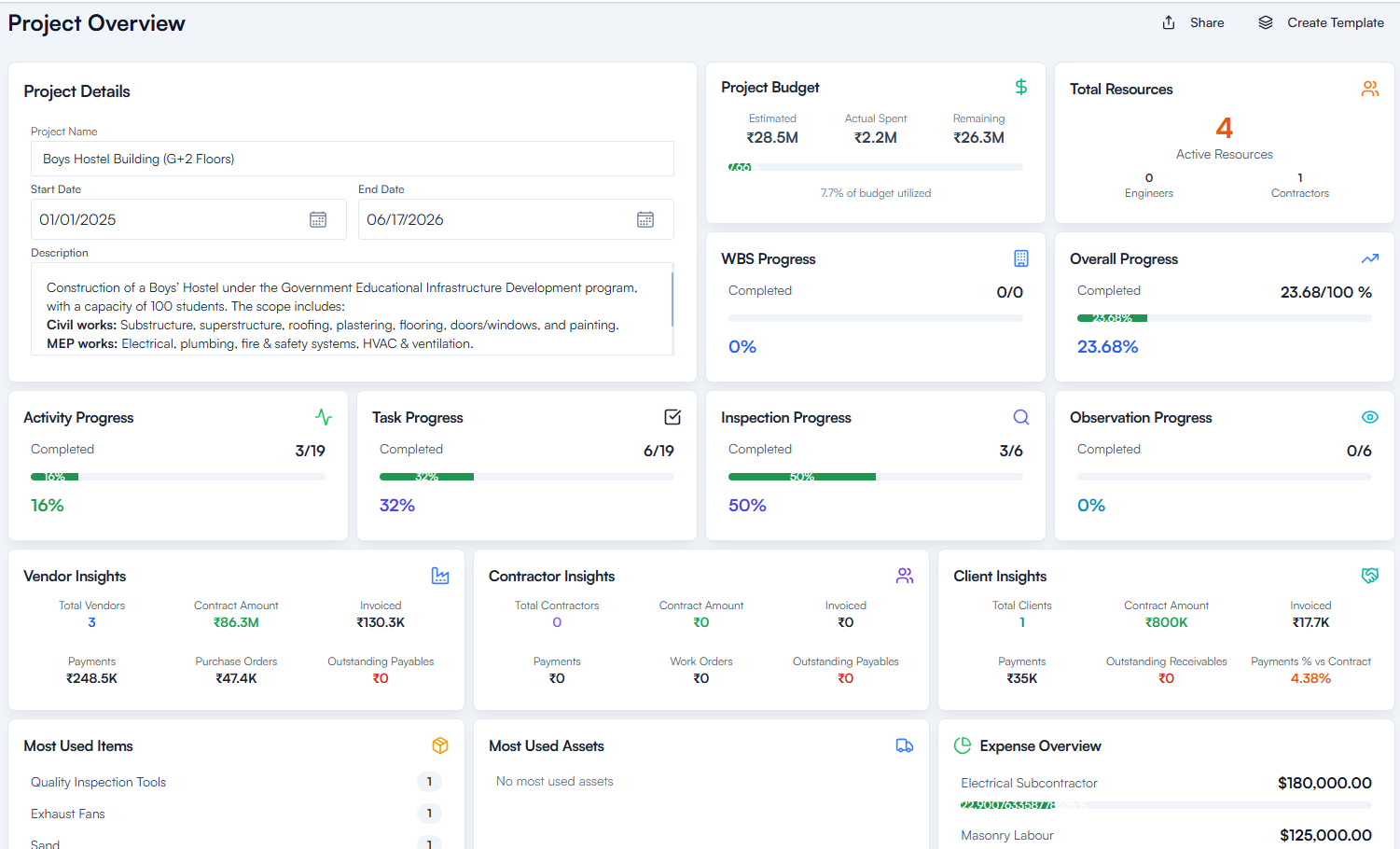
Project Overview

Access:

Click on any project name to navigate to the Project Overview Page.

Details Displayed:

1. Basic Information

Displays the fundamental details of the project, helping users quickly identify its core attributes.

  • Project Name
  • Start Date
  • End Date
  • Project Description

2. Project Budget

Provides a clear view of the project’s financial status, including estimated, actual, and remaining costs.

  • Estimated Cost
  • Actual Cost
  • Remaining Cost
  • % of Budget Utilized (displayed in a budget summary card)

3. Resources

Shows the total number of resources allocated to the project for efficient manpower management.

  • Total Resources assigned to the project

4. Progress Tracking

  • WBS Progress
  • Overall Progress
  • Activity Progress
  • Task Progress
  • Inspection Progress
  • Observation Progress

5. Vendor Insights

Provides key financial and performance indicators related to vendors.

  • Total Vendors
  • Contract Amount
  • Invoiced Amount
  • Payments Made
  • Purchase Orders
  • Outstanding Payables

6. Contractor Insights

Shows financial and contractual data related to all engaged contractors.

  • Total Contractors
  • Contract Amount
  • Invoiced Amount
  • Payments Made
  • Work Orders
  • Outstanding Payables

7. Client Insights

  • Total Clients
  • Contract Amount
  • Invoiced Amount
  • Payments Received
  • Outstanding Receivables
  • Payments % vs Contract (performance ratio)

8. Most Used Items

  • Displays Top 5 Most Used Items

9. Most Used Assets

  • Displays Top 5 Most Used Assets

10. Expense Overview

  • Summary of all project-related expenses and allocations

11. Project Insights

  • Highlights Upcoming Activities and Delayed Tasks for proactive tracking

Program Module

The Program Module enables users to create, manage, and monitor programs efficiently within their workspace.

Overview

The Program module provides a centralized interface to organize multiple projects under one strategic program, define budgets, set priorities, assign responsibilities, and track progress through a visual dashboard.

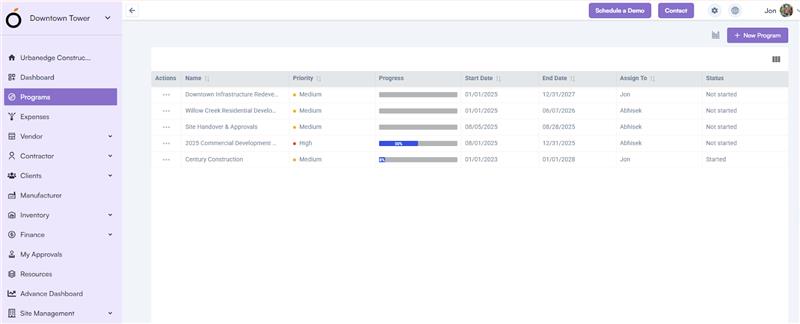
Steps to Create a Program

  1. Log in to the application.
  2. Navigate to the left menu → Program.
  3. Click on the “New Program” button.
  4. Fill in the following required fields:
    • Program Name: Enter a unique program name.
    • Organization: Select the organization from the dropdown list.
    • Start Date: Choose the start date for the program.
    • End Date: Choose the end date for the program.
    • Priority: Set the program’s priority level (e.g., High, Medium, Low).
    • Assign To: Select the responsible team member.
    • Budget: Choose a predefined budget.
    • Budget Amount: This field auto-fills based on the selected budget.
  5. Click “Save” to create the program.

Users can edit or delete a program by clicking the three-dot (kebab) menu beside the program entry.

Program Dashboard View

To access the Program Dashboard View:

  • Log in to the application → Go to the left menu → Program → Enable Dashboard View (located beside the New Program button).

The dashboard displays key performance indicators (KPIs) and visual insights, including:

  • Total Programs
  • Total Budget
  • Total Overdue Programs
  • Budget Utilization

Additionally, the dashboard includes:

  • Expense Summary by Program
  • Actual Budget vs. Actual Spent (comparison chart)
  • Program Progress (displayed in graphical chart format)

Navigating OConstruction

After logging into the OConstruction platform, the left-hand menu provides access to key modules and features. Below is an overview of the modules:

Workspace

Brief description about workspace and how it helps

  • A workspace within a construction project management tool is a digital environment where teams collaborate, organize tasks, track progress, and manage resources and documents related to a project.
  • It centralizes communication, ensures efficient coordination, and helps in tracking milestones, deadlines, and project status
  • Overview:
    • “My Workspace” is displayed by default after signup.
    • Users can create additional workspaces by clicking the “Create Workspace” button.
  • Steps to Create a Workspace:
    • Click the “Create Workspace” button.
    • Enter a unique workspace name.
    • Save the workspace.

Dashboard

The Dashboard serves as the central command center of OConstruction — giving users an at-a-glance view of all critical project activities, performance indicators, and team progress. It’s designed to provide real-time visibility, helping you make informed decisions quickly and manage construction workflows efficiently.

Purpose of the Dashboard

The dashboard consolidates all key project metrics in one place. Whether you’re a project manager, site supervisor, or team member, it allows you to:

  • Monitor project progress and task completion rates.
  • View updates from all active workspaces.
  • Identify pending tasks, upcoming deadlines, and bottlenecks.
  • Track workforce allocation, equipment usage, and material status.
  • Assess overall project health using visual charts and KPIs.

Account Setup

OConstruction offers a seamless onboarding experience through our dedicated team.Interested users who want to use the OConstruction product must reach out to our sales team.The core team will set up an account for the user.

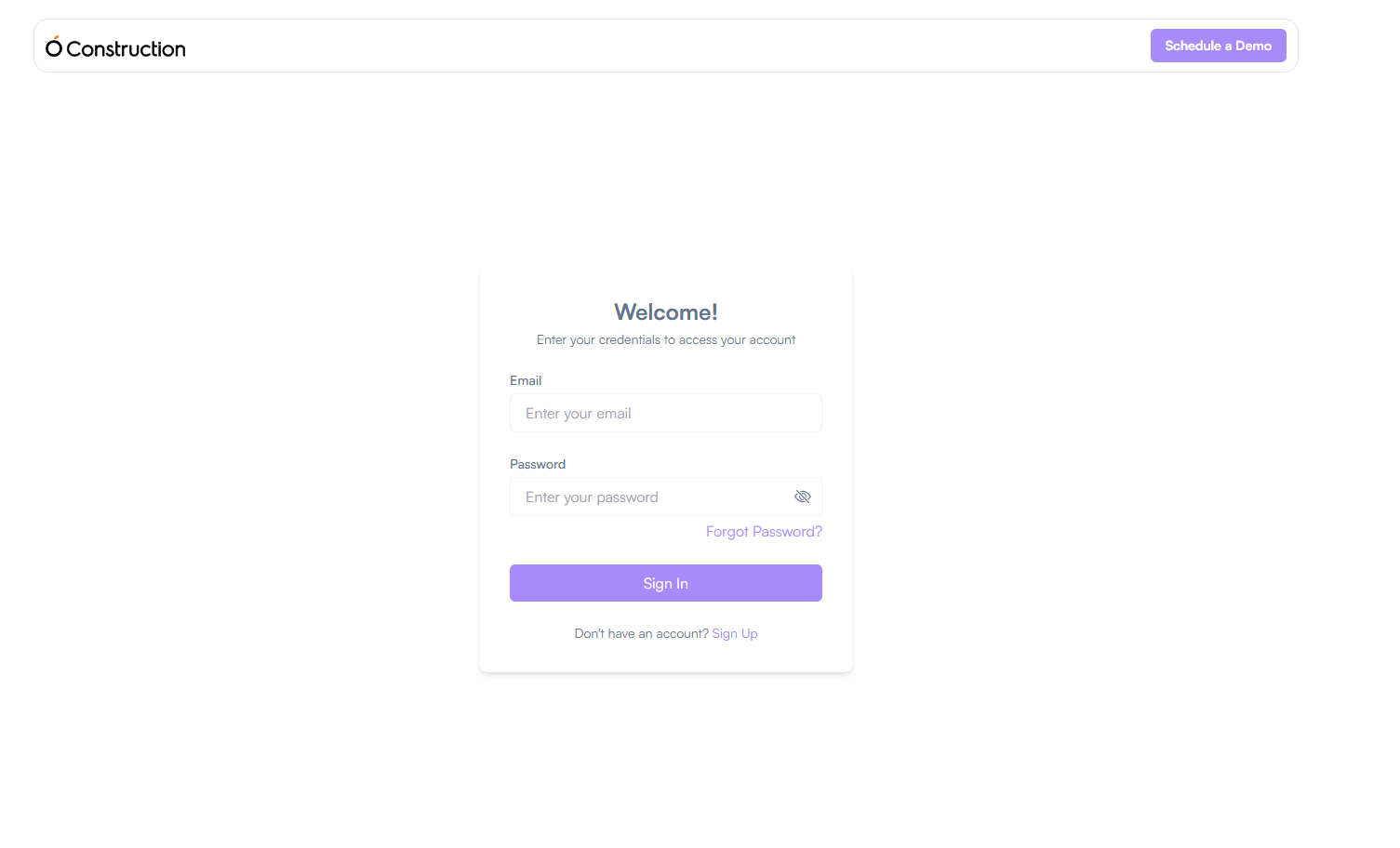
Once the account is created, the user can log in using their email and password.

After logging in, the user can add additional members to their organization through the Configuration section under Company Settings.

Logging In

  • Access the Login Page:

Log In:

  • Enter your registered email address.
  • Enter the password you created during sign-up.
  • Click the “LogIn” button.

Configuration

The Configuration section in the application is divided into three main parts:

  • Profile Settings
  • Company Settings
  • Project Settings

Profile Settings

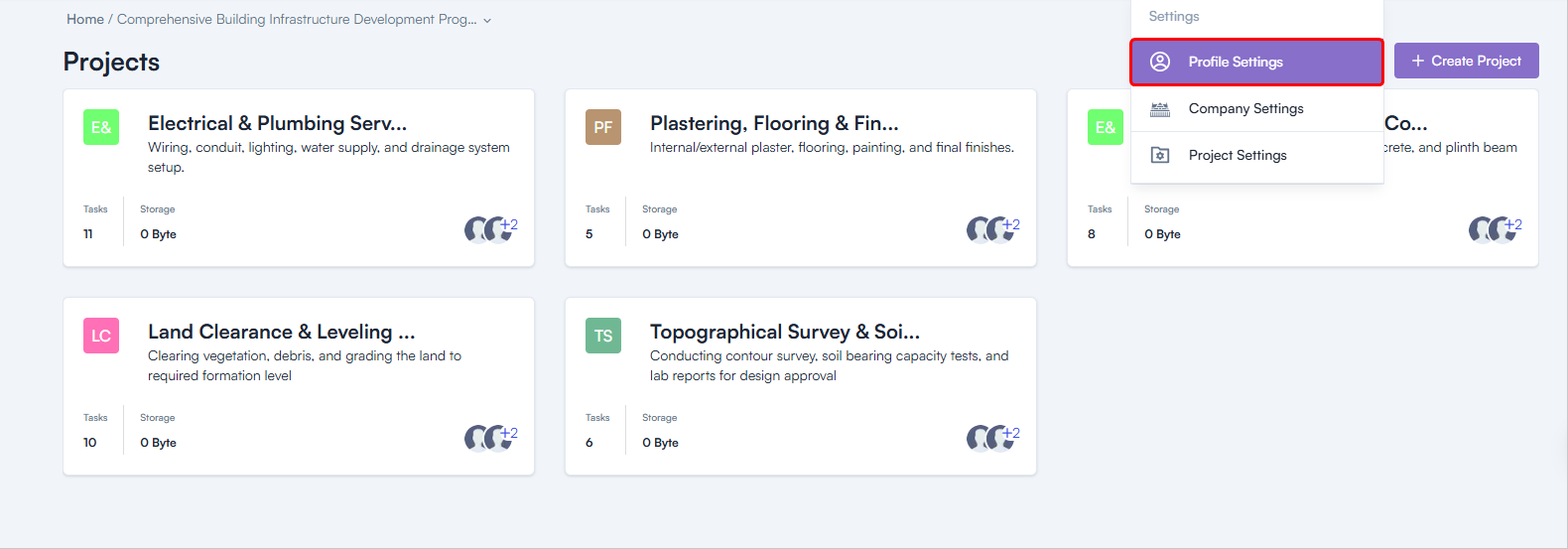
Steps to Access Profile Settings:

  • Login to the web application using your email & password.
  • Go to the Header Section.
  • Click on the Settings Icon.
  • Click on Profile Settings.

Profile Settings Sections:

  • My Profile
  • Change Password
  • Workspace

My Profile

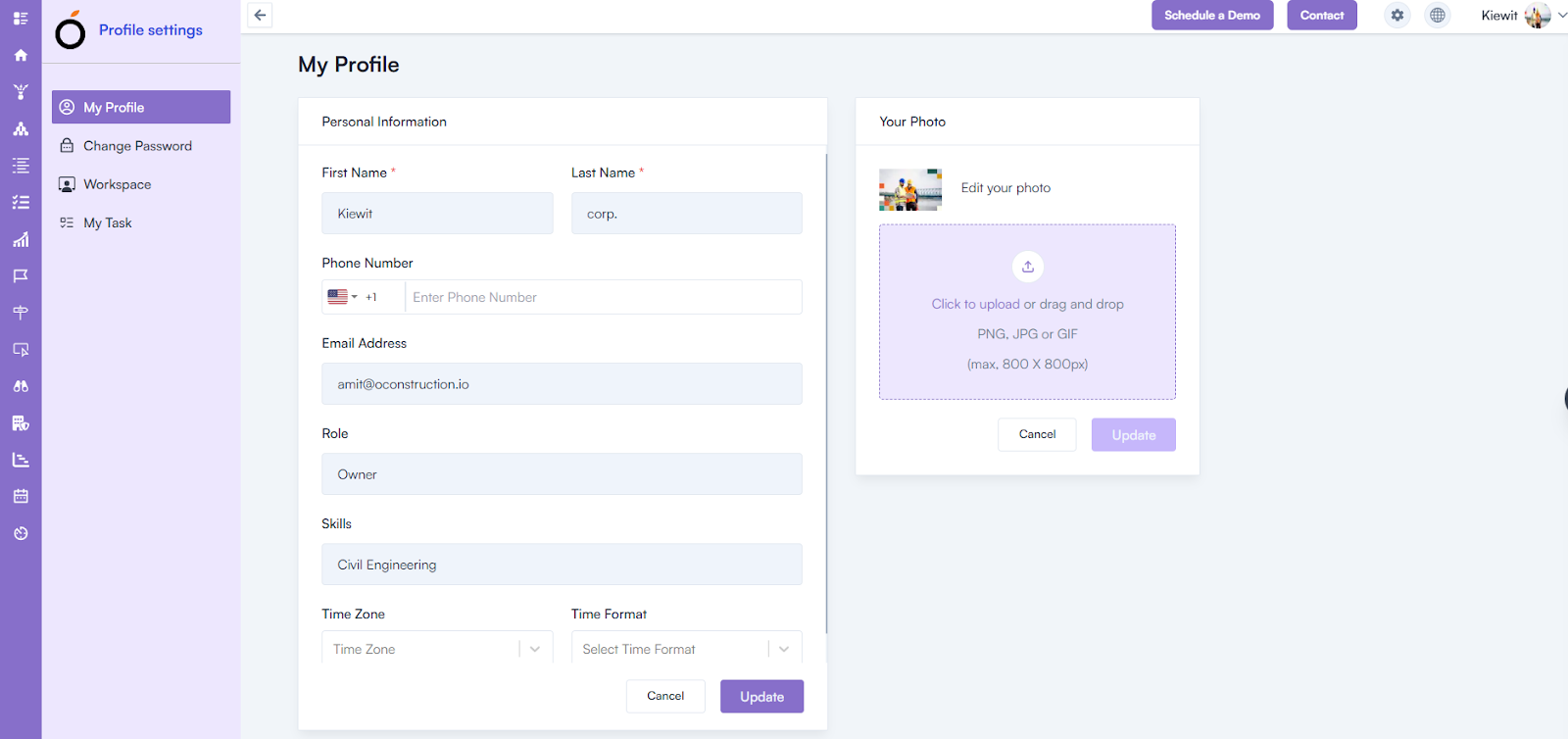
To access My Profile:

  1. Go to Profile Settings.
  2. In the Left Menu, click on My Profile.
  3. Displays all personal information related to the logged-in user:
    • First Name*
    • Last Name*
    • Phone Number
    • Email Address
    • Role
    • Skills
    • Time Zone
    • Time Format
    • Upload a Profile Picture

My Profile


Change Password

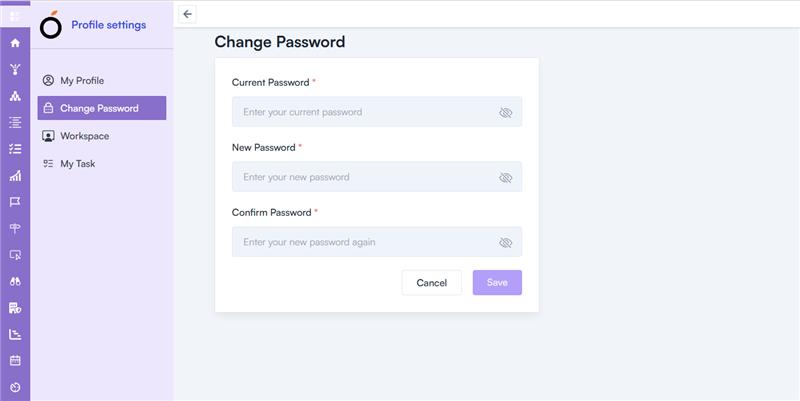
To change the password:

  1. Go to Profile Settings.
  2. In the Left Menu, click on Change Password.
  3. Enter the following details:
    • Current Password*
    • New Password*
    • Confirm Password*
  4. Click on Save to update the password.

Workspace

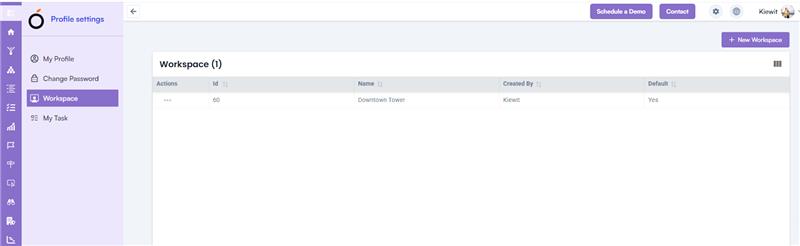
To add a new workspace:

  1. Go to Profile Settings.
  2. In the Left Menu, click on Workspace.
  3. In the Header Section, click on the New Workspace button.
  4. Enter the Workspace Name.
  5. Click on Save.

Company Settings

The Company Settings can be accessed in two ways:

  1. From the Left Menu
  2. From the Header Section (Settings Icon)

Accessing Company Settings:

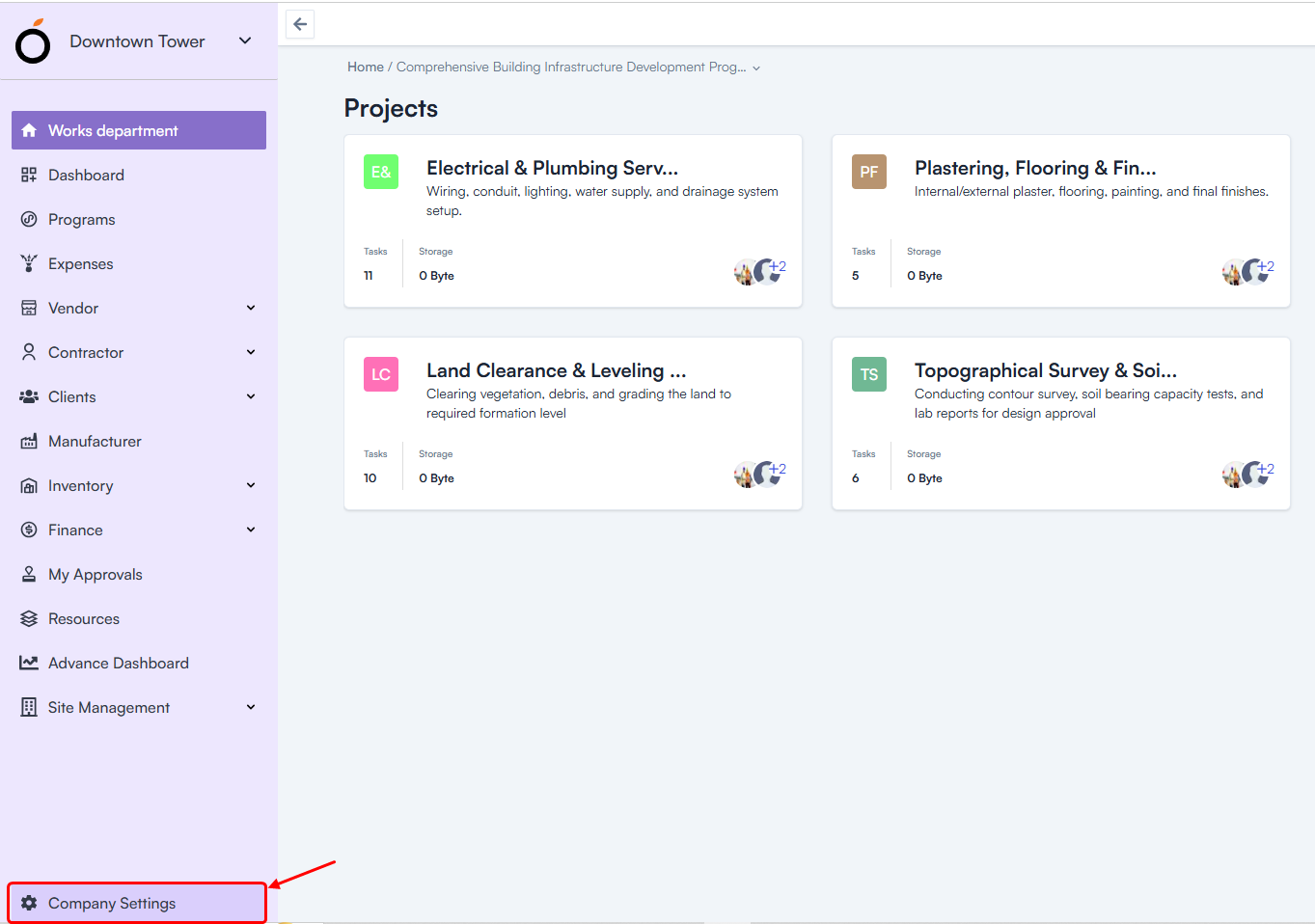
Method 1: Left Menu

  1. Log in to the web application using your email & password.
  2. In the Left Menu, click on Company Settings.


Method 2: Header Section (Settings Icon)

  1. Log in to the web application using your email & password.
  2. Go to the Header Section.
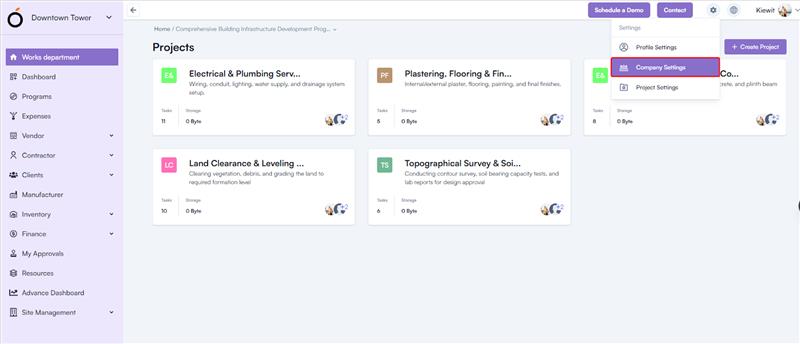
  3. Click on the Settings Icon.
  4. Click on Company Settings.

Inside Company Settings:

1. General Settings

Overview: Displays all information related to the organization, including:

  • Organization Name
  • Website
  • Contact Number
  • Currency
  • Description
  • Organization Owner

Import Project: Allows importing of projects into the system.

2. Users Management

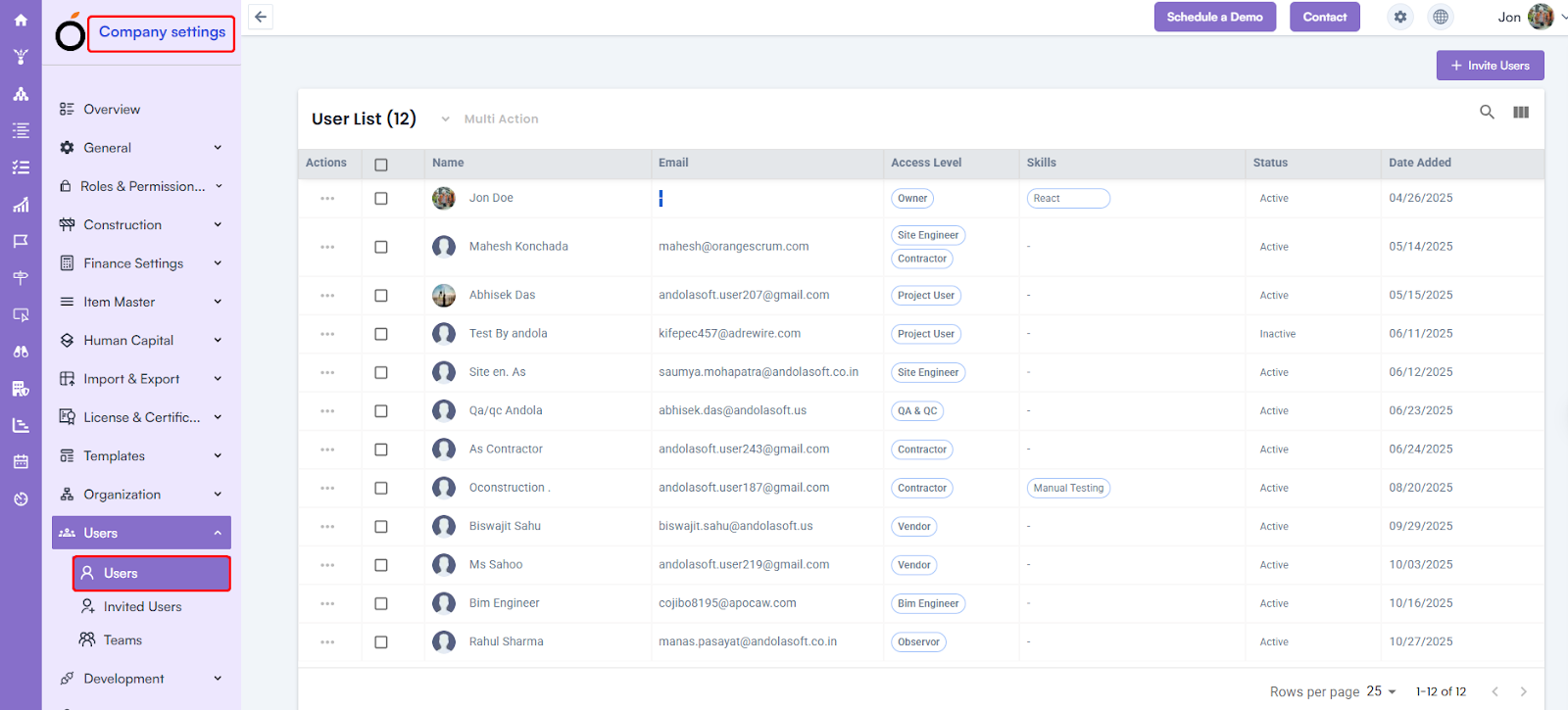
Users

The Users section is used to invite new users to the organization.

Steps to Invite a User:

  1. Go to Company Settings.
  2. Click on the Users dropdown.
  3. Click on Users.
  4. In the Top Right Section, click on the Invite User button.
  5. Fill in the required details:
    • First Name*
    • Last Name*
    • Email Address*
    • Access Level
  6. Click on Invite.
    • The invited user will receive an email from the organization.
    • They can log in to the application using the invitation link.

Invited Users

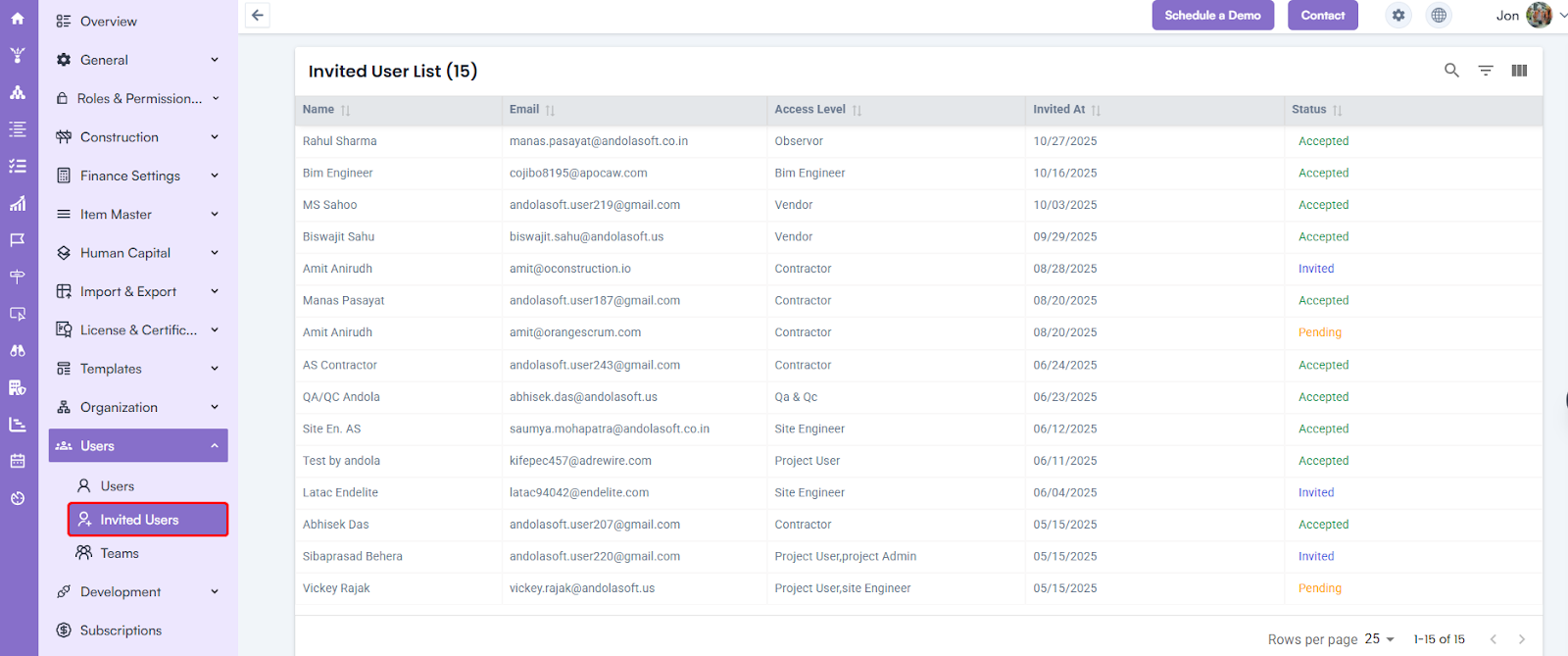
  • Displays the list of all invited users.
  • To access:
    1. Go to Company Settings.
    2. Click on the Users dropdown.
    3. Click on Invited Users.

User Group

The User Group section is used to organize invited users into groups.

Steps to Create a User Group:

  1. Go to Company Settings.
  2. Click on the Users Dropdown.
  3. Click on User Group.
  4. In the Top Right Section, click on the Create Group button.
  5. Enter a Group Name.
  6. Click on Save.

Adding Members to a User Group:

  1. Click on the Group Name.
  2. Add members to the group.

Category: Construction Academy

Subcategory: Budgeting and Planning

Subcategory: Construction Phase

Subcategory: Design Coordination

Subcategory: Estimation Techniques

Subcategory: Initiation and Feasibility

Subcategory: Introduction

Subcategory: Personal Management

Subcategory: Project Close-Out

Subcategory: Project Scheduling

Subcategory: Project Teams

Subcategory: Proposal Management

Subcategory: Total Quality Management

Subcategory: Tracking and Control

Subcategory: Work Breakdown

Category: Help Desk

Subcategory: Client

Subcategory: Construction 101

Subcategory: Contractor Management

Subcategory: Expense

Subcategory: Finance Budget

Subcategory: Inventory Management

Subcategory: My Approvals

Subcategory: Site Management

Subcategory: Vendor Management