Site Resources

How to Access

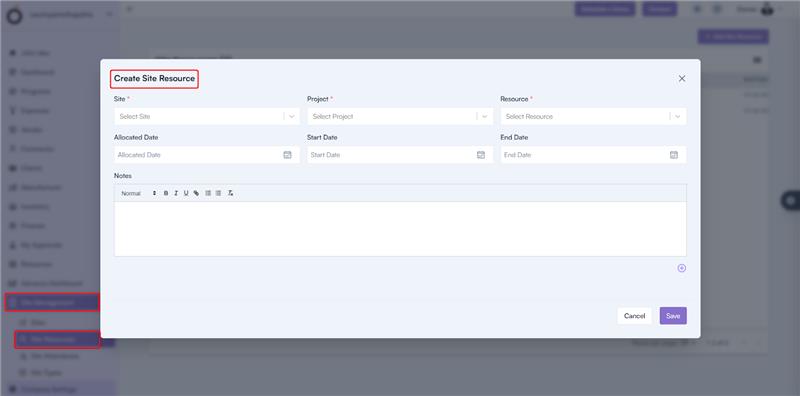
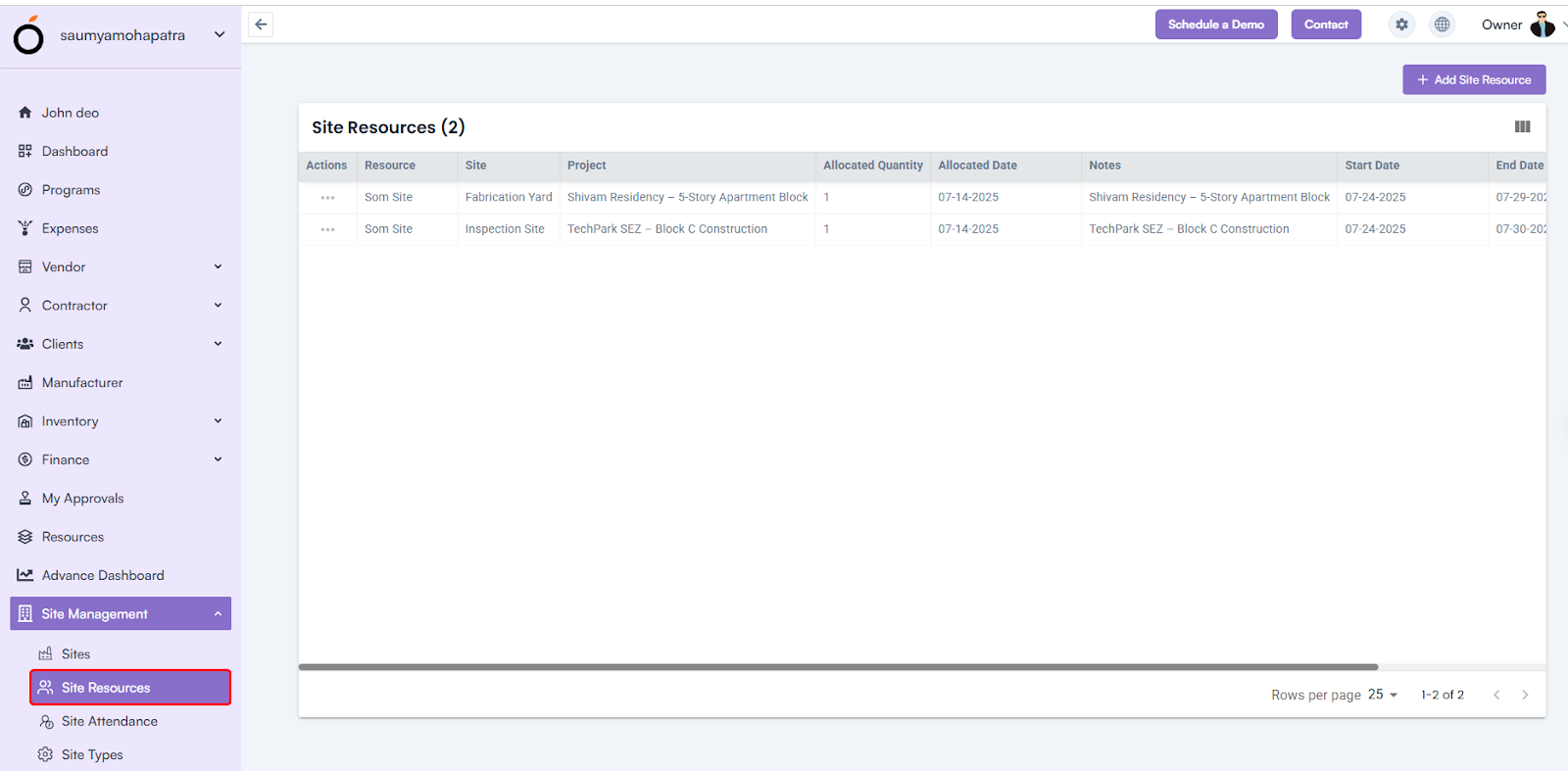
Log in to the web application > go to Site Management > click on Site Resources > click on the Add Site Resources button.

Site Resources

Steps to Assign Site Resource

  • Select Site* – Choose the site from the dropdown (previously created sites).
  • Select Project* – Select the project linked to this site.
  • Select Resource* – Choose the resource (worker, staff, or equipment) to allocate.
  • Allocated Date – Specify the date of resource allocation.
  • Start Date / End Date – Define the resource availability period.
  • Notes – Add any specific remarks or instructions for the resource.

To assign multiple resources, click the + icon and repeat the process.

Click Save to confirm.

Listing View

All assigned site resource appear in the list view with the following details:

  • Actions (Edit / Delete)
  • Resource
  • Site
  • Project
  • Allocated Quantity
  • Allocated Date
  • Notes
  • Start Date
  • End Date
  • Status

Sites

How to Access

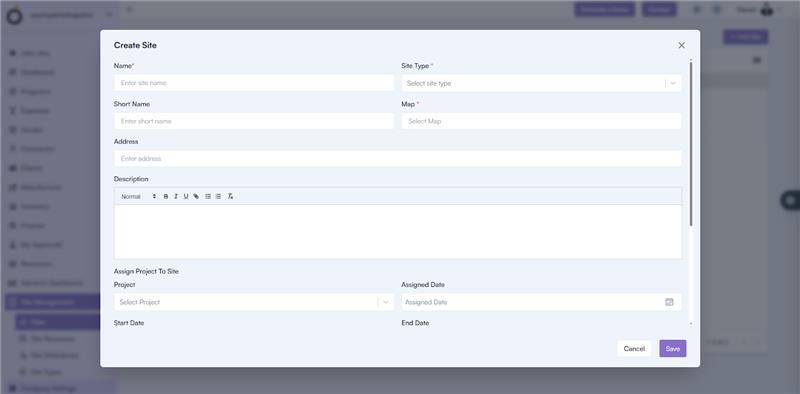
Log in to the web application > go to the left menu > click on Site Management > select Sites > click on the Add Site button.

Steps to Create a Site

  • Site Name* – Enter the full name of the construction site.
  • Site Type* – Select from the dropdown (e.g., Renovation, Industrial, Infrastructure, Construction Site).
  • Short Name – Enter a short identifier for the site.
  • Map* – Define the site boundaries by connecting points on the map (create a rectangle, polygon, etc.).
  • Address – Enter the detailed address of the site.
  • Description – Provide additional details about the site.

Sites

Assign Project to Site

  • Select Project – Choose the project(s) associated with this site.
  • Assigned Date – Date on which the project was assigned to the site.
  • Start Date / End Date – Define the duration for project execution at this site.
  • Notes – Add remarks or any relevant site-related notes.

If multiple projects need to be assigned to the same site, click on the + icon to add more.

Click Save to create the site successfully.

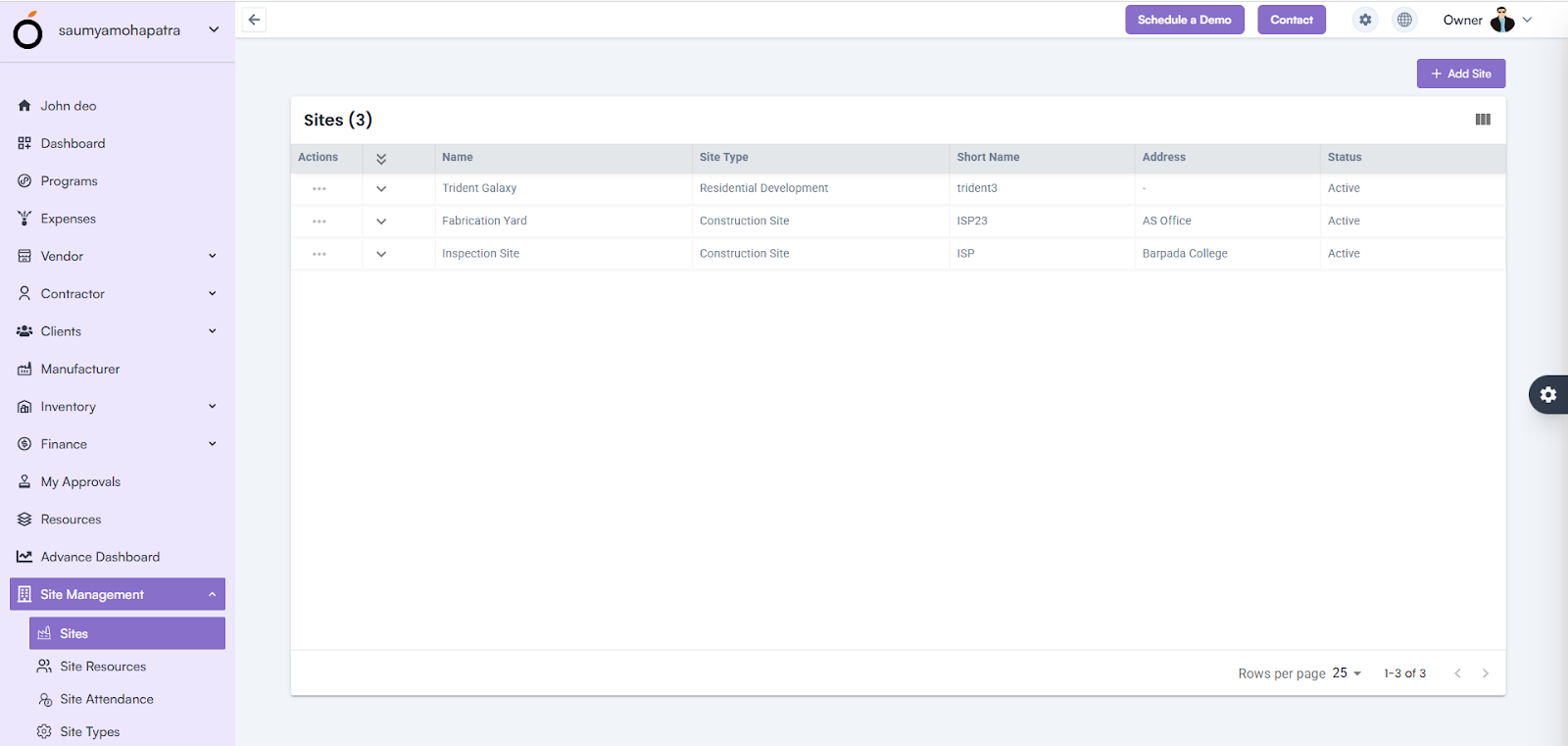
The created sites appear in the Site List, displaying their key details.

Site Management Overview

The Site Management module is a key feature in construction project management that ensures field activities, resource tracking, and attendance monitoring are accurate and location-based.

It allows project managers to define sites, assign resources, and validate on-site attendance using geo-fencing—ensuring that users clock in and out only when physically present within the defined project site boundary.

This prevents false attendance marking and improves transparency and efficiency in managing on-site operations.

Modules under Site Management

The Site Management module consists of the following sections:

  • Sites
  • Site Resources
  • Site Attendance
  • Site Types

Site Management

Expense Overview

The Expense module allows users to record, manage, and track project-related or organizational expenditures efficiently.

 It helps maintain financial transparency and provides a detailed breakdown of expenses across projects, departments, and programs.

How to Access

Log in to the application > go to the left menu > click on Expense > click on the Create Expense button.
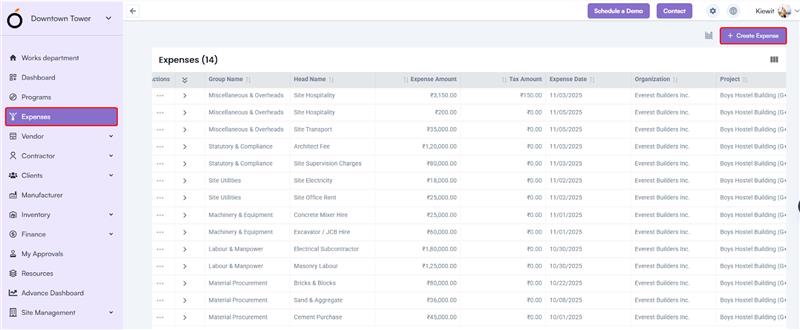
Steps to Create an Expense

  • Select Organization Name – Choose the organization under which the expense is being recorded.
  • Select Project – Pick the project related to the expense from the dropdown list.
  • Select Expense Group – Choose the expense group (can be created in Company Settings > Finance Settings > Expense Group).
  • Select Expense Head – Based on the selected group, the corresponding expense heads are displayed (can be configured in Company Settings > Finance Settings > Expense Head).
  • Select Requested By* – Choose the employee who initiated the expense.
  • Select Approver – Assign an approver (approvers can be configured in Company Settings > Organization > Approvers).
  • Select Expense Date* – Specify the date of the expense.
  • Select Currency* – Choose the currency for the transaction.
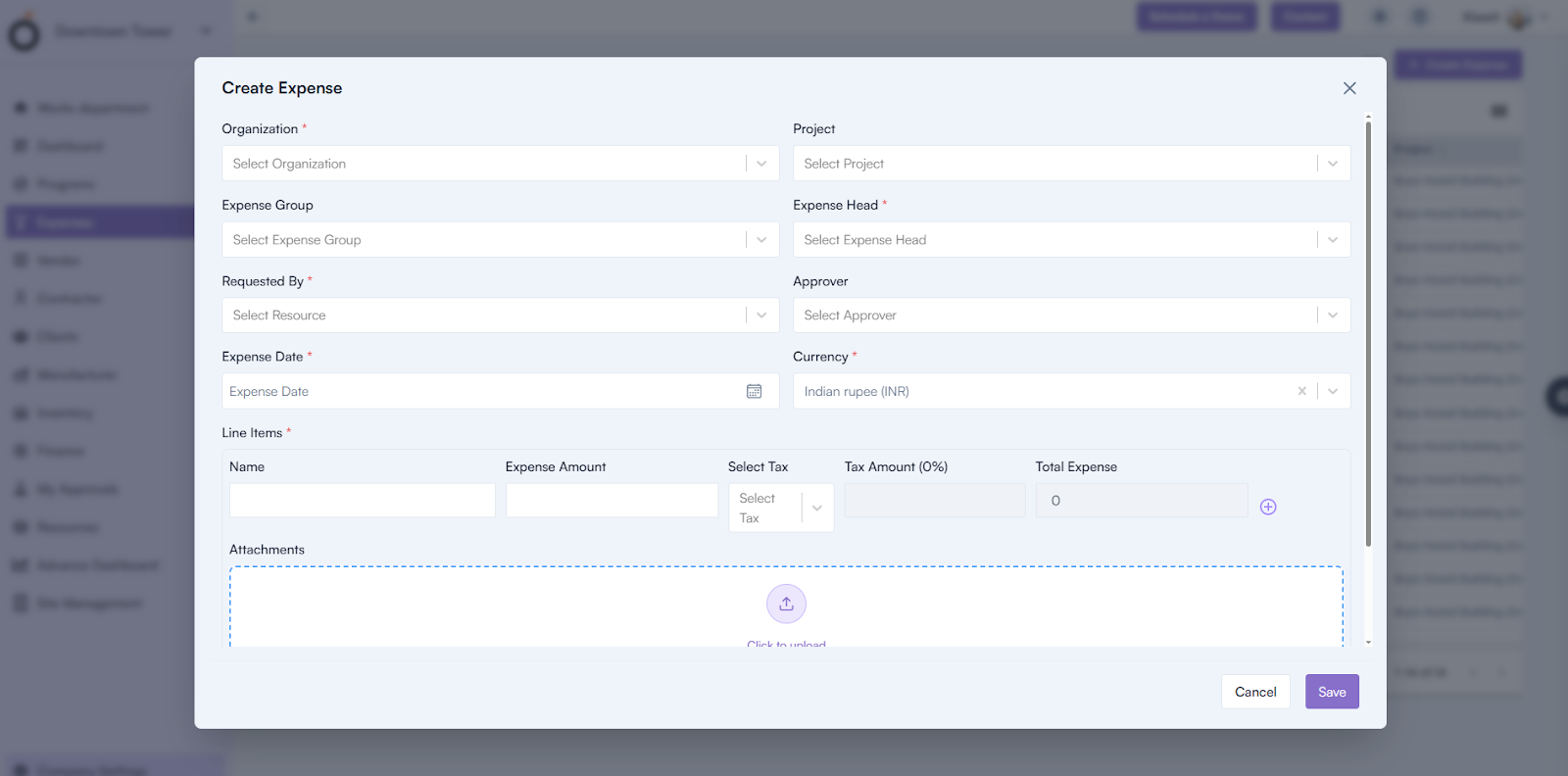
Steps to Create an Expense

Line Items

Add individual expense line items:

  • Name – Description or purpose of the expense.
  • Expense Amount – Enter the amount for the line item.
  • Select Tax – Choose the applicable tax rate.

Upon entering the above, the system automatically calculates:

  • Tax Amount (0%)
  • Total Expense

You can upload attachments such as bills, receipts, or vouchers.

The following fields are automatically filled:

  • Net Amount*
  • Tax Amount*
  • Total Expense Amount*

You can also add multiple line items by clicking on the + icon.

Click Save to create the expense successfully.

Expense Details Page

By clicking on the Expense Group Name, the system redirects to the Expense Details Page.

This page displays all information added during expense creation, organized under the following sections:

  • General Information – Key expense and date details.
  • Financial Information – Displays total, tax, and net amounts.
  • Approval Details – Shows the approver and approval status.
  • Organization and Project Information – Lists the associated organization and project.
  • Items – Displays all expense line items with their amounts and taxes.
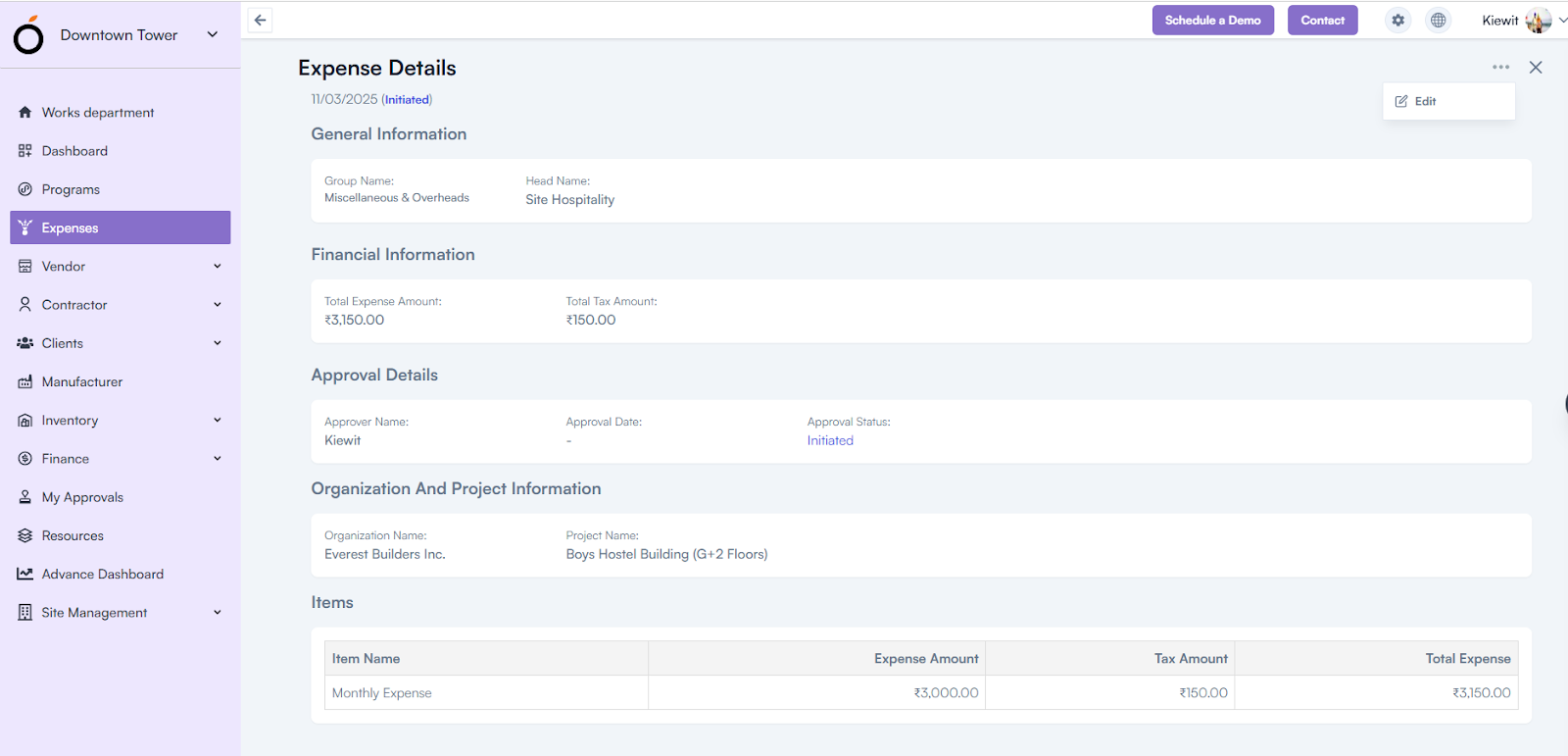
Expense Details Page

Dashboard View

Login to the application > go to the left menu > click on Expenses > go to the header section > click on the Dashboard View icon.

The Expense Dashboard provides a visual summary of expense data through interactive charts and graphs, offering insights such as:

  1. Monthly Expense Trend – Shows the spending pattern month-wise.
  2. Expense by Projects – Displays expense distribution across projects.
  3. Department-Wise Expenses – Compares expenses between different departments.
  4. Expenses by Programs – Highlights spending across ongoing programs.
  5. Expenses by Organization – Summarizes total expenses for each organization unit.
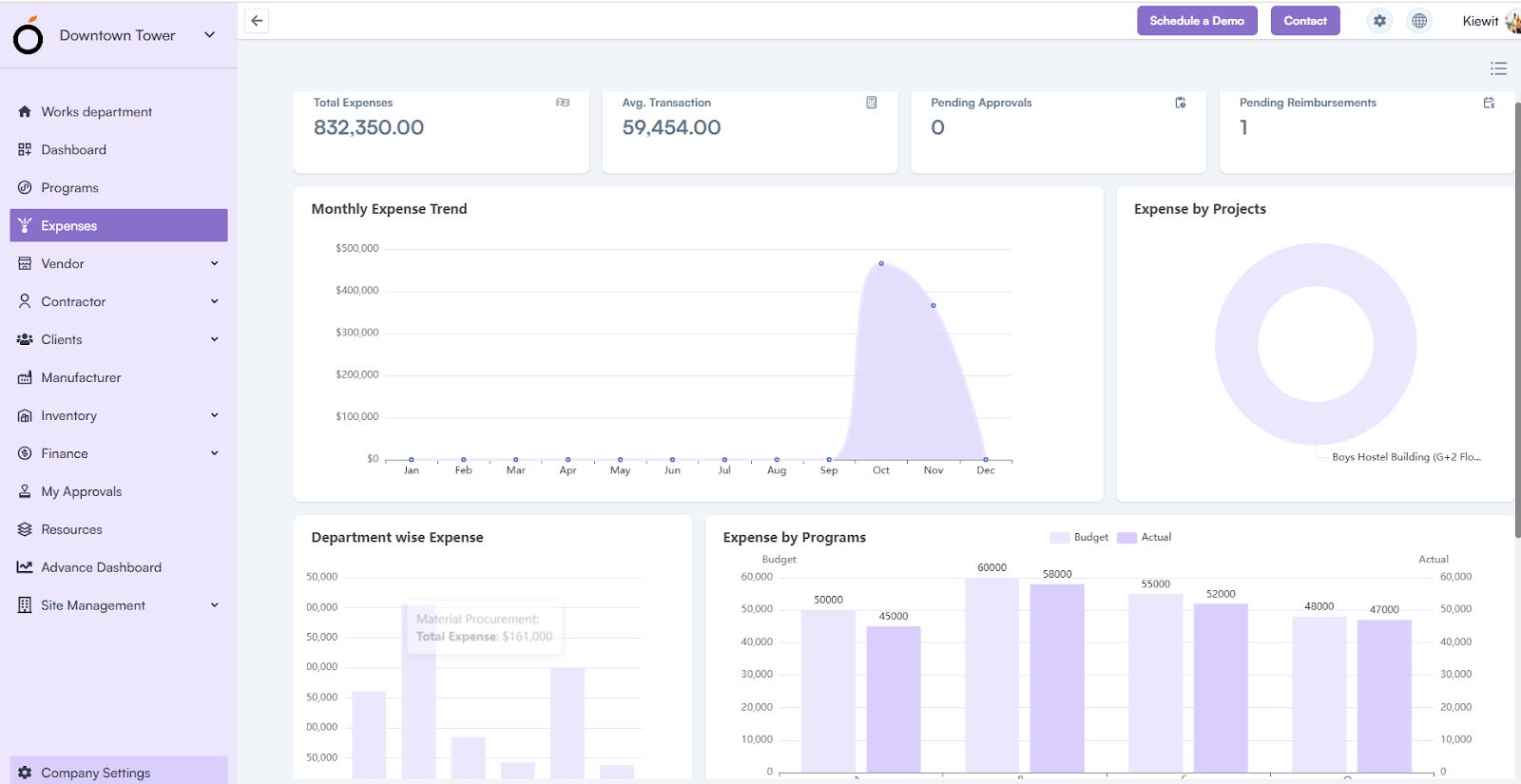
Dashboard View

KPI’s

The Expense module dashboard also displays key performance indicators for quick insights:

  • Total Expenses – Overall expenses recorded within the system.
  • Average Transaction – Average amount spent per expense entry.
  • Pending Approvals – Number of expenses awaiting approval.

Pending Reimbursements – Expenses submitted but not yet reimbursed.
Payments

The Payments module enables users to record and manage all payment transactions related to clients, projects, and invoices.

It provides a centralized way to track payment status, methods, and approvals efficiently.

How to Access

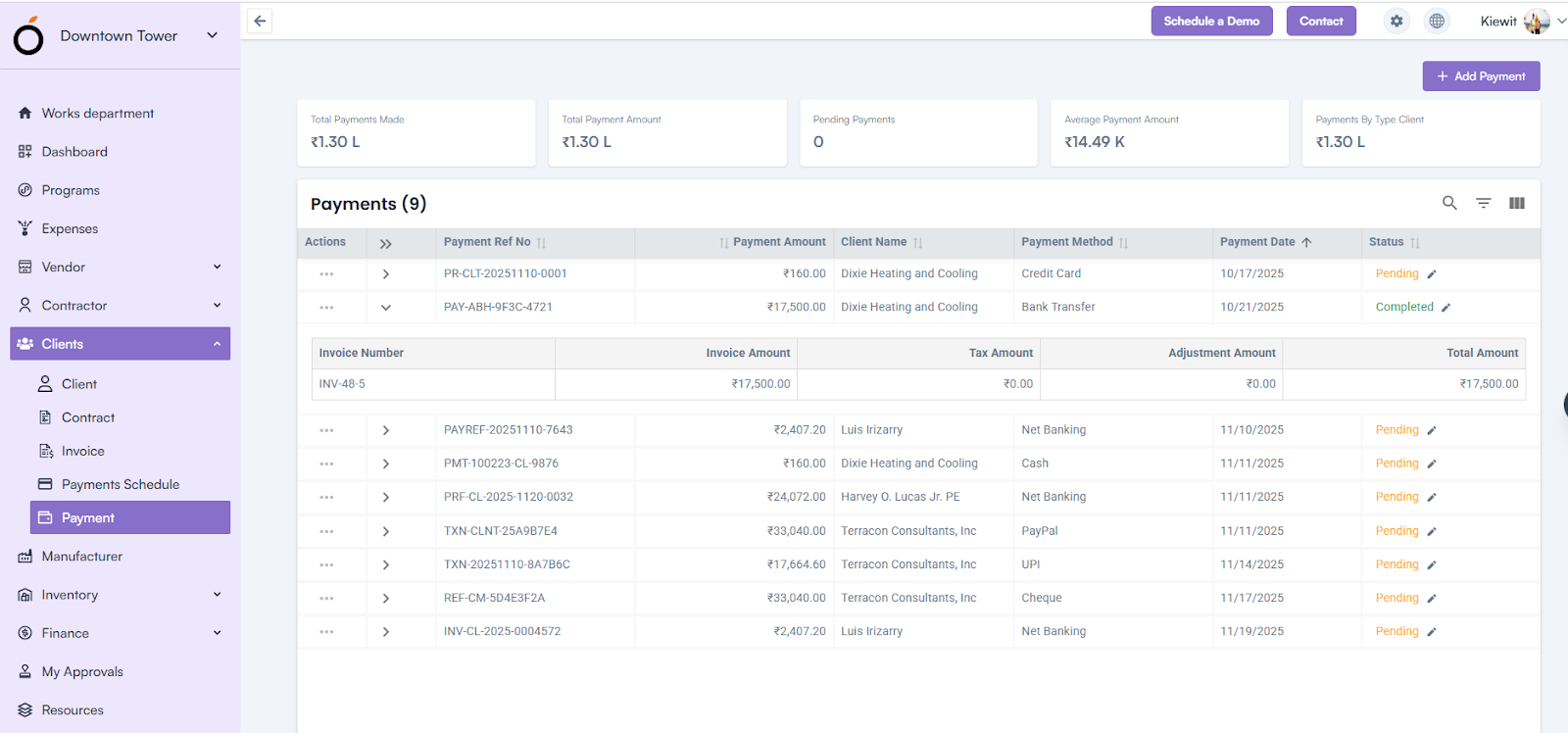
Log in to the application > go to the left menu > click on Payments.

 Payments

Click on the Add Payment button to create a new payment entry.

Steps to Create a Payment

  • Select Project Name* – Choose the project associated with the payment.
  • Select Client Name* – Choose the client linked to the project.
  • Select Payment Schedule – Pick a previously created payment schedule for reference.
  • Select Invoice – Choose the invoice related to the payment.

Upon selecting the invoice, the following fields are automatically filled:

  • Payment Due Date
  • Invoice Amount*
  • Tax Amount*
  • Sub Total
  • Enter Adjustment Amount – Add or deduct any adjustments, if applicable.
  • Total Amount – Automatically calculated based on the invoice and adjustment details.
  • You can add multiple invoices by clicking the + Add icon.

Next, fill in the payment details:

  • Select Payment Date* – Choose the actual date of payment.
  • Select Payment Method – Choose from options such as Bank Transfer, Credit Card, Debit Card, Cash, Cheque, Net Banking, UPI, or PayPal.
  • Select Approver – Choose the person authorized to approve this payment.
  • Select Payment Made By – Displays a list of project members who can make the payment.
  • Enter Transaction Number* – Record the transaction reference number.
  • Upload Attachments – Add supporting documents or receipts.
  • Enter Reference Note – Add any remarks or internal comments related to the payment.

Click Save to record the payment details successfully.

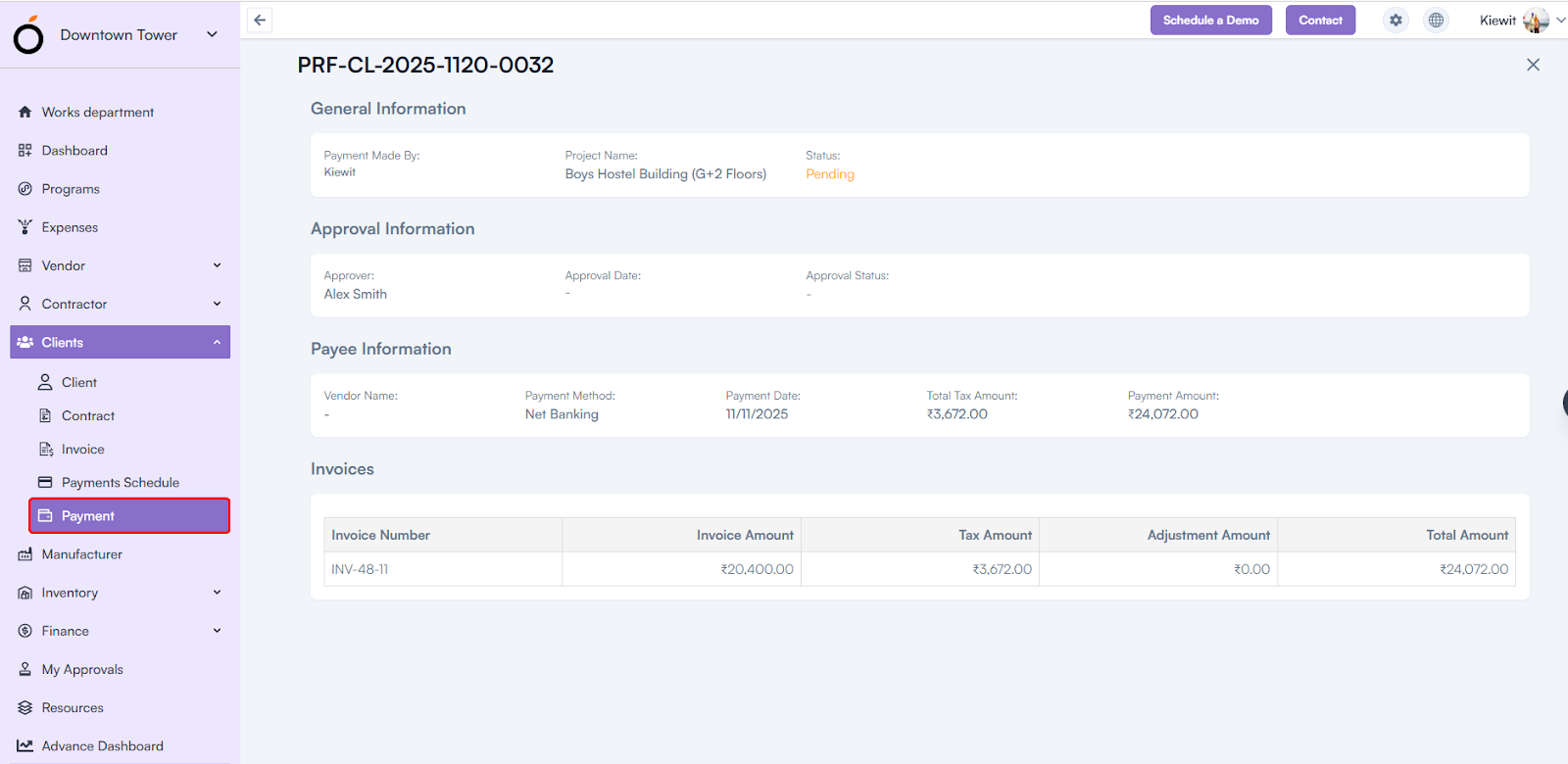
Payment Details Page

By clicking on the Payment Reference Number displayed in the payment listing, the system redirects to the Payment Details Page.

This page displays all information entered during payment creation, grouped into sections such as:

Payment Details Page

  • General Information – Displays key details like project, client, and payment method.
  • Approval Information – Shows the approver and approval status for the transaction.
  • Payee Information – Contains details of the person or organization receiving the payment.
  • Invoices – Lists all invoices linked to the payment along with their amounts and statuses.

KPI’s

The Payments listing page displays key financial metrics for quick analysis:

  • Total Payments Made – Total number of payments recorded in the system.
  • Total Payment Amount – Aggregate value of all payments made.
  • Pending Payments – Count and value of payments that are yet to be completed.
  • Average Payment Amount – Average value per payment transaction.

Payments by Type/Client – Distribution of payments based on type or client.

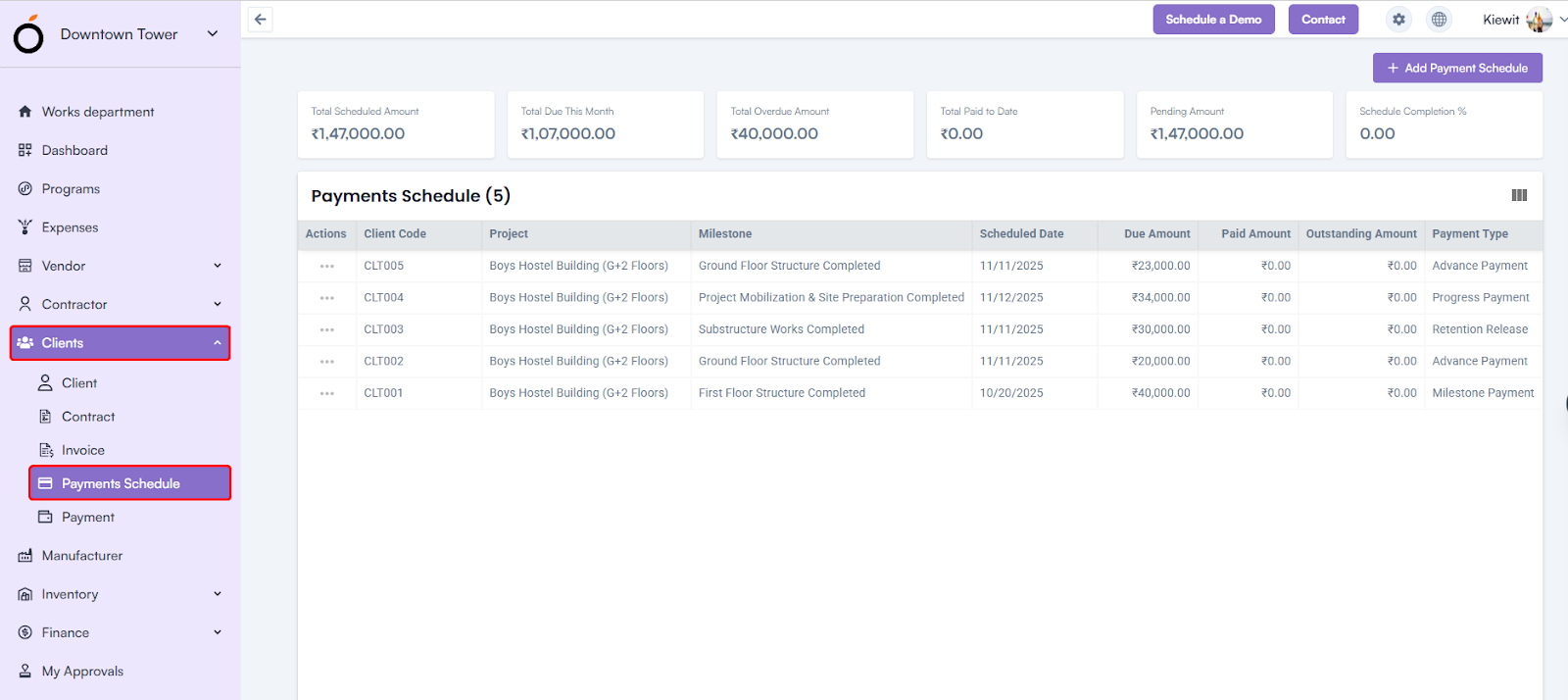
Payments Schedule

The Payments Schedule module allows users to plan, track, and manage scheduled payments for clients and projects. 

It helps in monitoring due amounts, milestones, and payment progress efficiently.

How to Access

Log in to the application > go to the left menu > click on Payments Schedule.

 Payments Schedule


Click on the Add Payment Schedule button to create a new payment schedule.

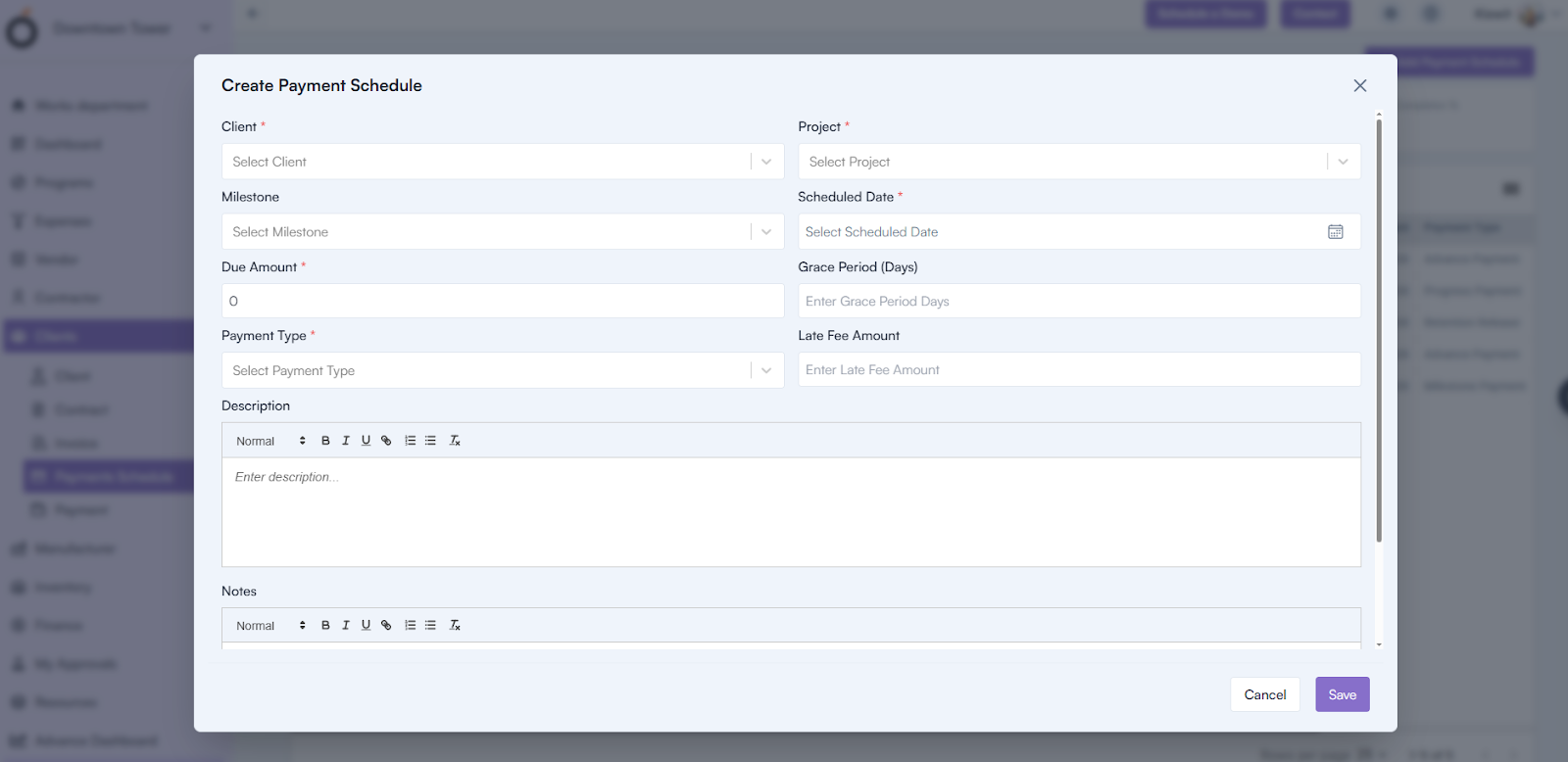
Steps to Create a Payment Schedule

  • Select Client – Choose the client from the drop-down list.
  • Select Project* – Choose the associated project from the drop-down.
  • Select Milestone – Select a milestone; the milestone names created for the selected project are displayed.
  • Select Scheduled Date* – Choose the date when the payment is planned.
  • Enter Due Amount* – Specify the amount that is due for the selected milestone or period.
  • Enter Grace Period (Days) – Define the number of days allowed beyond the due date for payment.
  • Select Payment Type* – Choose the payment category (Milestone Payment, Advance Payment, Final Payment, Retention Release, Progress Payment, or Penalty Deduction).
  • Enter Late Fee Amount – Specify any late fee to be applied for delayed payments.
  • Enter Description – Provide a short description of the payment schedule.
  • Enter Notes – Add any additional remarks or relevant information.
  • Click Save – Save the payment schedule to record the entry.

Steps to Create a Payment Schedule

You can edit, view, or delete any existing payment schedule as needed.

Payment Schedule Details Page

By clicking on the Client Code displayed in the Payment Schedule listing, the system redirects to the Payment Schedule Details Page.

This page displays all the details entered during creation, grouped into sections such as:

  • General Information – Displays key payment and client details.
  • Schedule Information – Shows project, milestone, and due date data.
  • Description & Notes – Contains any remarks or supporting notes added by the user.

KPI’s

The Payment Schedule listing page also displays key financial indicators for quick tracking:

  • Total Scheduled Amount – Total value of all scheduled payments.
  • Total Due This Month – Amount due for the current month.
  • Total Overdue Amount – Cumulative value of overdue payments.
  • Total Paid to Date – Total payments completed till date.
  • Pending Amount – Remaining unpaid balance from the schedule.
  • Schedule Completion % – Percentage of payments completed against the total scheduled amount.

Category: Construction Academy

Subcategory: Budgeting and Planning

Subcategory: Construction Phase

Subcategory: Design Coordination

Subcategory: Estimation Techniques

Subcategory: Initiation and Feasibility

Subcategory: Introduction

Subcategory: Personal Management

Subcategory: Project Close-Out

Subcategory: Project Scheduling

Subcategory: Project Teams

Subcategory: Proposal Management

Subcategory: Total Quality Management

Subcategory: Tracking and Control

Subcategory: Work Breakdown

Category: Help Desk

Subcategory: Client

Subcategory: Construction 101

Subcategory: Contractor Management

Subcategory: Expense

Subcategory: Finance Budget

Subcategory: Inventory Management

Subcategory: My Approvals

Subcategory: Site Management

Subcategory: Vendor Management