Vendor Asset

Overview

The Vendor Asset section enables users to associate physical or service assets with vendors, including pricing details.

Navigation Path

  • Log in to the application.
  • Navigate to Vendors.
  • Click Assets.
  • Click the + Create Vendor Asset button.

Vendor Asset

Form Fields Explained

1. Vendor

  • Select the vendor to whom the asset is associated. This is a required field, and only registered vendors will appear in the list.

2. Select Asset

  • Assets must be created beforehand in Company Settings ➝ item Master ➝ Asset. Once created, they appear in the dropdown to ensure standardization and prevent duplication.

3. Price

  • Enter the unit price of the asset being provided by the vendor. This is a required numeric field used in valuation and reporting.

4. Currency Code

  • Choose the currency used for asset pricing. 

Action Buttons

  • Save – Saves the asset details and links them to the selected vendor.
  • Cancel – Closes the form without saving any changes.

Note: For creating a Vendor Assert:

1. Mandatory Fields:

  • Vendor Name *
  • Assert *
  • Price *
  • Currency Code*

Vendor Asset KPI’s

  • Total Vendor Assets – Displays the number of assets assigned across vendors.
  • Total Vendor Asset Value – Summarizes the combined value of all vendor assets.
  • Active Vendor Assets – Tracks assets currently in use or valid.
  • Depreciated Vendor Assets – Monitors assets that have reduced in value over time or reached the end of their lifecycle.
Vendor Item

Overview

The Vendor Item section allows you to associate items with specific vendors by defining relevant details such as pricing and currency.

Navigation Path

  • Log in to the application.
  • Navigate to the left menu and click Vendor.
  • Select Item.
  • Click the Add Vendor Item button.

Form Fields Explained

1. Vendor

  • Select the vendor from the dropdown to whom the item will be assigned. Only registered vendors will appear in this list.

2. Select Item

  • Select the item from the drop-down.

3. Price

  • Enter the unit price at which the vendor supplies the selected item. This is a required field used for purchase order calculations and cost tracking.

4. Currency Code

  • Select the currency in which the item price is denominated.

Action Buttons

  • Save – Stores the item details under the vendor’s profile once all mandatory fields are filled.
  • Cancel – Discards any data entered and exits the form without saving.

Note: For creating a Vendor item:

1. Mandatory Fields:

  • Vendor Name *
  • Item *
  • Price *
  • Currency Code*

2. Configurations in Company Settings:

  • Items are configured under: Company Settings ➝ Item Master

Vendor Item KPI’s

  • Total Vendor Item – The total count of items assigned to all vendors.
  • Vendor Item in Stock – Tracks the number of items currently in inventory.
  • Total Vendor Inventory Value – The cumulative value of all vendor item based on quantity and unit price.
  • Low Stock Vendor Item – Identifies items nearing depletion, helping prioritize procurement.

Vendor Licenses

Overview

  • Licenses are essential for ensuring that vendors meet legal, safety, and industry-specific compliance requirements.
  • Maintaining accurate records of licenses helps with audits, renewals, and regulatory adherence, thereby safeguarding projects and operations.

Filling the License Form

  • Log in to the application.
  • Navigate to the left menu and click Licenses.
  • Click the Add License button at the top-right corner to open the form.

Vendor Licenses

Step-by-Step Instructions to Create a License

1. Select Vendor

Choose the registered vendor from the dropdown list to whom the license applies.

2. Select License

Pick the license type from the dropdown. Example types include:

  • Driving License
  • ISO Certification
  • Safety Compliance Certificate

3. License Number

Enter the official license number as mentioned in the document.

4. Issue Date

Select the date when the license was issued using the calendar picker.

5. Valid Upto

Choose the expiration or validity end date. This helps in setting reminders for renewals and audits.

6. License Document Upload

Attach a soft copy of the license:

  • Click the upload icon or “Click to upload.”
  • Browse and select the file from your system.

Final Actions

  • Save – Store the license record and link it to the vendor’s profile.
  • Cancel – Exit the form or discard any changes without saving.

Note: For creating a Vendor License:

1. Mandatory Fields:

  • Vendor Name *
  • License *
  • Issue Date *
  • Valid Up to *

2. Configurations in Company Settings:

  • Licenses are configured under: Company Settings ➜ License and Certification

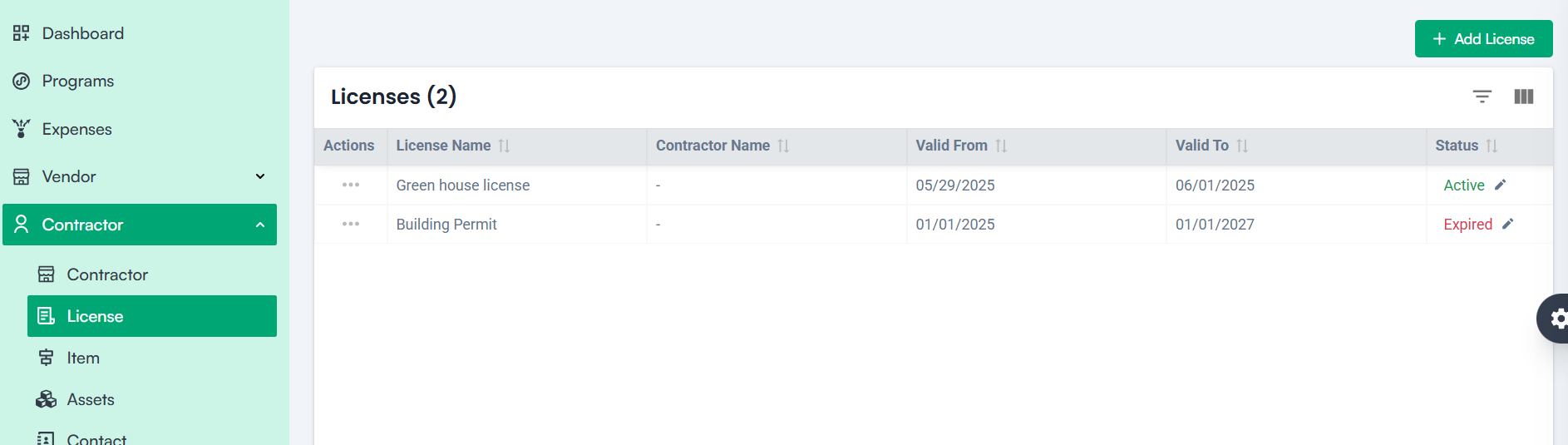
License Table Overview

The License table provides a structured view of all licenses linked to vendors, helping users track compliance and document details.

Table Columns:

  • License Name – Displays the type of license assigned to the vendor (e.g., Driving License, Safety Compliance Certificate).
  • Vendor Name – Shows the name of the vendor to whom the license is linked.
  • Valid From – Indicates the start date when the license became effective.

Valid To – Displays the expiration date of the license to help monitor renewals.

Vendor

What is a Vendor?

A vendor is a registered supplier, subcontractor, consultant, or service provider involved in the project. The vendor’s information is essential for creating contracts, managing orders, and processing payments.

Create Vendor – Step-by-Step Guide

Accessing the Form

  • Log in to the application.
  • Navigate to the left menu and select Vendors.
  • Click Add Vendor.

Vendor

Fill Vendor Information

1. Vendor Information

  • Name – Enter the full vendor name.
  • Email – Official email address.
  • Phone Number – Include country code for communication.
  • Industry Code – Classification of the vendor’s industry.
  • Vendor Code – Unique identifier assigned to the vendor.
  • Legal Name – Registered name of the vendor’s company.
  • Vendor Type – Supplier, subcontractor, consultant, etc.
  • Category – Type of product or service supplied.
  • Address – Enter postal address.

2. Bank Details

  • Account Number – The vendor’s bank account for payments.
  • Account Holder Name – Name of the account owner.
  • Account Type – Savings, current, etc.
  • Bank Name – Name of the vendor’s bank.
  • Branch Name – Branch details of the bank.
  • Bank Address – Address of the branch.
  • IFSC Code – Bank routing code.
  • SWIFT Code – International transfer code.
  • MICR Code – Clearing code.
  • Country, State, City, Zip Code – Location information for the branch.

3. Tax Identification

  • Type – GST, PAN, etc.
  • Number – Official tax identification number.
  • Click + to add more tax records if applicable.

Final Actions

  • Save – Click to register the vendor.
  • Cancel – Click to discard changes and exit.

Note:- For creating a Vendor

1. Mandatory Fields:

  • Vendor Name *
  • Email *
  • Industry Code *
  • Legal Name *

2. Configurations in Company Settings for Vendor Creation:

Industry Code is configured under: Company Settings ➜ Item Master ➜ Industry.

Vendor

Vendor Details page

Each tab focuses on a specific area related to the vendor:

  • License Tab – Displays all licenses assigned to the vendor, such as certifications, permits, and regulatory compliance documents.
  • Items Tab – Lists materials, tools, or products that the vendor supplies to projects. This helps track what each vendor is providing, streamlining procurement and inventory management.
  • Assets Tab – Shows assets provided by the vendor, including machinery, equipment, or other capital resources used in the project.
  • Contacts Tab – Displays individual contacts associated with the vendor, such as billing representatives, project coordinators, or delivery managers.
  • Contracts Tab – Lists all contractual agreements in place with the vendor, detailing the scope, timelines, and terms.
  • Purchase Orders Tab – Contains orders placed with the vendor, helping monitor requests and fulfillment.
  • Invoices Tab – Tracks billing records sent by the vendor for goods or services supplied.
  • Payments Tab – Displays all payment transactions made to the vendor, aiding in financial tracking and reconciliation.
  • Item Received Tab – Monitors goods or services delivered by the vendor, ensuring proper tracking of deliveries against orders.
  • Bank Details Tab – Contains payment account information used for processing transactions with the vendor.
  • Addresses Tab – Holds multiple physical addresses for the vendor, useful for billing, shipping, or regulatory purposes.
  • Tax Details Tab – Displays tax information associated with the vendor, including tax types (GST, PAN, etc.), registration numbers, and documentation required for regulatory compliance

Vendor Actions

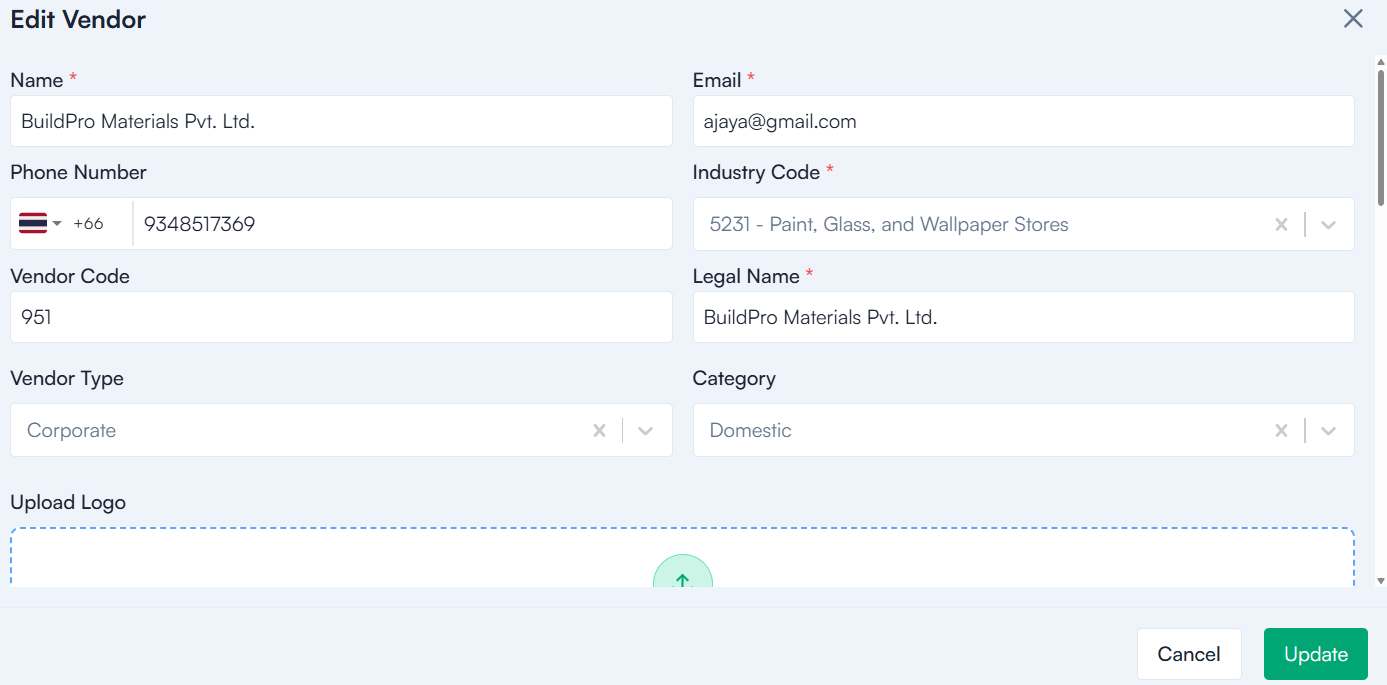
Edit Vendor

Edit Vendor

  • Click Edit next to the vendor.
  • Modify the fields as required.
  • Click Save to update the information.

Edit Vendor

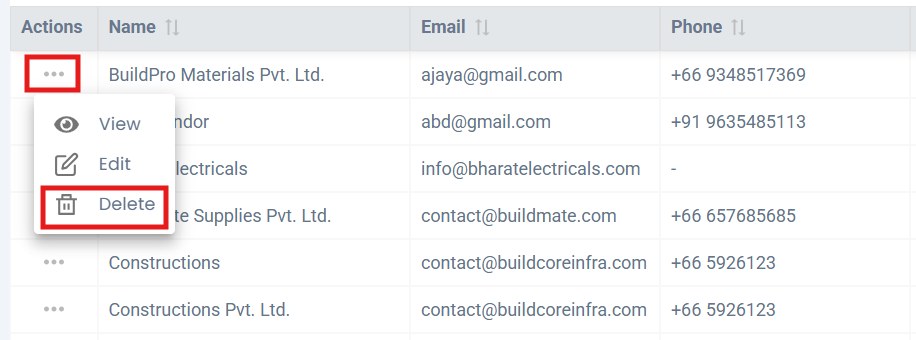
Delete Vendor

  • Click Delete.
  • Confirm the action in the popup window.
  • The vendor will be removed from the list.

Delete Vendor

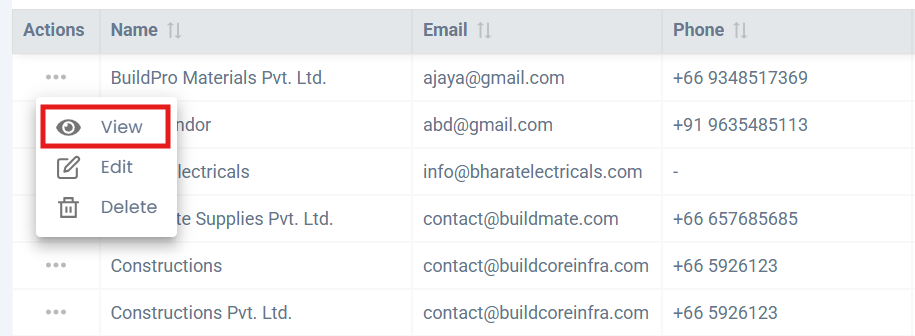
View Vendor Details

  • Click the vendor’s name or email address.
  • Review all associated details and records.

View Vendor

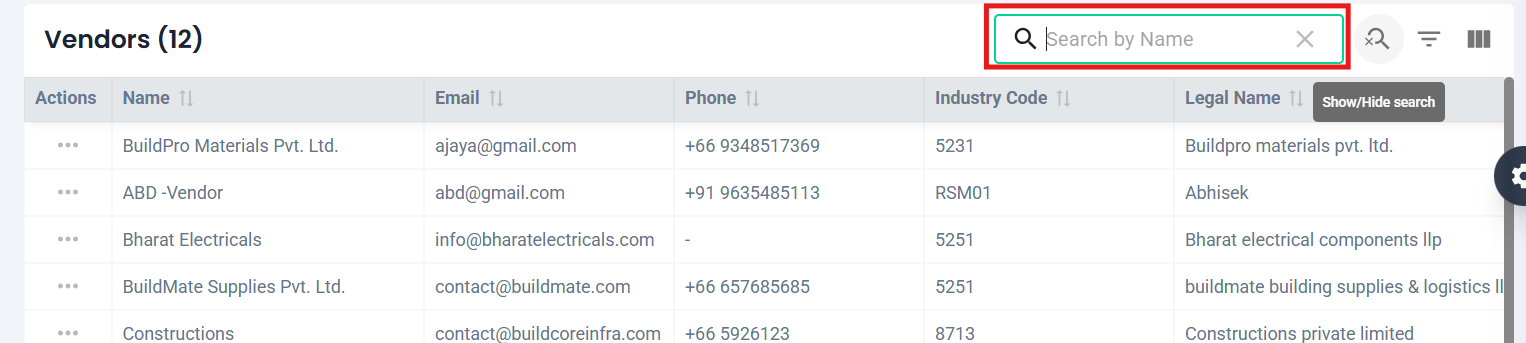
Search, Filter, and Sort

  • Use the search bar to quickly find vendors.
  • Apply filters based on status, type, or category.
  • Click on column headers to sort the vendor list.

Search

Vendor KPI Dashboard

The dashboard provides an overview of key performance metrics:

First Section – Summary Metrics

  • Total Vendors – Displays the number of vendors in the system.
  • Total Vendor Contract Value – Shows the combined value of all active contracts.
  • Total Paid to Vendors – Tracks cumulative payments made to vendors.
  • Outstanding Payables – Highlights payments that are pending.
  • Average Payment Delay – Indicates the average delay in payments.
  • On-Time Payment Percentage – Reflects the percentage of payments made on time.

Additional Widgets

  • Pending Vendor Payments – Lists payments that are due or overdue.
  • Top Vendors by Frequency – Ranks vendors based on transaction frequency.
  • Monthly Payment Trends – Visualizes payment trends over time.
  • Received vs Pending Items – Compares items received against pending deliveries.

Yearly Payment Breakdown – Shows long-term payment trends and budgeting information.

Overview

  • In construction projects, vendors play a vital role by supplying materials, tools, equipment, and services.
  • Efficient vendor management ensures timely procurement, accurate tracking of payments, and seamless coordination between stakeholders. 

Why Vendor Management?

In construction, companies depend on a wide range of vendors for materials, equipment, and services. Proper vendor management helps:

  • Ensure reliable supply chains.
  • Maintain accurate vendor records and compliance details.
  • Track payments, invoices, contracts, and deliveries.
  • Improve procurement efficiency and cost control.

Module Structure

The Vendor Management module is divided into the following sections:

  • Vendor – Register and manage vendor profiles.
  • License – Record licenses associated with vendors.
  • Item – Track materials and services supplied.
  • Assets – Manage assets provided by vendors.
  • Contact – Maintain vendor contact details.
  • Contract – Handle contracts between vendors and the organization.
  • Purchase Order – Manage orders placed with vendors.
  • Invoice – Track invoices issued by or against vendors.
  • Payment – Monitor payment history and status.
  • Item Received – Record items received from vendors.

Category: Construction Academy

Subcategory: Budgeting and Planning

Subcategory: Construction Phase

Subcategory: Design Coordination

Subcategory: Estimation Techniques

Subcategory: Initiation and Feasibility

Subcategory: Introduction

Subcategory: Personal Management

Subcategory: Project Close-Out

Subcategory: Project Scheduling

Subcategory: Project Teams

Subcategory: Proposal Management

Subcategory: Total Quality Management

Subcategory: Tracking and Control

Subcategory: Work Breakdown

Category: Help Desk

Subcategory: Client

Subcategory: Construction 101

Subcategory: Contractor Management

Subcategory: Expense

Subcategory: Finance Budget

Subcategory: Inventory Management

Subcategory: My Approvals

Subcategory: Site Management

Subcategory: Vendor Management