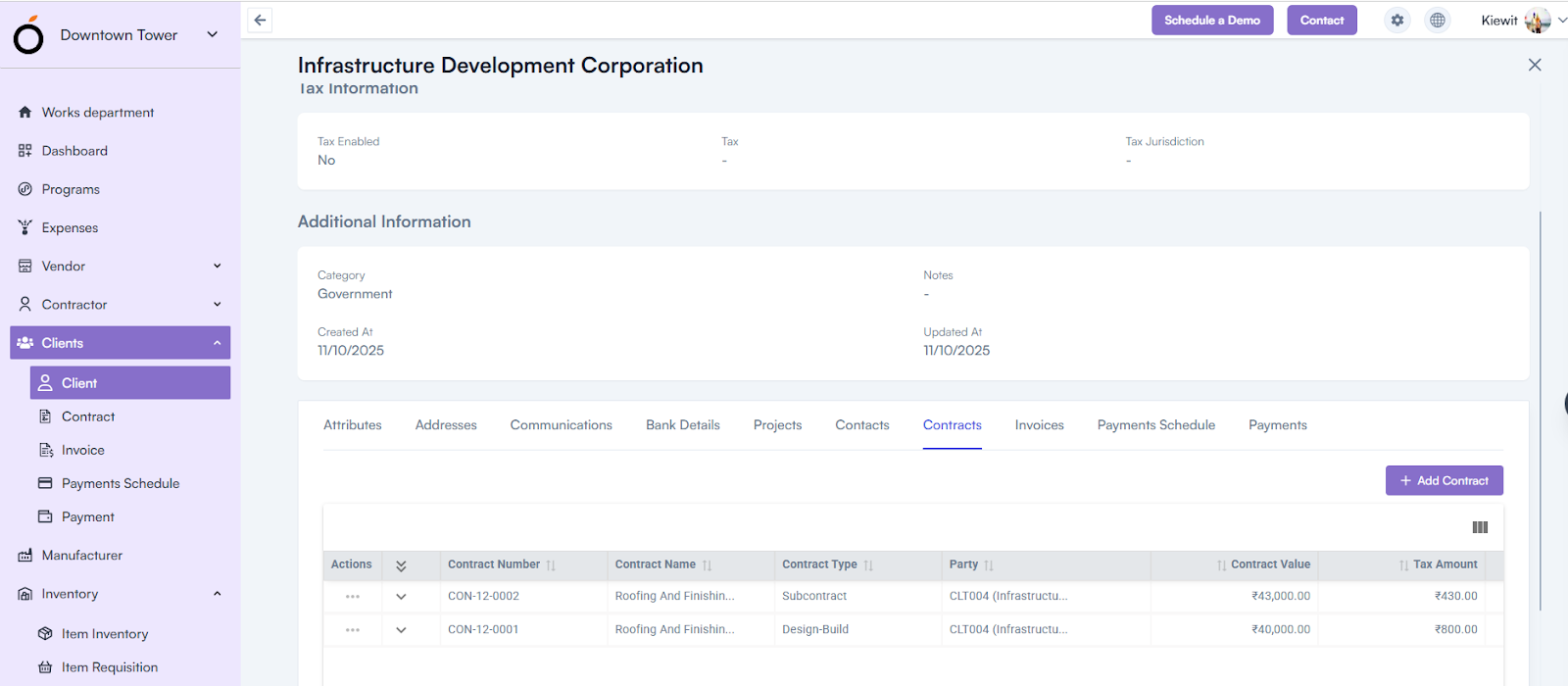
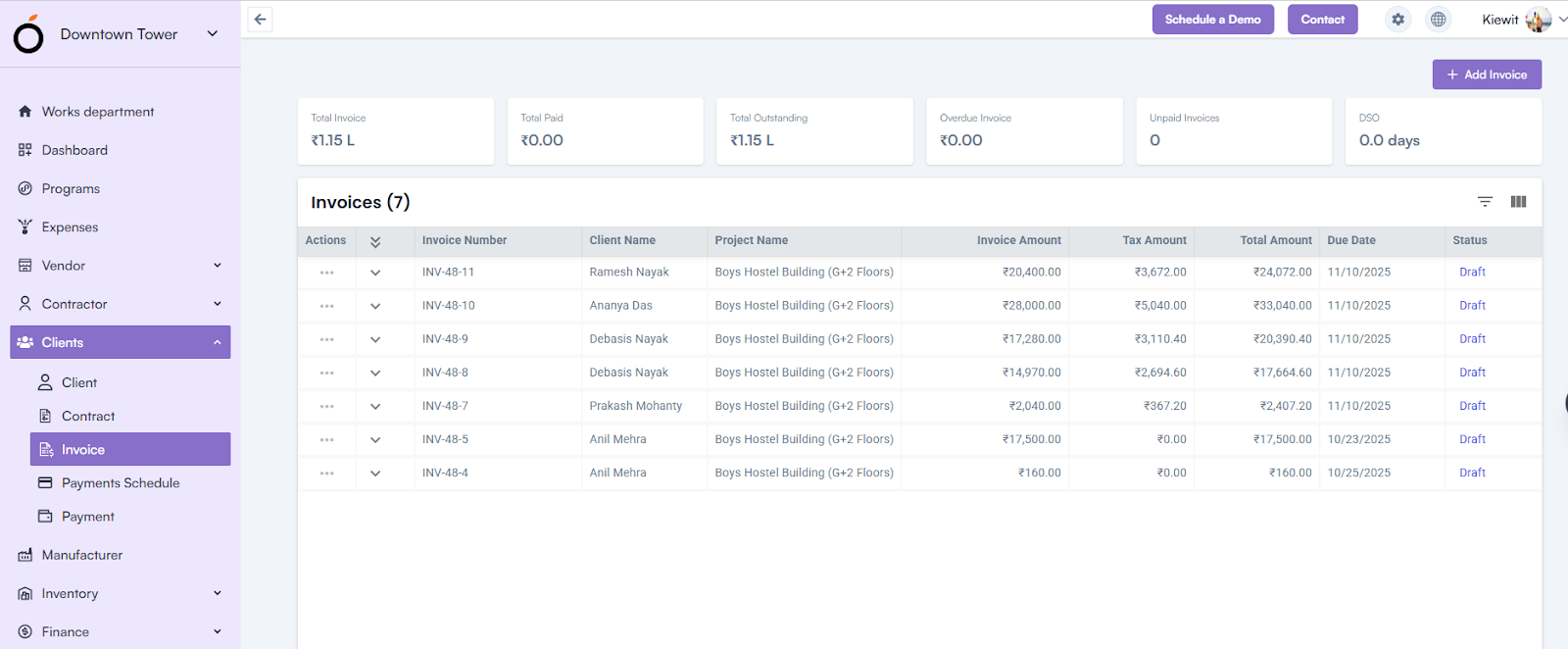
Client Invoice

The Client Invoice module allows to create, manage, and track invoices related to approved client contracts. 

It ensures accurate billing, tax calculation, and payment tracking for each project.

How to Access

Log in to the application > go to the left menu > click on Client Module > click on Invoice > click on Add Invoice.
Client Invoice

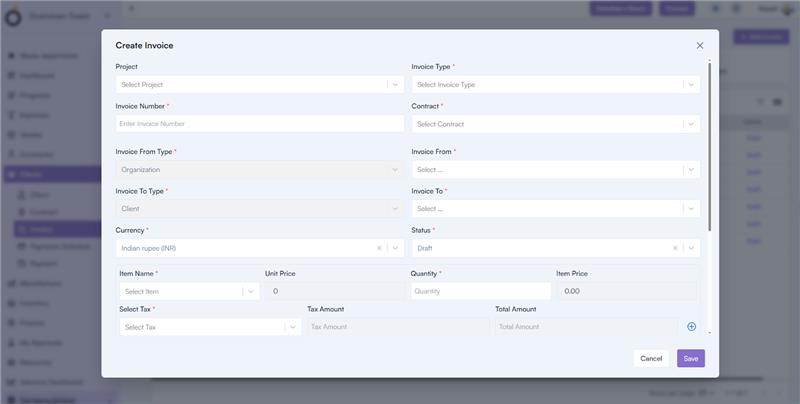
The Create Invoice pop-up will appear, where you can fill in the necessary details.

Steps to Create an Invoice

  • Select Project Name – Choose the project for which the invoice is being generated.
  • Select Invoice Type* – Choose whether the invoice is Regular, Proforma, or Credit.
  • Enter Invoice Number* – Provide a unique invoice identifier.
  • Select Contract* – Choose an approved contract linked to the project.
  • Invoice From Type* – Select the organization issuing the invoice.
  • Invoice To Type* – Select the client receiving the invoice.
  • Select Currency* – Choose the currency for the transaction.
  • Select Status – Choose the current invoice status (e.g., Draft, Submitted, Paid).
  • Select Item Name* – Choose items from the list configured in Company Settings > Items Master.
  • Unit Price & Quantity – Automatically populated based on selected items; quantity updates total item price.
  • Select Tax* – Apply the relevant tax; Tax Amount and Total Amount are auto-calculated.
  • Add Multiple Items – Use the “+” icon beside the Total Amount field to include more items.
  • Auto CalculationsInvoice Amount, Tax Amount, and Net Amount are automatically calculated.
  • Select Payment Terms* – Choose from payment terms configured under Finance Settings.
  • Select Invoice Date, Due Date, and Invoice Receive Date* – Define important billing dates.
  • Upload Attachments – Attach supporting documents (optional).
  • Click Save – Save the invoice to complete the process.
Invoice Details Page

By clicking on an invoice number, the system redirects to the Invoice Details Page, where all entered invoice details are displayed along with a barcode for scanning.

Available Actions:

  • Print Preview – View and print the invoice in a formatted layout.
  • Cancel Invoice – Cancel the invoice if required.
  • Audit Log – View the change history and user actions performed on the invoice.
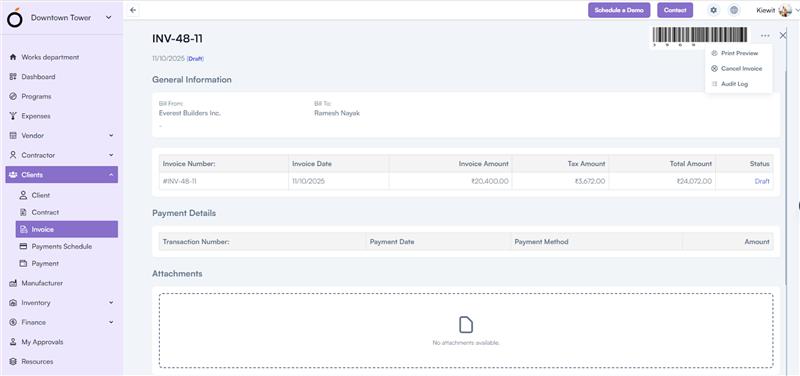
Invoice Details Page

KPI’s

  • Total Invoice – Displays the total number of invoices generated.
  • Total Paid – Shows the total amount received from all invoices.
  • Total Outstanding – Indicates the total unpaid balance from clients.
  • Overdue Invoice – Lists invoices that have crossed their due date.
  • Unpaid Invoices – Displays invoices pending payment confirmation.
  • DSO (Days Sales Outstanding) – Represents the average number of days taken to collect payments.
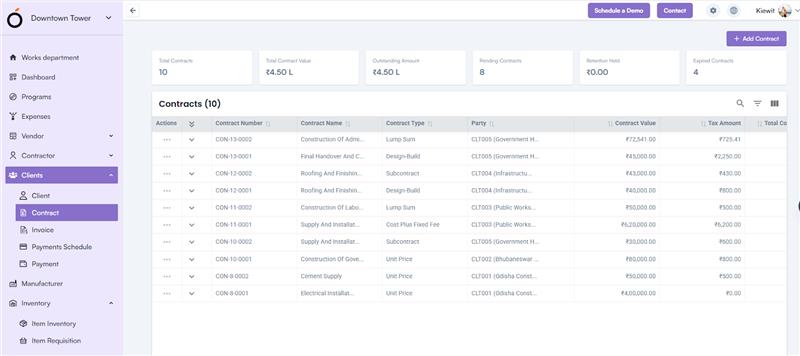
Client Contract Module Overview

The Client Contract module is designed to manage and monitor all contractual agreements between your organization and clients.

It helps in maintaining structured records of contracts, deliverables, payment terms, and legal clauses, ensuring transparency and accountability across all projects.

Accessing the Contract Module

To access the module: Login to the application → Go to the left menu → Click on Contract → Click on Add Contract.

Client Contract Module Overview

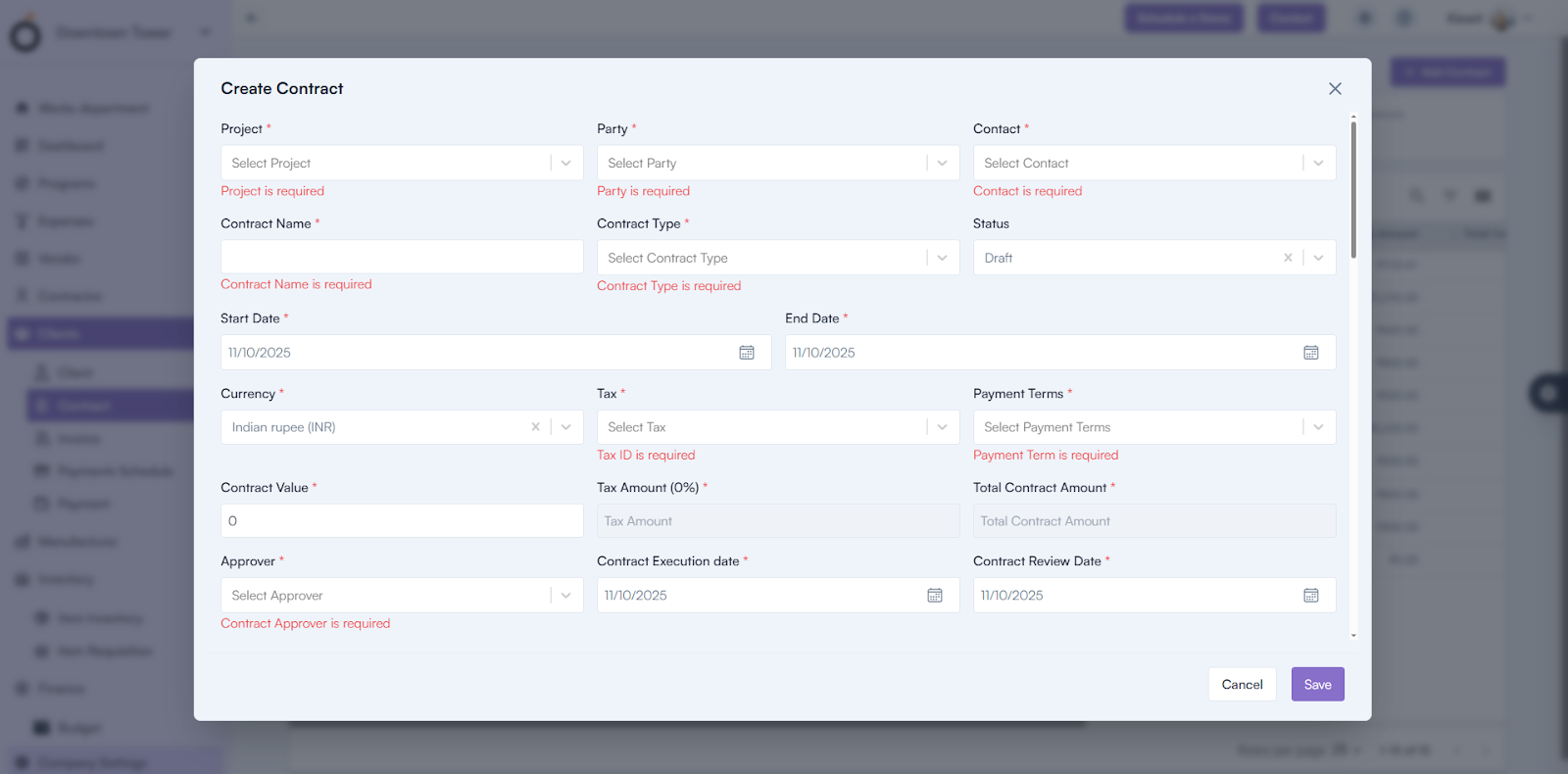
Steps to Create a Contract

1. Select the Project Name.

2. Select the Party.

3. Select the Party Contact*.

4. Enter a Contract Name*.

5. Select the Contract Type* (from the dropdown).

6. Select the Status.

7. Choose a Start Date* and End Date*.

8. Select the Currency.

9. Choose Tax* (can be configured in Finance Settings).

10. Select Payment Terms* (from the dropdown).

11. Enter the Contract Value*.

  • Based on this, Tax Amount (0%)* and Total Contract Amount* are automatically calculated.

12. Select an Approver*.

13. Enter Contract Execution Date* and Contract Review Date*.

14. Fill in Contract Deliverables* including:

  • Deliverable Name, Date, Notes, and Deliverable Description*.

15. Add Contract Terms* such as:

  • Term Name, Term Number, Term Type, Date, Amount, Currency, and Term Description*.

16. Fill in Jurisdiction and Legal Clauses.

17. Select Parameters and upload necessary Attachments & click on the save button.

Steps to Create a Contract

Contract Details Page

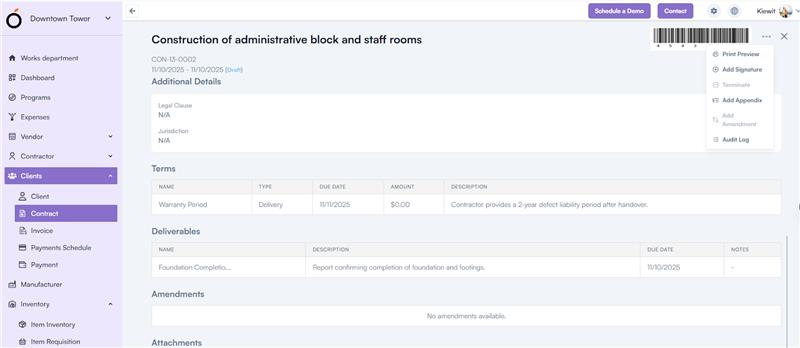
By clicking on a contract number from the list, the page is redirected to the Contract Details Page.

Here, all the information entered during contract creation is displayed, including project details, payment terms, deliverables, and legal clauses.

Contract Details Page

Additionally, the details page includes the following options:

  • Print Preview – View and print the complete contract.
  • Add Signature – Digitally sign the contract.
  • Terminate – Close or end an existing contract.
  • Add Appendix – Add supplementary details to the contract.
  • Add Amendment – Record contract modifications.
  • Audit Log – Track all actions and changes made to the contract.

KPI Section

The header section of the Contract module displays key performance indicators to monitor overall contract health and status:

  • Total Contracts – Displays the total number of contracts created in the system.
  • Total Contract Value – Shows the combined value of all approved contracts.
  • Outstanding Amount – Indicates the total unpaid or pending payment amount from clients.
  • Pending Contracts – Lists contracts that are awaiting approval or finalization.
  • Retention Held – Represents the amount retained from client payments as per contract terms.
  • Expired Contracts – Displays contracts that have passed their end date without renewal.

Post-Approval Action

Once a contract is approved, it automatically becomes available in the Invoice Section, allowing the billing process to begin based on contract terms.

Client Module

The Client module helps organizations manage all client-related details and their financial activities from a single dashboard.

It allows users to create, edit, and track client information along with related contracts, invoices, payment schedules, and payments.

This ensures smooth client relationship management, transparent financial control, and easy access to essential client data.

Module Components

The Client module includes the following sections:

  • Client – Manage client profiles and basic information.
  • Contract – Maintain agreements made with clients.
  • Invoice – Record invoices raised for clients.
  • Payment Schedule – Define the payment milestones.
  • Payment – Track and manage payment receipts.

Navigation Path

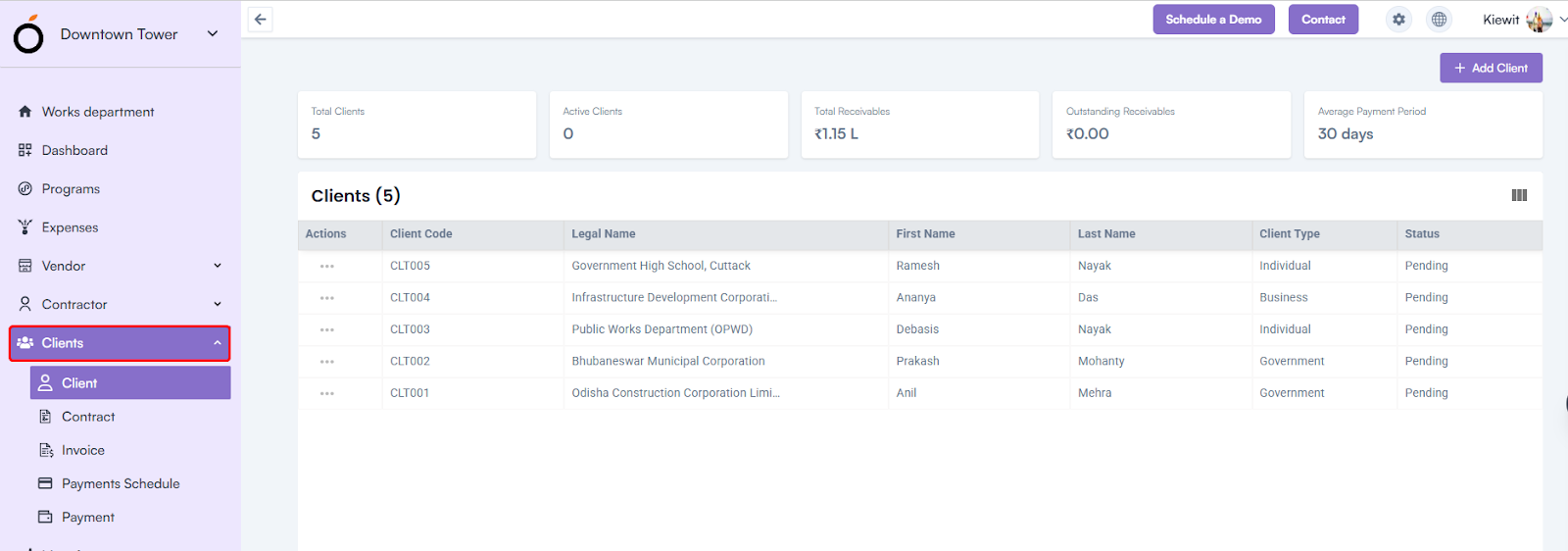
Log in to the application → Go to the Left Menu → Click on Client Module → Click on Client

Client Module

What is a Client?

A Client refers to an individual or organization your company engages with for business or project-related transactions.

It stores details such as client name, contact information, address, tax details, and financial data needed for billing, invoicing, and reporting.

Create Client – Step-by-Step Guide

Accessing the Form:

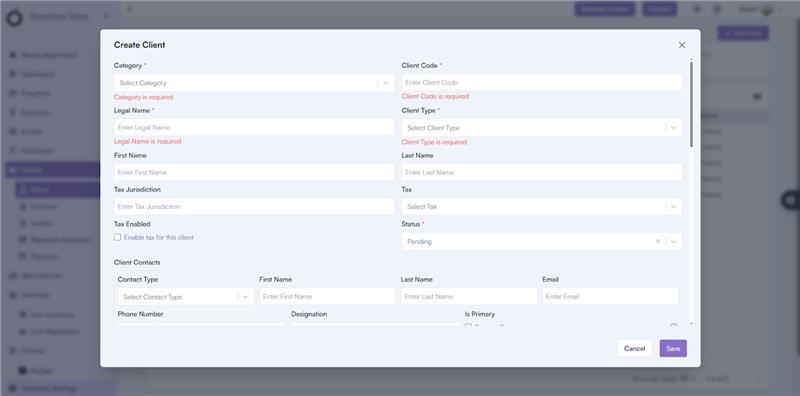
Log in to the application → Go to the Left Menu → Click on Client Module → Click on Client → Click on Add Client

Create Client

Client Information

  • Category* – Select the client’s business category, such as Organization or Individual.
  • Client Code* – Enter a unique code to identify the client.
  • Legal Name* – Provide the client’s registered business name.
  • Client Type* – Choose from available options such as Domestic, International, or Government.
  • First Name / Last Name – Enter the main contact person’s name.
  • Tax Jurisdiction – Specify the applicable tax region or jurisdiction.
  • TAX – Select the applicable tax type from the dropdown. (Tax configuration can be managed under Company Settings → Finance Settings)
  • Tax Enabled – Check this box to apply tax to transactions related to this client.
  • Status* – Define whether the client is Active, Inactive, or On Hold.

Client Contacts

This section allows you to manage contact persons linked to the client.

  • Select the Contact Type from the dropdown.
  • Enter the First Name, Last Name, Email, Phone Number, and Designation.
  • Select the Is Primary checkbox to mark the main contact person.

Client Addresses

Add and manage all client addresses, such as billing or office locations.

  • Select Address Type (Billing, Shipping, Registered, etc.)
  • Enter Address Line 1, Address Line 2, City, Zipcode, Country, and State.
  • Select the Is Primary checkbox if applicable.

Client Communications

Add communication channels, such as email or phone.

  • Select Communication Type (Email, Phone, Website).
  • Enter the Communication Value.
  • Mark Is Primary if it is the main communication method.

Client Bank Details

Store the client’s financial details for payment processing.

  • Enter Bank Name, Account Number, Account Holder Name, Account Type, and Branch Name.
  • Select Country, State, City, and Zipcode.
  • Select Is Primary if it is the main bank account.

Client Attributes

  • Define additional attributes related to the client.
  • Select the Client Attribute and its corresponding Value.
  • You can also upload a Logo and add Notes for internal reference.

Mandatory Fields

To create a client, the following fields are mandatory:

  • Category
  • Client Code
  • Legal Name
  • Client Type

Client Details Page

After creating a client, clicking on the record in the list view opens the Client Details Page, which displays:

  • Client’s general information and status.
  • Contacts, Addresses, Communications, and Bank Details.
  • Linked Projects, Contracts, Invoices, Payment Schedules, and Payments.

All sections are displayed in a tabbed view for better navigation and clarity.

Client Details Page

Client KPIs

In the Client module header, KPI metrics provide a quick overview of client performance and payment health:

  • Total Clients – Displays the total number of clients registered in the system.
  • Active Clients – Shows how many clients are currently active.
  • Total Receivables – Displays the total billed amount for all clients.
  • Outstanding Receivables – Shows the pending amount yet to be received.
  • Average Payment Period – Indicates the average time clients take to make payments.
  • Top Clients by Revenue (Optional) – Highlights the highest revenue-generating clients.
  • Delayed Payments Count (Optional) – Displays how many client payments are overdue.

Contractor Payment

The Contractor Payment module allows project and finance teams to manage, track, and record all financial transactions made to contractors.

It provides a structured way to handle payments against approved invoices, ensuring accuracy and accountability in project-related expenses.

This module helps maintain a transparent audit trail of every payment processed, supports multiple payment methods, and provides real-time updates on financial commitments and balances. It also assists in monitoring pending, approved, and completed payments, helping organizations manage their cash flow efficiently.

Navigation Path

  • Log in to the application.
  • Go to the left menu and click Contractor.
  • Click Payment.
  • Click Add Payment to create a new record.

Create Payment – Step-by-Step Instructions

1. Select Project – Choose the project for which the payment is being made.

2. Select Contractor – Select the contractor to whom the payment will be issued.

3. Select Invoice – Choose the linked invoice associated with this payment.

After selecting the invoice, the system automatically pre-fills important financial details such as:

  • Payment Due Date – Displays the date when payment is expected.
  • Invoice Amount – Shows the total invoice amount before tax.
  • Tax Amount – Displays the applicable tax on the invoice.
  • Sub Total – The total amount excluding tax.
  • Adjustment Amount – Displays any adjustments or deductions applied.
  • Total Amount – The total invoice value, including tax.
  • Total Tax Amount – Displays the total calculated tax.
  • Payment Amount – The actual amount being paid.
  • Currency Code – The currency in which payment is made.

4. Enter Payment Date – Specify the date on which the payment was made.

5. Enter Payment Method – Select the mode of payment, such as bank transfer, cheque, online payment, or cash.

6. Select Approver – Choose the authorized person who approved this payment.

7. Select Payment Made By – Specify the user who initiated or processed the payment.

8. Enter Transaction Number – Provide a valid transaction or reference number for tracking the payment in financial records.

9. Upload Attachments – Attach any payment confirmation documents, receipts, or bank slips for reference.

10. Enter Reference Note – Add any remarks or additional details relevant to the transaction.

Mandatory Fields

The following fields are mandatory for creating a payment:

  • Contractor, Invoice, Payment Date, Approver, Payment Made By, and Transaction Number.

Payment – Table Listing

Each payment record in the system displays the following details for easy tracking and management:

  • Actions – Options to View, Edit, or Delete the record.
  • Payment Reference Number – A unique system-generated identifier for the payment.
  • Payment Amount – The total amount paid to the contractor.
  • Project Name – The project is linked to the payment.
  • Contractor Name – The contractor who received the payment.
  • Payment Method – The mode used for the payment (bank transfer, cheque, etc.).
  • Payment Date – The actual date on which the payment was made.
  • Status – Displays the current status of the payments, such as Pending, Approved, Completed, or Canceled.

Payment KPIs (Key Performance Indicators)

The payment dashboard provides real-time insights into financial activities:

  • Total Payments Made – Displays the total number of payments recorded in the system.
  • Total Payment Amount – Shows the cumulative value of all processed payments.
  • Pending Payments – Indicates payments awaiting approval or clearance.
  • Average Payment Amount – Calculates the average value of all payments made.
  • Payments by Subcontractor – Provides a breakdown of payments grouped by subcontractor for better tracking and financial analysis.

Additional Features

  • Global Search – Quickly search payments using payment reference numbers, contractor names, or project details.
  • Sorting – Sort the payment list by date, amount, project name, or payment status for easier navigation and reporting.

Contractor Invoice

The Contractor Invoice module enables you to manage and track all billing activities associated with approved Work Orders.

It provides a centralized view of invoices raised by contractors, ensuring transparency in project expenses and payments.

  • Monitor payment progress and outstanding liabilities.
  • Maintain compliance with contractual and financial terms.
  • Streamline approval and payment workflows through the integrated finance system.

Navigation Path

  • Log in to the application.
  • Go to the left menu and click Contractor.
  • Click Invoice.
  • Click Add Invoice to create a new record.

Create Invoice

1. Select Project

  • Choose the project associated with this invoice from the dropdown list.

(Only active or approved projects will be displayed.)

2. Invoice Type

Select the invoice type from the dropdown options:

  • Regular – For standard billing based on work completion.
  • Proforma – For preliminary or advance billing before finalization.
  • Credit – For issuing credit notes or adjustments to previous invoices.

3. Enter Invoice Number

Provide a unique invoice reference number. This helps maintain traceability and prevents duplication.

4. Select Invoice From

Select the Contractor issuing the invoice from the dropdown list. The system automatically fetches contractor details from the approved vendor database.

5. Select Work Order

Choose the related Work Order for which the invoice is being generated. The system will auto-fetch related work details, quantities, and amounts linked to the Work Order.

6. Select Invoice To

Select the organization or client to whom the invoice is being billed.

7. Select Currency

Choose the currency applicable to the invoice transaction. If a project involves international vendors, this ensures correct conversion for accounting.

Based on the above inputs, the following fields are auto-filled:

  • Invoice Amount
  • Tax Amount
  • Total Amount (Invoice + Tax)

8. Select Payment Terms

  • Choose the predefined payment terms configured in Company Settings ➝ Finance Settings.

For example: Net 15, Net 30, On Delivery, etc.

9. Select Invoice Date

Enter the date when the invoice was officially issued.

10. Select Due Date

Specify the payment due date. The system uses this to calculate overdue status automatically.

Select Invoice Receive Date

  • Record the date when your organization received the invoice from the contractor.

Upload Attachments

Attach supporting documents such as:

  • Signed work completion certificates
  • Delivery receipts
  • Subcontractor bills
  • Tax documents or payment confirmations

Note:

Mandatory Fields

For creating an invoice, the following fields are mandatory:

  • Project *
  • Invoice Type *
  • Invoice Number *
  • Invoice From *
  • Work Order *
  • Invoice To *
  • Payment Terms *
  • Invoice Date *
  • Due Date *
  • Invoice Receive Date *

Invoice Listing Details

Each invoice record displays the following details:

  • Actions – Options to View, Edit, Delete, or Make Payment.
  • Invoice Number – The unique reference number of the invoice.
  • Contractor Name – The contractor issuing the invoice.
  • Project Name – The project related to the invoice.
  • Invoice Amount – The total amount before tax.
  • Tax Amount – The calculated tax on the invoice.
  • Total Amount – The final amount after tax.
  • Due Date – The date when the payment is due.
  • Status – The current status of the invoice, such as Draft, Submitted, Paid, Canceled, or Overdue.

Invoice Status Descriptions

  • Draft or Submitted – Invoice is created but not yet approved.
  • Paid or Settled – Invoice has been fully paid.
  • Canceled or Rejected – Invoice has been voided or rejected.
  • Overdue – Invoice payment date has passed, but payment is still pending.

Additional Features

  • Search – Find invoices by invoice number, project, or contractor name.
  • Sort – Organize invoice records by date, amount, or status.
  • Filter – Apply filters for viewing Paid, Pending, or Overdue invoices.

Invoice KPI’s (Key Performance Indicators)

  • Total Invoices – Shows the total number of invoices created.
  • Total Paid – Displays the total value of paid invoices.
  • Total Outstanding – Shows the balance of unpaid or partially paid invoices.
  • Overdue Invoices – Displays invoices whose due date has passed.
  • Unpaid Invoices – Lists invoices pending approval or payment.
  • DPO (Days Payable Outstanding) – Indicates the average number of days taken to pay contractor invoices. This helps evaluate payment efficiency and cash flow performance.

Next Steps After Invoice Approval

Once the invoice is approved, it flows into the Payment section, where:

  • Finance teams can initiate payments as per approved terms.
  • The system updates payment history and outstanding balances.

Status automatically changes to Paid once the transaction is completed.

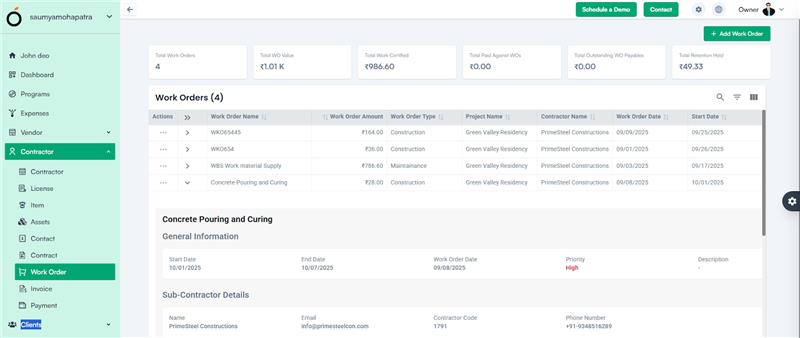
Contractor Work Order

The Contractor Work Order module is a key part of project execution in construction management.

It defines the scope of work, materials, timelines, and financials agreed between the company and the contractor.

In real-world construction, Work Orders (WOs) are used to:

  • Assign specific construction, maintenance, or renovation tasks to subcontractors.
  • Track labor, equipment, and materials required for a job.
  • Define measurable deliverables tied to contracts and payments.
  • Maintain regulatory compliance, safety, and inspection documentation.

Navigation Path

  • Log in to the application.
  • Go to the left menu and click Contractor.
  • Click Work Order.
  • Click the Add Work Order button to open the form.

Contractor Work Order

Create Work Order – Form Fields

1. Select Project

  • Choose the project for which the Work Order is being created.
  • Only active projects will be listed.

2. Select Sub Contractor

  • Choose the subcontractor who will execute the assigned work.

3. Select Contract

  • Select an approved contract from the dropdown.
  • Only contracts in Approved or Completed status are available.

4. Work Order Name

  • Enter a descriptive name for easy identification (e.g., Electrical Installation – Tower B).

5. Parent Work Order

  • If this is a continuation of a previous order, select the parent work order.

6. Work Order Type

  • Select from available options such as Maintenance, Construction, Renovation, or Demolition.

(Configured for categorization and tracking different types of work activities.)

7. Work Order Category

  • Select the category from the dropdown.

(Configured in Company Settings ➝ Construction ➝ Work Order Categories.)

8. Work Order Date

  • Select the date on which the Work Order is issued.

9. Start Date / End Date

  • Specify the planned start and completion dates.
  • These dates determine scheduling, progress tracking, and delay analysis.

10. Approver

  • Select the authorized approver from the dropdown.

(Configured in Company Settings ➝ Organisation ➝ Approvers.)

Priority

  • Choose the urgency level – High, Medium, or Low.
  • This helps project managers allocate resources and monitor critical jobs first.

Equipment Required

  • Select Yes or No.

If “Yes,” it indicates that equipment or heavy machinery is needed (e.g., cranes, scaffolding, drilling rigs).

Estimated Labor Hours

  • Enter the total estimated working hours required to complete the job.
  • This helps in workforce planning and performance tracking.

Permit Number

  • Enter the relevant permit number for the work.
  • Permits ensure compliance with local construction, safety, and labor laws.

Inspection Status

  • Select from: Not Started, Started, In Progress, Completed, or Rejected.
  • This field helps track quality assurance and inspection readiness.

Regulatory Compliance

  • Select one of the following: Fully Compliant, Partially Compliant, Non-Compliant, or Pending Review.
  • This ensures the work aligns with government and safety standards.

Safety Checklist

  • Enter or upload the safety checklist for this work order.
  • This typically includes PPE usage, fall protection, fire safety, and hazard controls.

Subcontractor Info

  • Add additional subcontractor details such as supervisor name, on-site contact, or work crew information.

Item Name*

  • Select the item from the dropdown that is being supplied or used in the work order (e.g., Cement Bag, Rebar, Tiles).

Unit Price

  • Enter the per-unit price for the selected item.

Quantity*

  • Enter the number of units or quantity of work.

Amount Calculation

  • The total amount is auto-calculated based on Unit Price × Quantity.

Tax*

Select applicable tax from the dropdown.

The system automatically calculates:

  • Tax Amount
  • Total Price
  • Net Amount
  • Total Tax Amount
  • Grand Total

Currency Code

  • Select the currency for this work order.

Attachments

  • Upload related documents such as BOQs, drawings, or material approvals.

Description

  • Provide any remarks or additional context related to the work order.

Note: For Creating a Work Order

Mandatory Fields:

  • Project *
  • Sub Contractor *
  • Contract *
  • Work Order Name *
  • Work Order Type *
  • Work Order Category *
  • Work Order Date *
  • Start Date *
  • End Date *
  • Priority *
  • Item Name *
  • Unit Price
  • Quantity *
  • Tax *

Work Order Workflow

  • When created, the Work Order status is initially set to Draft.
  • Once reviewed and approved, it automatically updates to Approved, Issued, or another applicable stage.
  • The Work Order then becomes eligible for Invoice generation, where billing and payment tracking occur.
  • Completed Work Orders feed data into Performance Reports and Contractor KPI dashboards for analysis.
  • Revision or reissue is possible if work scope changes or materials are updated.

Each Work Order Record Displays

  • Work Order Name
  • Work Order Amount
  • Work Order Type
  • Project Name
  • Contractor Name
  • Work Order Date
  • Start & End Date
  • Priority
  • Status

Available Actions:

  • View – Open detailed work order information.
  • Edit – Update work order fields.
  • Delete – Remove the work order after confirmation.

Additional Features

  • Search – Search by Work Order Number or Name.
  • Sorting – Click column headers to sort by date, amount, contractor, or project.

Work Order KPI’s

  • Total Work Orders – Total number of work orders created.
  • Total Work Order Value – Combined financial value of all WOs.
  • Total Work Certified – Amount of work approved after inspection.
  • Total Paid Against WOs – Payments made to contractors.
  • Total Outstanding WO Payables – Pending amounts yet to be paid.
  • Total Retention Held – Retention value held back as per contract terms.

Next Steps After Work Order Completion

Once a Work Order is completed and approved, it automatically flows into the Invoice module:

  • Generation of contractor invoices.
  • Validation of completed work and payments.
  • Linking of invoices with corresponding contracts for financial tracking.

Category: Construction Academy

Subcategory: Budgeting and Planning

Subcategory: Construction Phase

Subcategory: Design Coordination

Subcategory: Estimation Techniques

Subcategory: Initiation and Feasibility

Subcategory: Introduction

Subcategory: Personal Management

Subcategory: Project Close-Out

Subcategory: Project Scheduling

Subcategory: Project Teams

Subcategory: Proposal Management

Subcategory: Total Quality Management

Subcategory: Tracking and Control

Subcategory: Work Breakdown

Category: Help Desk

Subcategory: Client

Subcategory: Construction 101

Subcategory: Contractor Management

Subcategory: Expense

Subcategory: Finance Budget

Subcategory: Inventory Management

Subcategory: My Approvals

Subcategory: Site Management

Subcategory: Vendor Management