Contractor Contract

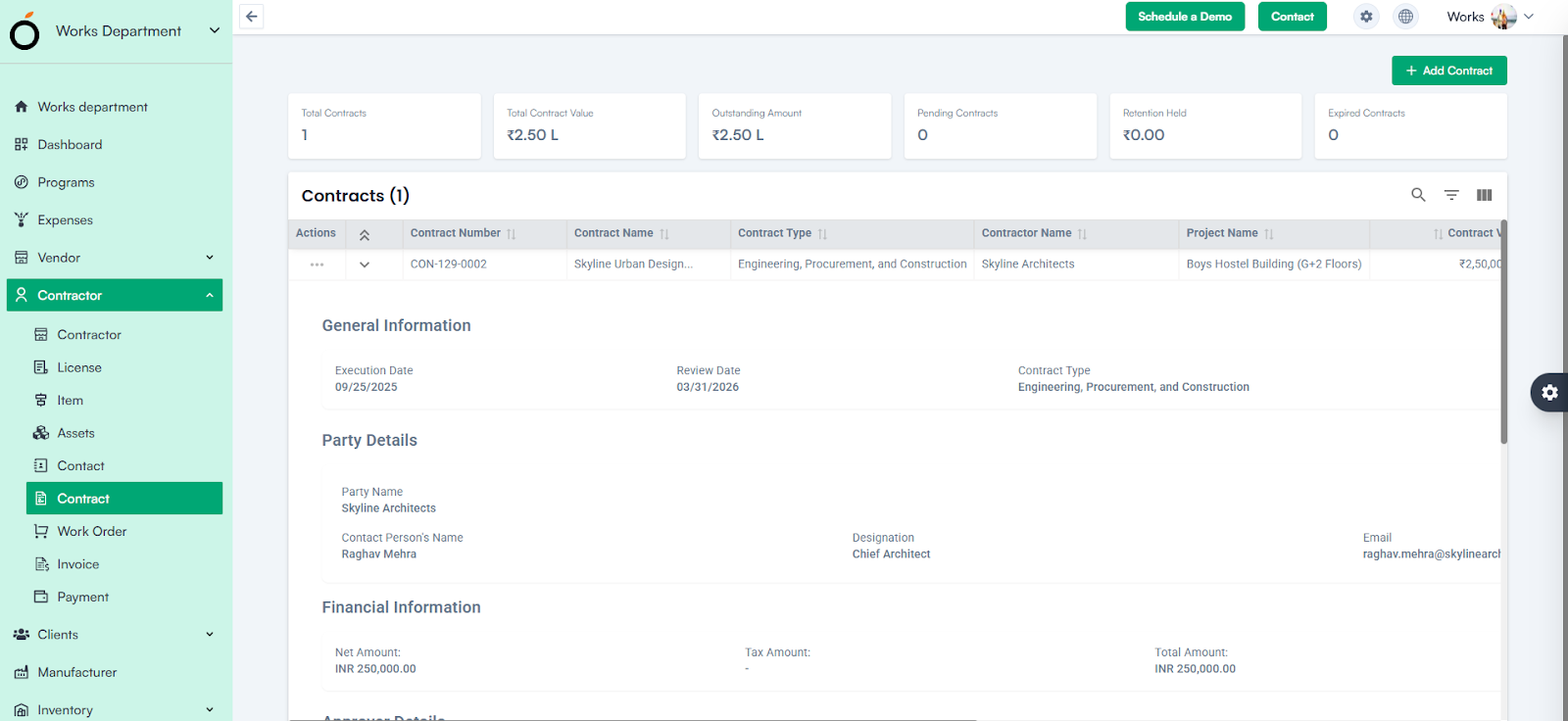
The Contractor Contract section enables organizations to formalize agreements with contractors by defining contract details, values, deliverables, terms, and legal clauses. It ensures compliance, streamlines financial tracking, and establishes clear expectations between the organization and contractors. 

Navigation Path

  • Log in to the application.
  • Go to the left menu and click Contractor.
  • Click on Contract.
  • Click the Add Contract button.

Contractor Contract

Form Field Details

Create a Contract – Steps

1. Select Project Name

Choose the project associated with this contract from the dropdown.

2. Select Contractor/party Name

Select the contractor from the Party dropdown.

3. Select Contact

Choose the appropriate contact linked to the selected contractor.

4. Contract Name

Enter a name for the contract.

5. Contract Type

Select the type of contract from the dropdown.

6. Contract Status

Default status is set to Draft.

7. Date Range

Select the start date and due date from the calendar picker.

8. Currency Code

Select the currency in which the contract value is defined.

9. Tax Selection

Choose applicable taxes from the dropdown.

(Configured in Company Settings ➝ Finance Settings ➝ Tax)

10. Payment Terms

Select payment terms from the dropdown.

(Configured in Company Settings ➝ Finance Settings ➝ Payment Terms)

Contract Value

  • Enter the total contract value.

Tax Amount & Total Contract Amount

  • Calculated automatically based on the entered contract value and tax rate.

Select Approver

  • Choose the approver from the dropdown.

(Configured in Company Settings ➝ Organization Settings)

Contract Execution Date & Review Date

  • Enter the dates for contract execution and review.

Contract Deliverables

Define expected deliverables by filling in:

  • Deliverable Name
  • Deliverable Date
  • Additional Notes
  • Deliverable Description

Contract Terms

Specify detailed contract terms, including:

  • Term Name
  • Term Number
  • Term Type (Payment, Delivery, Penalty, Add Deliverable)
  • Date
  • Amount
  • Currency
  • Term Description

Jurisdiction Name & Legal Clauses

  • Enter the legal jurisdiction and include relevant clauses.

Parameter Selection & Attachment Upload

  • Select additional parameters and upload supporting documents.

Action Buttons

  • Save – Stores the contract record.
  • Cancel – Discards any entered data and exits the form.

Note: For Creating a Contractor Contract

Mandatory Fields:

  • Project *
  • Party *
  • Contact *
  • Contract Name *
  • Contract Type *
  • Currency *
  • Tax *
  • Payment Terms *
  • Contract Value *
  • Approver *

Actions Available per Record

  • View – See contract details.
  • Edit – Update contract information.
  • Contract Template – Access predefined templates.
  • Delete – Remove the contract record.

Additional Features

  • Contract status determines eligibility for generating Work Orders.
  • Clicking the contract name redirects to the Contract Details Page with complete information.

Contract Details Page – Additional Options

  • Print Preview – Generate a printable version of the contract.
  • Add Signature – Insert digital signatures.
  • Terminate – End the contract before its due date.
  • Add Appendix – Attach supporting documents.
  • Add Amendment – Record changes to contract terms.
  • Audit Log – Track updates, approvals, and history for compliance.

Contractor Contract KPI’s

  • Total Contracts – Displays the total number of contracts.
  • Total Contract Value – Sum of all active contracts.
  • Outstanding Amount – Tracks unpaid or pending balances.
  • Pending Contracts – Contracts awaiting review or approval.
  • Retention Held – Displays retained amounts as per contract terms.
  • Expired Contracts – Contracts that have passed their validity date.
Account Payable

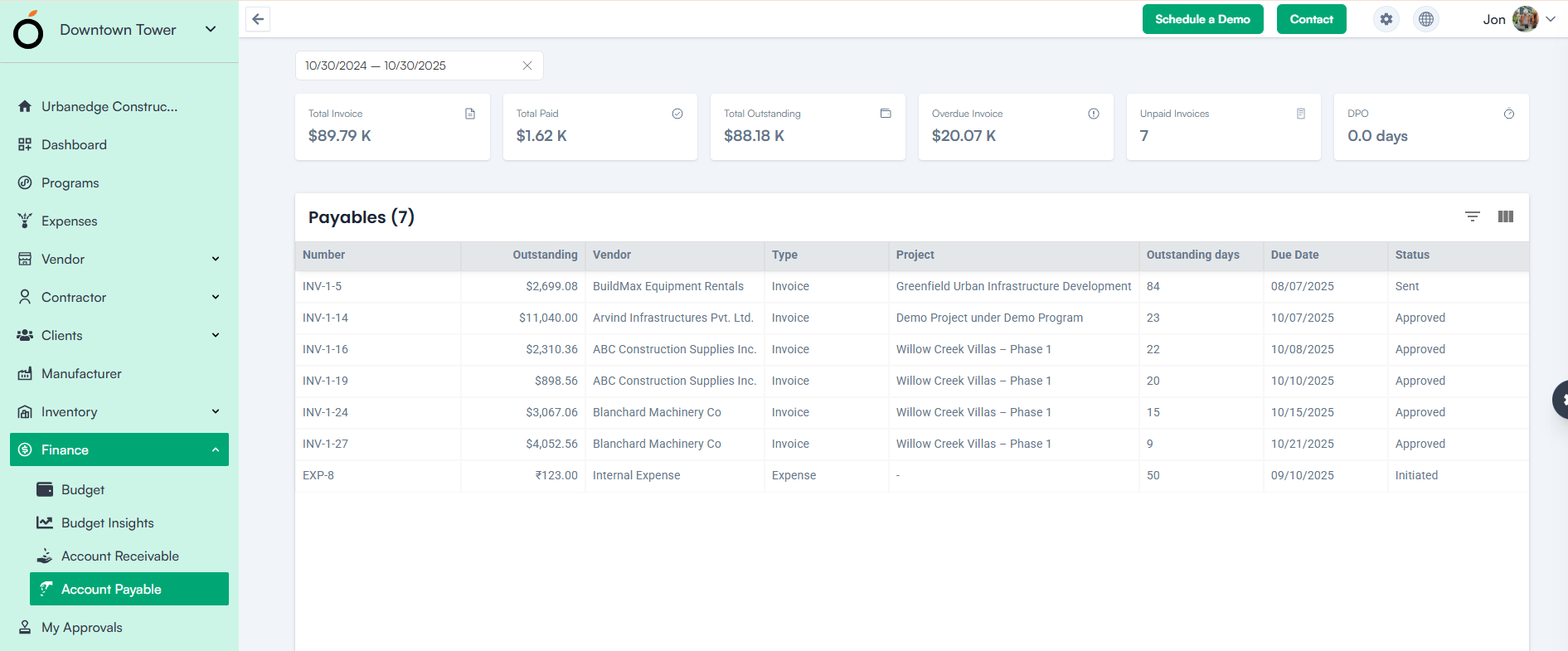
The Account Payable section manages payments owed to vendors, contractors, and service providers. It helps track outstanding obligations, due dates, and approval statuses to maintain a healthy cash flow and vendor relationship.

Displayed Columns

  • Number
  • Outstanding
  • Vendor
  • Type
  • Project
  • Outstanding Days
  • Due Date
  • Status

Account Payable KPIs

  • Date Range – Enables filtering payments within a selected period for analysis.
  • Total Invoice – The number of invoices received from vendors and contractors.
  • Total Paid – The total amount disbursed to clear outstanding payments.
  • Total Outstanding – Remaining payables not yet settled.
  • Overdue Invoice – Payables that have passed their due date.
  • Unpaid Invoices – Invoices that are recorded but await payment.

DPO (Days Payable Outstanding) – Indicates the average number of days the company takes to pay its suppliers.

Account Payable

Account Receivable

The Account Receivable section tracks all payments due from clients. It provides complete visibility into outstanding invoices, due dates, and payment statuses — ensuring timely follow-up and accurate cash flow forecasting.

Displayed Columns

  • Number
  • Outstanding
  • Type
  • Client
  • Project Name
  • Outstanding Days
  • Due Date
  • Status (Approved, Sent)

Account Receivable KPIs

  • Date Range – Filter data by specific time periods for reporting and analysis.
  • Total Invoice – Total number of invoices generated for clients.
  • Total Paid – Total amount received from clients.
  • Total Outstanding – Remaining unpaid invoices.
  • Overdue Invoice – Invoices past their due date.
  • Unpaid Invoices – Invoices that are issued but not yet cleared.

DSO (Days Sales Outstanding) – Measures the average number of days taken to collect payments after a sale, reflecting collection efficiency.

Account Receivable

Budget Insights

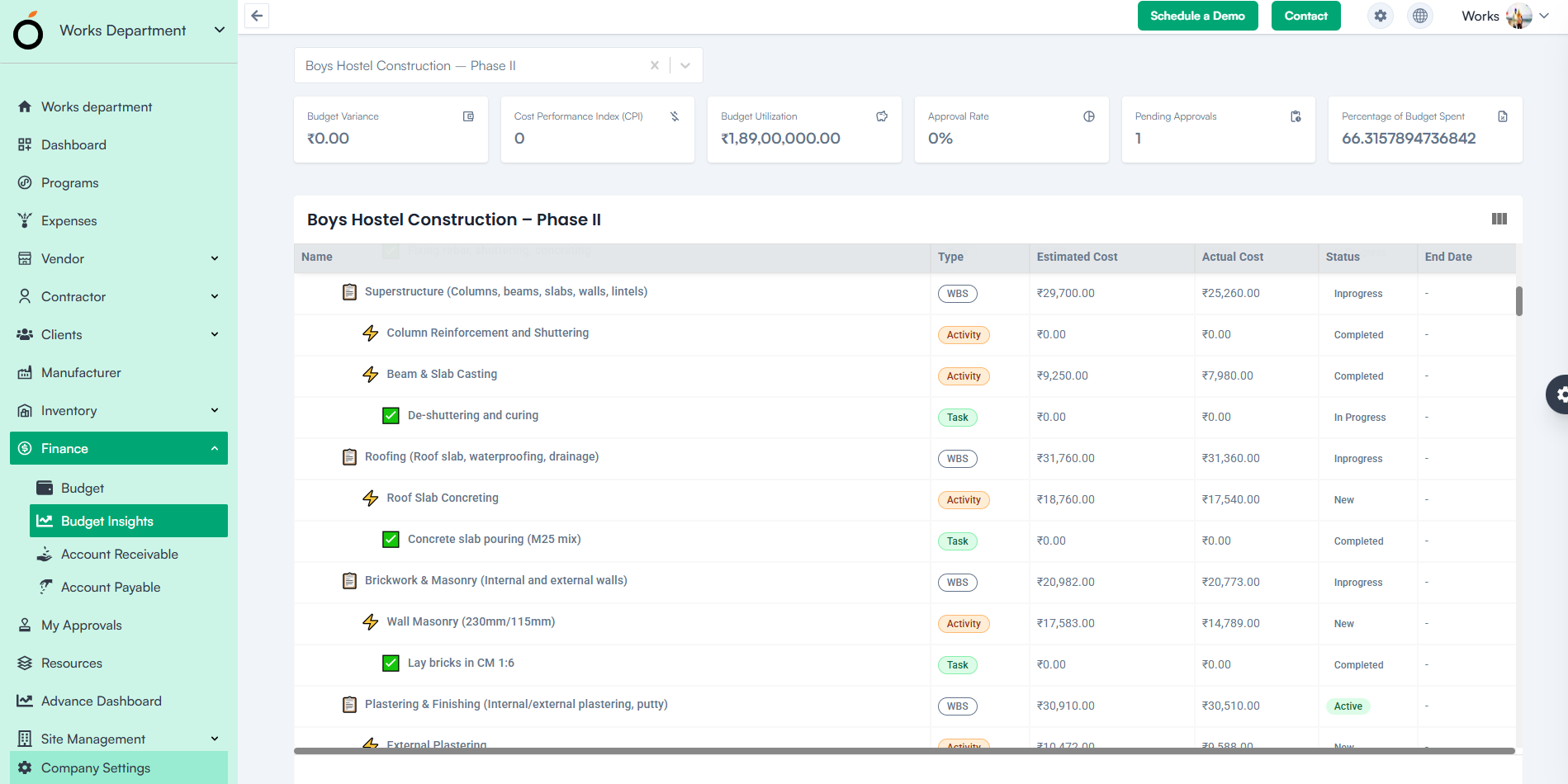
The Budget Insights section provides a consolidated view of all budgets at various hierarchy levels — program, project, milestone, WBS, or task.

It helps decision-makers analyze financial performance, track spending, and identify deviations from planned budgets.

Navigation Path

Log in to the application → Go to Left Menu → Finance Module → Budget Insights

Displayed Information

Each record displays:

  • Budget Name
  • Budget Type (Program, Project, Milestone, WBS, Activity, Task)
  • Estimated Cost
  • Actual Cost
  • Status (New, Active, In Progress, Completed, On Hold)
  • End Date

Budget Insights

Budget Insight KPIs

  • Budget Variance – Measures the difference between planned and actual spending. A positive variance indicates cost savings, while a negative variance suggests overspending.
  • Cost Performance Index (CPI) – Evaluates cost efficiency (CPI > 1 = under budget; CPI < 1 = over budget).
  • Budget Utilization – Represents the percentage of the budget consumed.
  • Approval Rate – Displays the ratio of approved budgets to total created budgets.
  • Pending Approvals – Shows budgets awaiting managerial approval.

Percentage of Budget Spent – Tracks how much of the allocated budget has been used within a given period.

Budget

Purpose

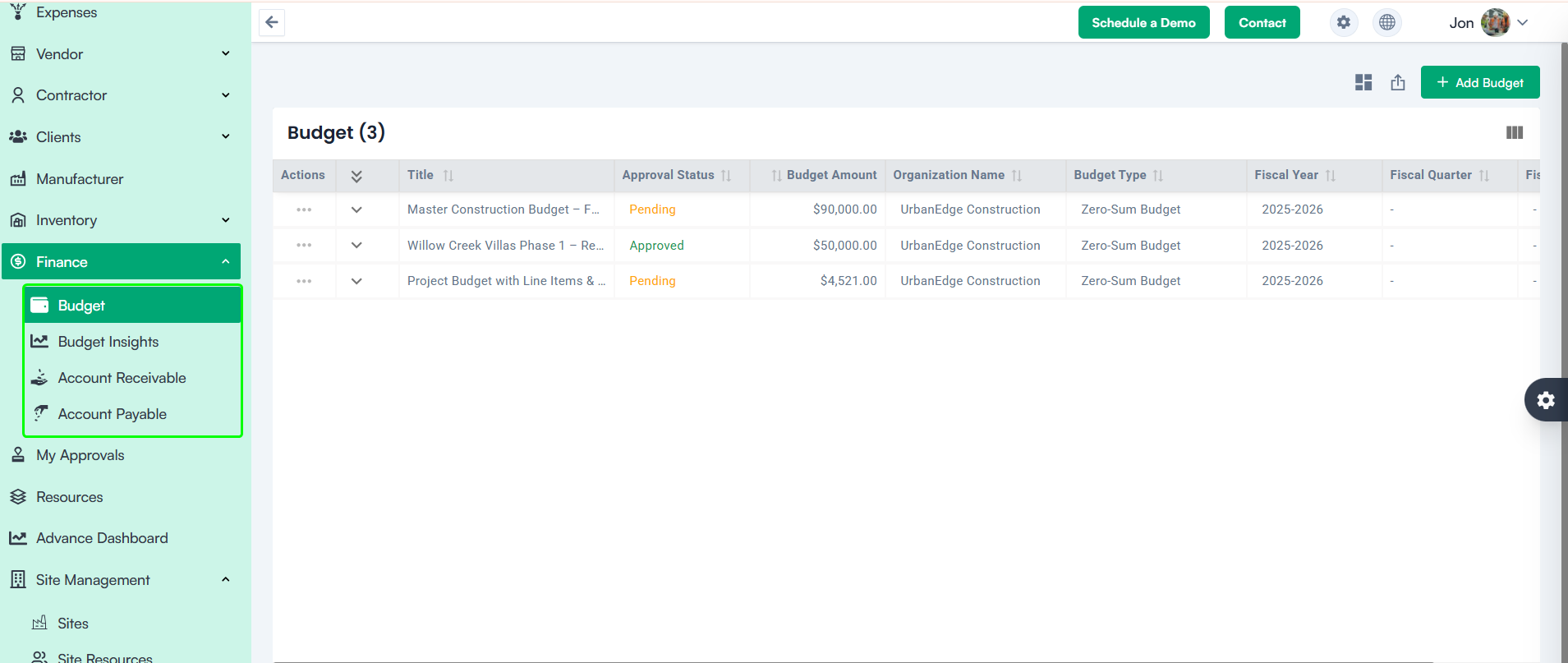
The Budget section allows users to create, allocate, and manage financial budgets for different levels (Program, Project, or WBS, Activity, Tasks, Sub-tasks)

Navigation Path

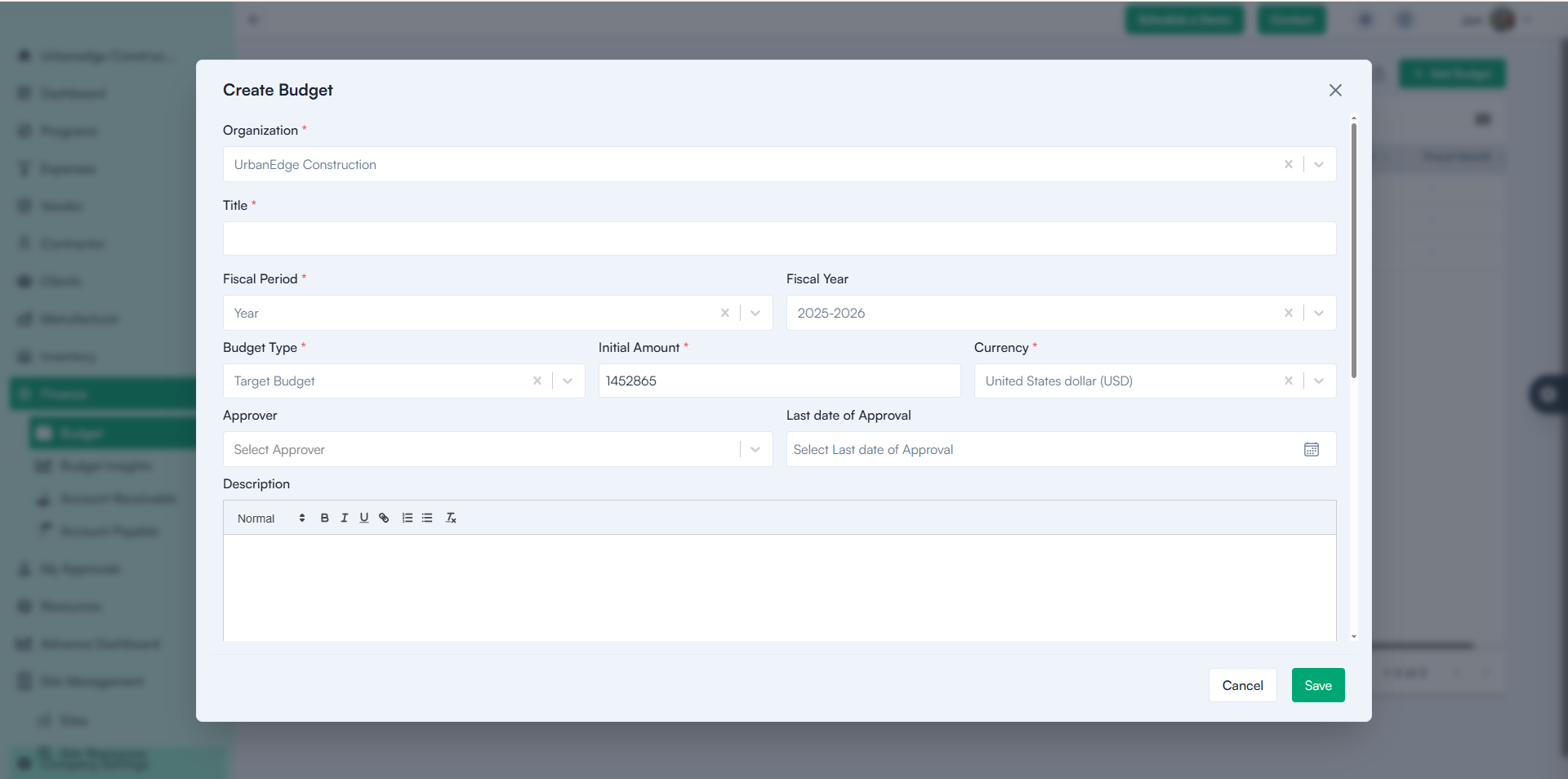
Log in to the application →Go to Left Menu → Finance Module → Budget →Click Add Budget.

Steps to Create a Budget

1. Organization*

  • Select the organization from the dropdown list.

2. Title

  • Enter a descriptive budget title

3. Fiscal Period*

  • Select the fiscal period from the dropdown.

(To configure Fiscal Period and Fiscal Year: Go to Settings → Company Settings → Finance Settings → Fiscal Year)

4. Fiscal Year

  • Choose the appropriate fiscal year from the dropdown.

5. Budget Type*

  • Select the budget type (e.g., Program Level, Project Level).

6. Initial Amount*

  • Enter the total initial amount allocated.

7. Currency

  • Select the currency for the budget.

8. Approver

  • Choose the approver from the dropdown.

(Approvers can be added under Settings → Company Settings → Organisation → Approvers)

9. Last Date of Approval

  • Select the approval deadline from the calendar.

10. Description

  • Provide a detailed description of the budget.

Budget Relations

1. Budget Relationship – Select the relationship type from the dropdown.

(Configured in Settings → Company Settings → Finance Settings → Budget Relationship Types)

2. Parameters & Values – Choose predefined parameters and their corresponding values.

(Configured in Settings → Company Settings → Finance Settings → Budget Parameters)

Line Items

For each line item:

  • Enter Title
  • Select Cost Category
  • Enter Amount*
  • Select Currency*
  • Define Order
  • Upload Attachments*

Use the ➕ icon to add multiple line items.

Budget

Mandatory Fields

  • Organization *
  • Title *
  • Budget Type *
  • Initial Amount *
  • Line Items *

Budget Dashboard View

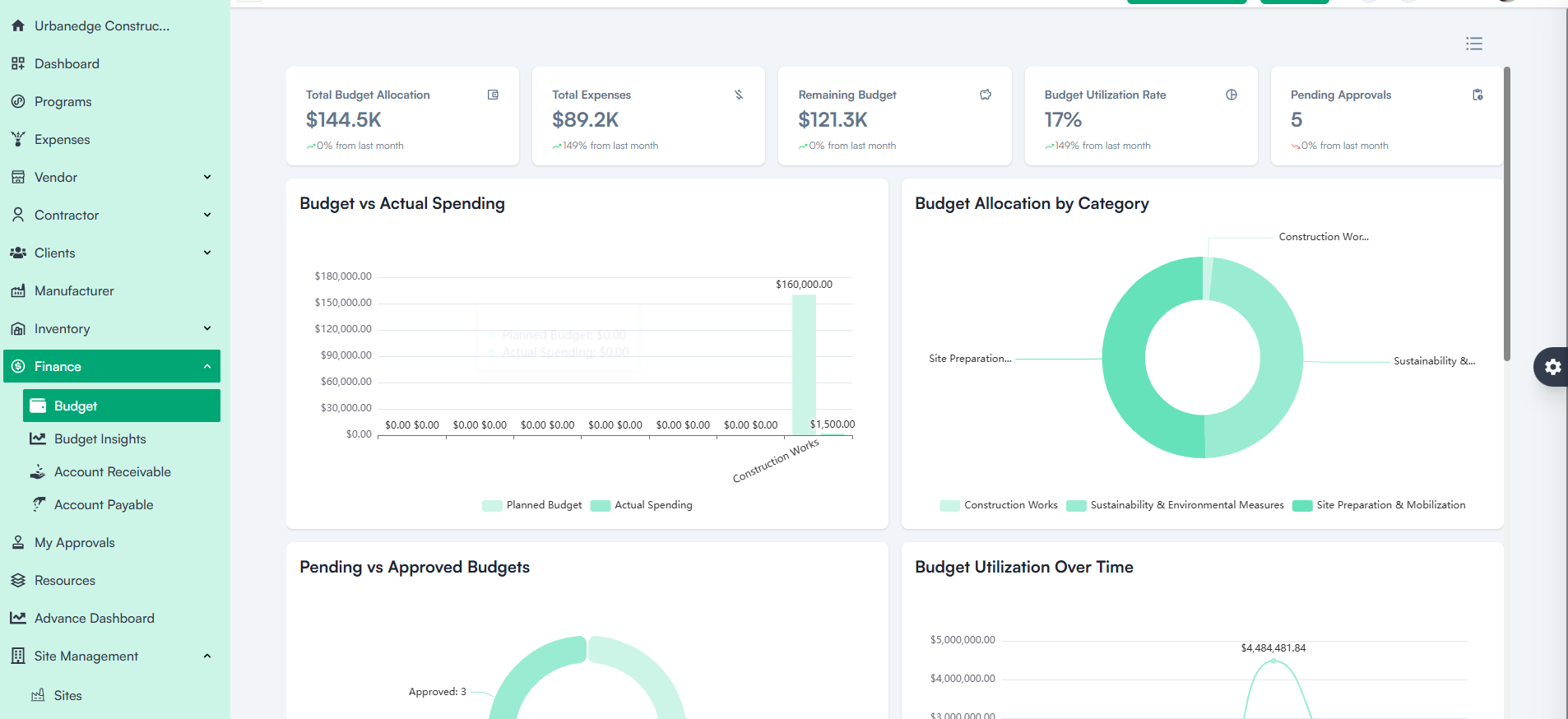
After budget creation, the dashboard provides a visual and analytical view of budget performance through charts and graphs, including:

  • Total Budget Allocation
  • Total Expenses
  • Remaining Budget
  • Budget Utilization Rate
  • Pending Approvals
  • Budget vs. Actual Spending
  • Budget Allocation by Category
  • Pending vs. Approved Budgets
  • Budget Utilization Over Time
  • Top Budgeted Projects
  • Budget Approval Trends
  • Budget Relationships
  • Budget Cost Breakdown

Budget Dashboard View

Export Functionality

Users can export detailed budget reports.

The system automatically sends the export file to the registered user’s email for security and accessibility.

Finance Overview

The Finance Module provides a centralized platform to manage and monitor all financial activities within the organization.

It enables budgeting at both the program and project levels, allows tracking of accounts receivable from clients, and accounts payable to vendors, contractors, and project-related expenses.

This module ensures transparency, financial accountability, and efficient budget utilization across all ongoing projects.

The Finance Module consists of the following key sections:

  • Budget – Define and manage organizational, program, and project budgets.
  • Budget Insights – Analyze budget performance and utilization metrics.
  • Account Receivable – Track payments due from clients.

Account Payable – Manage payments owed to vendors, contractors, and other service providers.

Finance Overview

Category: Construction Academy

Subcategory: Budgeting and Planning

Subcategory: Construction Phase

Subcategory: Design Coordination

Subcategory: Estimation Techniques

Subcategory: Initiation and Feasibility

Subcategory: Introduction

Subcategory: Personal Management

Subcategory: Project Close-Out

Subcategory: Project Scheduling

Subcategory: Project Teams

Subcategory: Proposal Management

Subcategory: Total Quality Management

Subcategory: Tracking and Control

Subcategory: Work Breakdown

Category: Help Desk

Subcategory: Client

Subcategory: Construction 101

Subcategory: Contractor Management

Subcategory: Expense

Subcategory: Finance Budget

Subcategory: Inventory Management

Subcategory: My Approvals

Subcategory: Site Management

Subcategory: Vendor Management